- Open the Analytics tab and select the Bookmarks sub-tab.
- Right-click the bookmark or bookmark folder you want to migrate and select Edit.
- Copy all information displayed in the Edit bookmark window and save it in a text file or another temporary location.
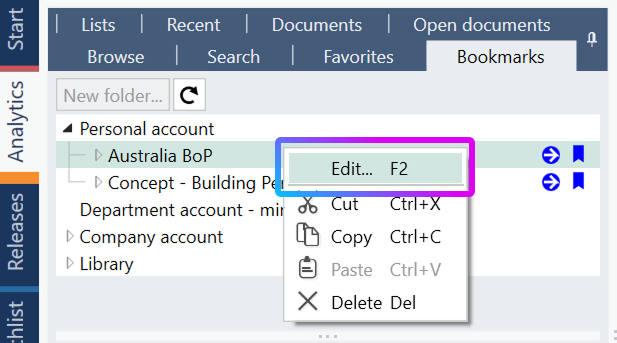
To identify the original database item associated with the bookmark:
- Click the blue arrow next to the bookmark.
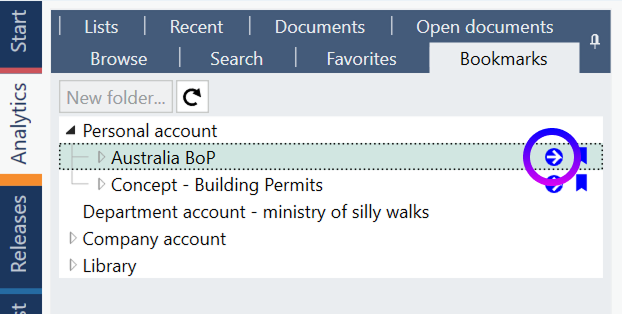
- This opens the bookmark's original location in the database.
- Right-click the selected branch and select Copy.
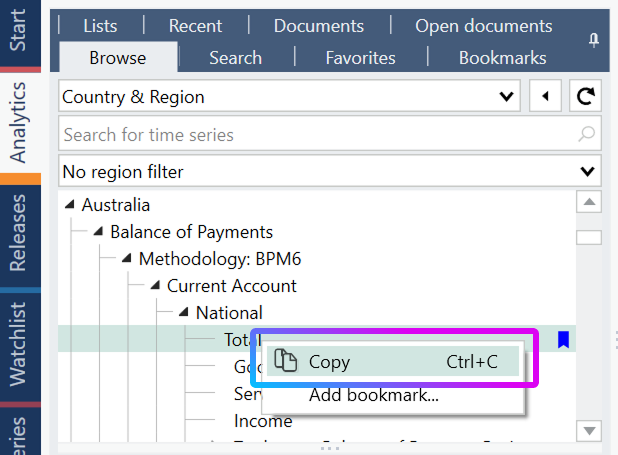
- Save the copied information together with the bookmark details.
The saved information should include:
- The database path
- A direct link to the database item

After signing in to the destination account:
- Open the saved link in your browser, or use the saved database path to navigate to the same location manually.
- Verify that you have reached the correct database branch.
- Right-click the item you want to bookmark.
- Select Add bookmark.
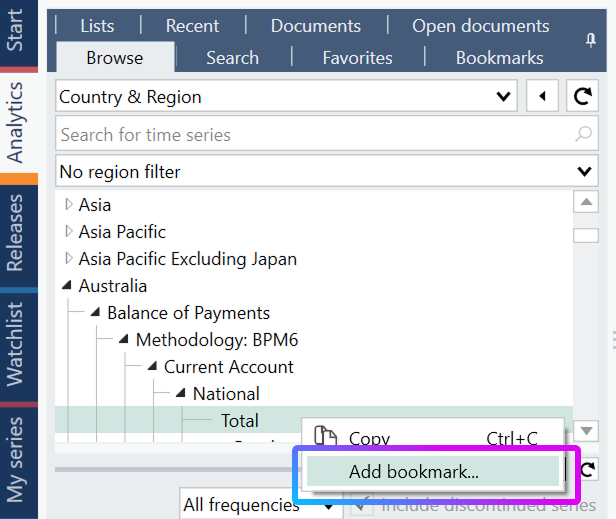
The bookmark is now recreated in the new account.
Tip: When migrating multiple bookmarks, save each bookmark's details together with its database path and direct link. This makes it easier to recreate the original bookmark structure in the destination account.