- Pre-requisites
- Installation & Set-up
- Python - Web API
Pre-requisites
You need to have:
- Your AI Data Feed Web API credentials provided to you by Macrobond
- Access to the Macrobond Github repository (links are embedded below in the documentation)
- Depending on your company’s IT and security policies, you may need to allow-list certain domain names.
- Depending on your AI tool of choice, you may need to turn on developer mode in GPT settings to enable you to connect to external MCPs.
Installation & Set-up
AI Conversational Interfaces – MCP Connector
Claude Chat
Pre-requisites for Claude Chat
If you have a Team or Enterprise plan, you must be an Owner to add a connector. Once the connector has been added to the Team or Enterprise organization, then users can individually connect to and enable that connector.
Please follow Claude’s documentation here.
Remember to prompt the AI to use Macrobond to search and retrieve data and economic intelligence.
Claude Chat – Plugin
Please follow the guide on github here.
ChatGPT
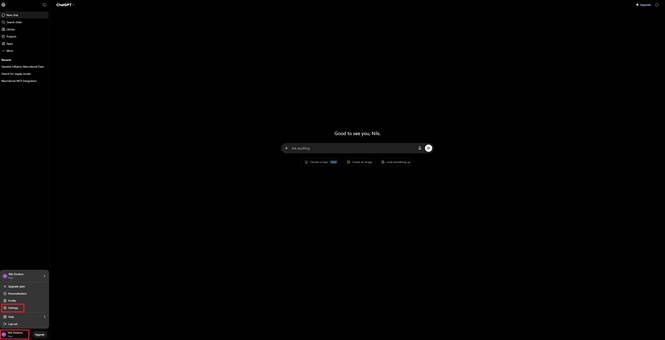
1. Open Settings.
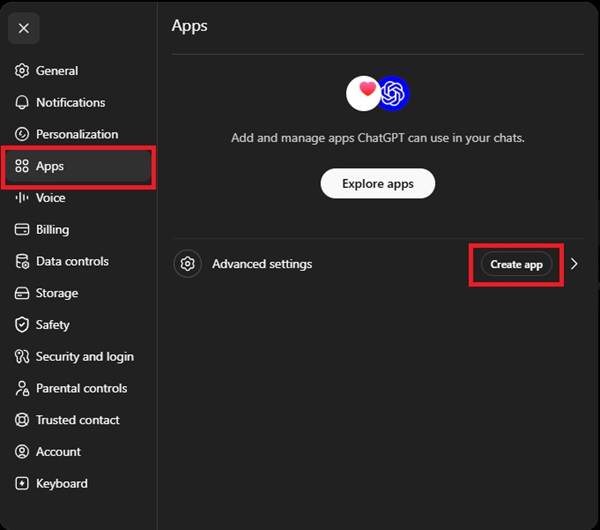
2. Select Apps, then create app.
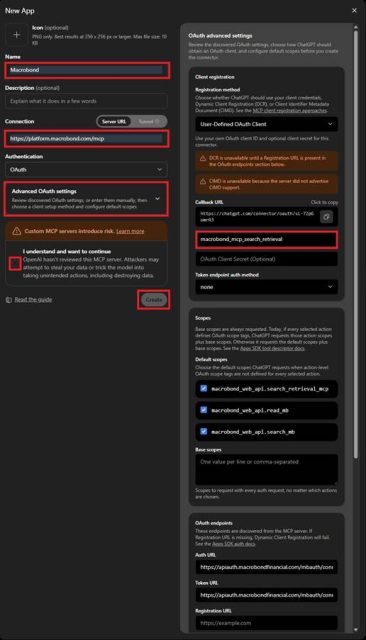
3. Input the following fields:
Name: Macrobond
Connection (server URL): https://platform.macrobond.com/mcp
Advanced OAuth Settings: Client ID: macrobond_mcp_search_retrieval
Remember to tick the checkbox and click Create.
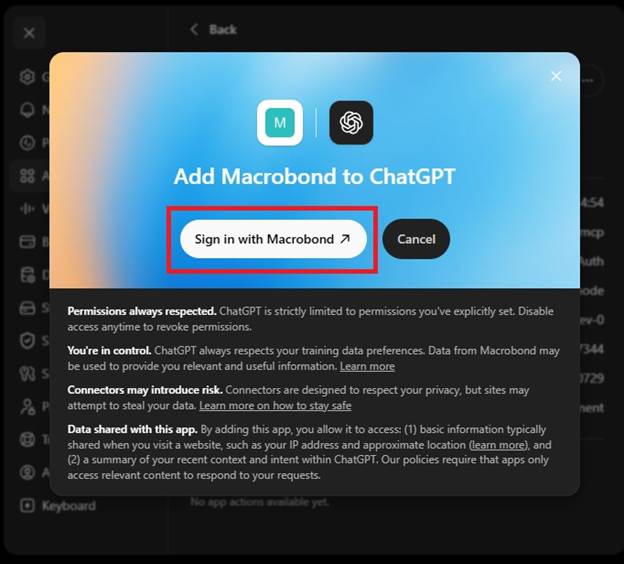
You will be prompted to sign in. You authenticate using the AI Data Feed Web API credentials you received in the welcome email.
Perplexity
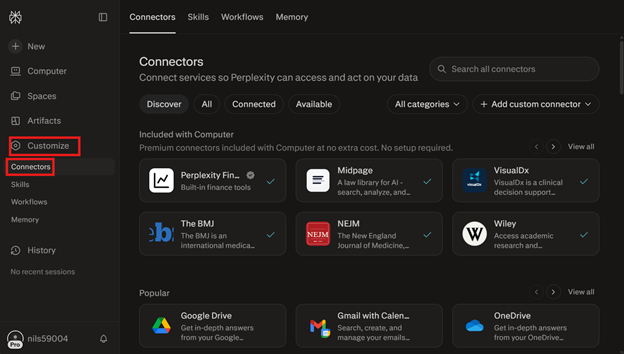
Step 1: Select Customize and Connectors
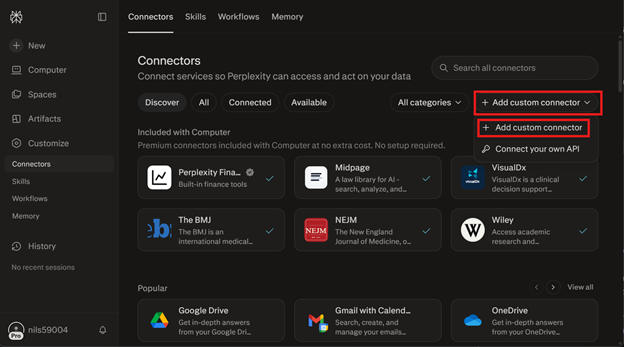
Step 2: Select Add custom connector
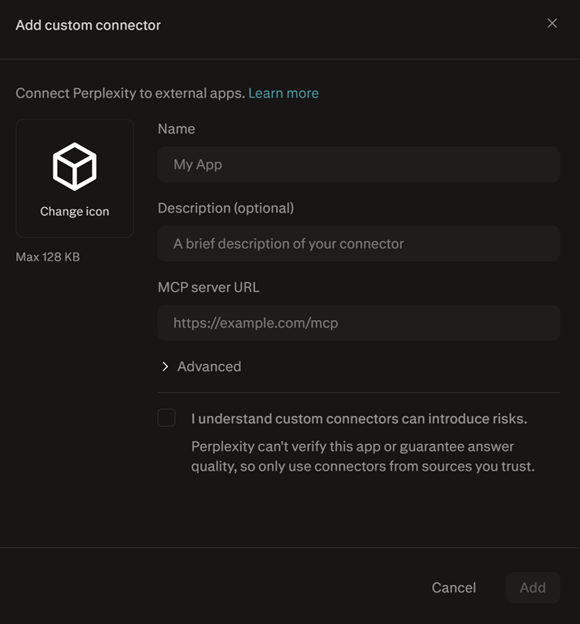
Step 3: You will see this screen
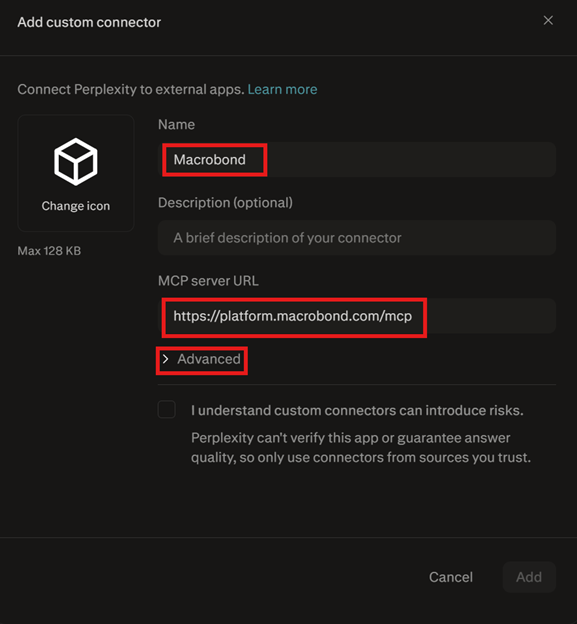
Step 4: Enter the details as below:
Name: Macrobond
MCP server URL https://platform.macrobond.com/mcp
Open the Advanced section.
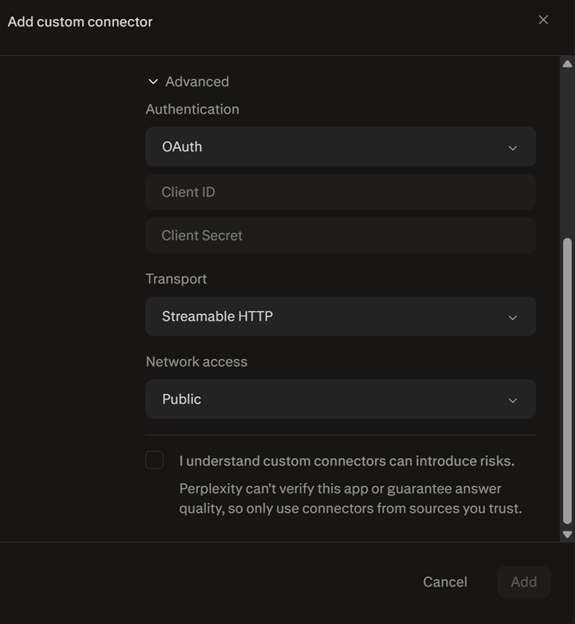
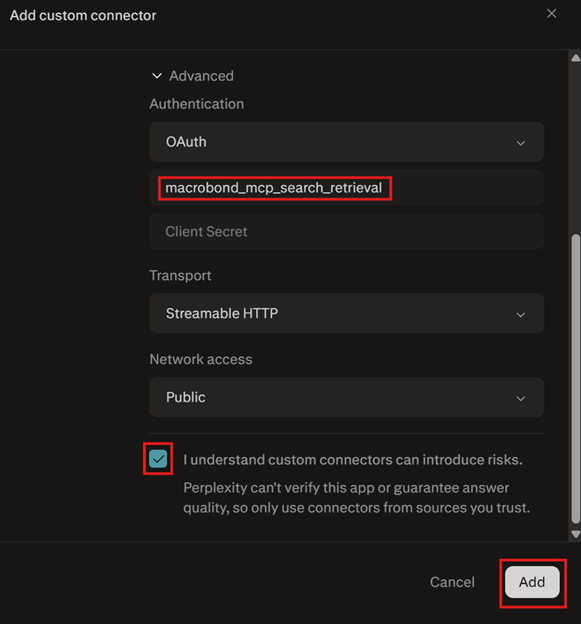
Step 5: Under Advanced, enter the following details
Client ID: macrobond_mcp_search_retrieval
Check the box and click Add.
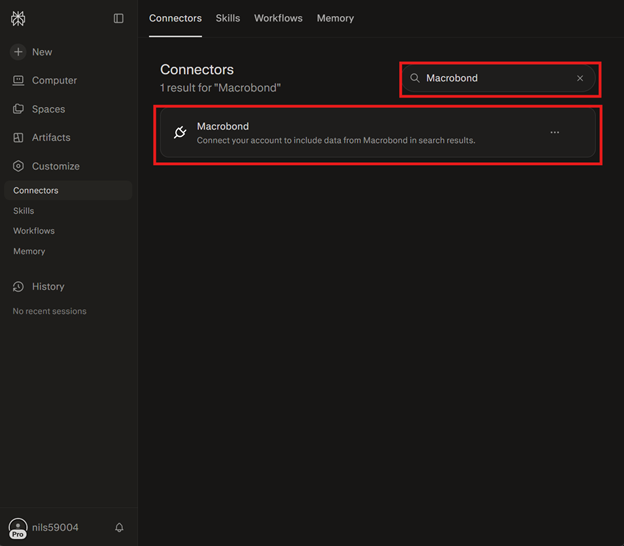
Step 6: Check Connectors, you should see Macrobond appear. Select it.
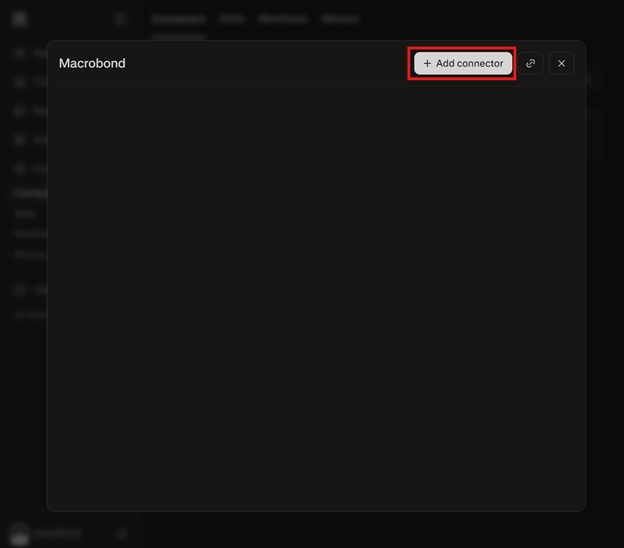
Step 7: Select Add connector
Microsoft Copilot Agent [M365]
Prerequisites
- You will likely need support from your internal IT team to set-up Macrobond’s AI Data Feed Agent for M365 Copilot;
- Teams Administrator or Global Administrator access is required and
- Access to Microsoft’s Teams Admin Center
- Access to Macrobond’s zip package on github: https://github.com/macrobond-platform/macrobond-plugins/releases
- Your tenant must permit custom app uploads
- End users who will be using the Agent need either standalone Copilot application or the Copilot addon for MS Teams on their device
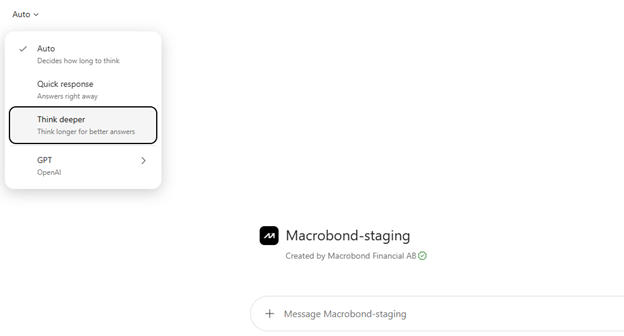
- Users must set the “Think Deeper” model when using Macrobond in M365 Copilot
Set-up Guide
These steps must be taken by the Admin, per prerequisites.
Step 1: Go to https://admin.teams.microsoft.com
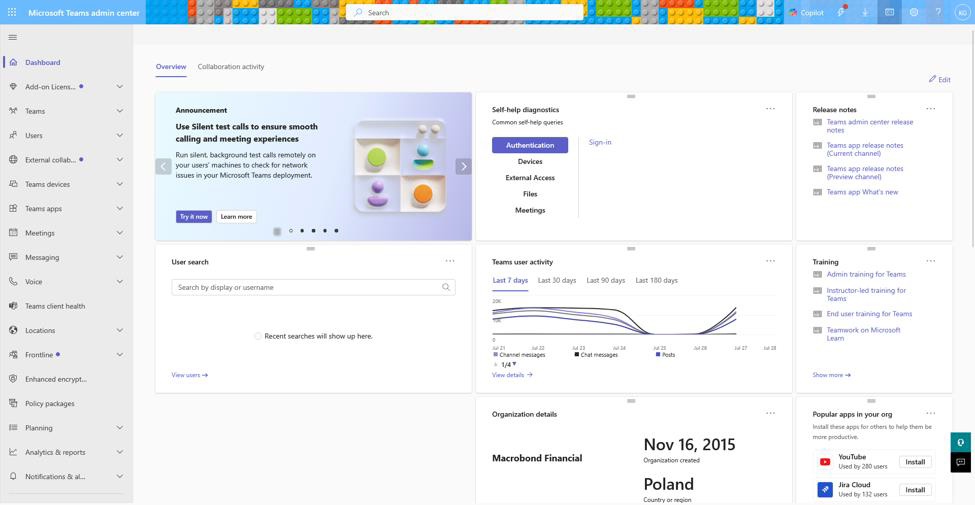
Step 2: Navigate to “Teams apps” > “Manage apps”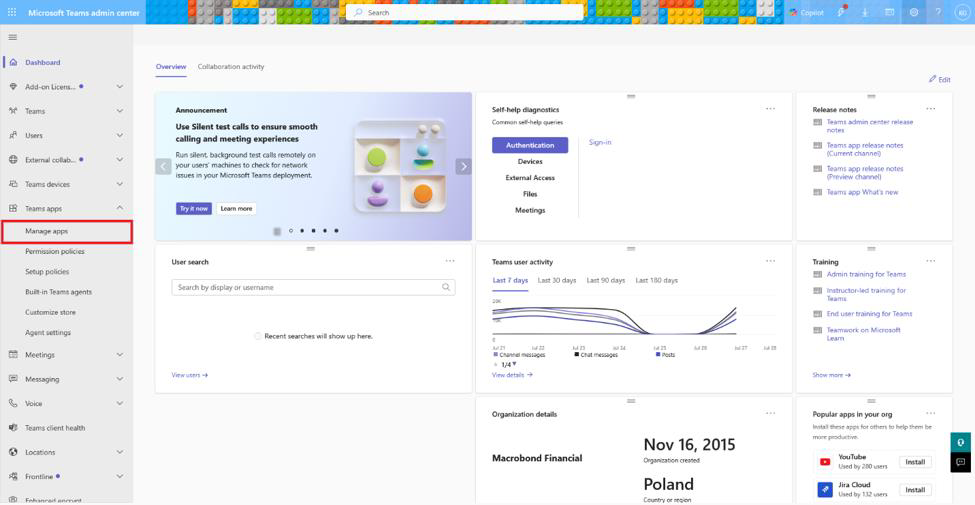
Step 3: Select “+ Upload new app” from the “Actions” menu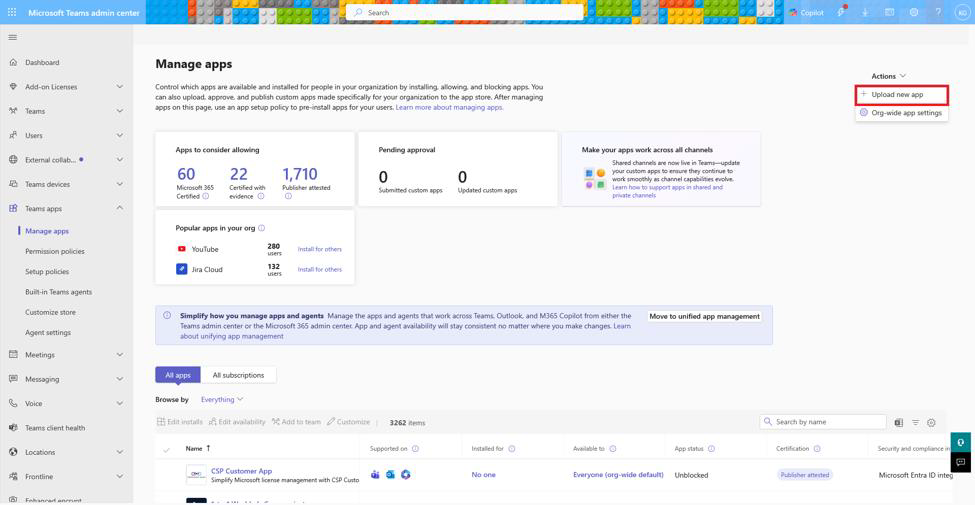
Step 4: Upload the provided Macrobond ZIP file: Macrobond AI Data Feed - M365 Copilot Agent (latest)
Documented here: https://github.com/macrobond-platform/macrobond-plugins
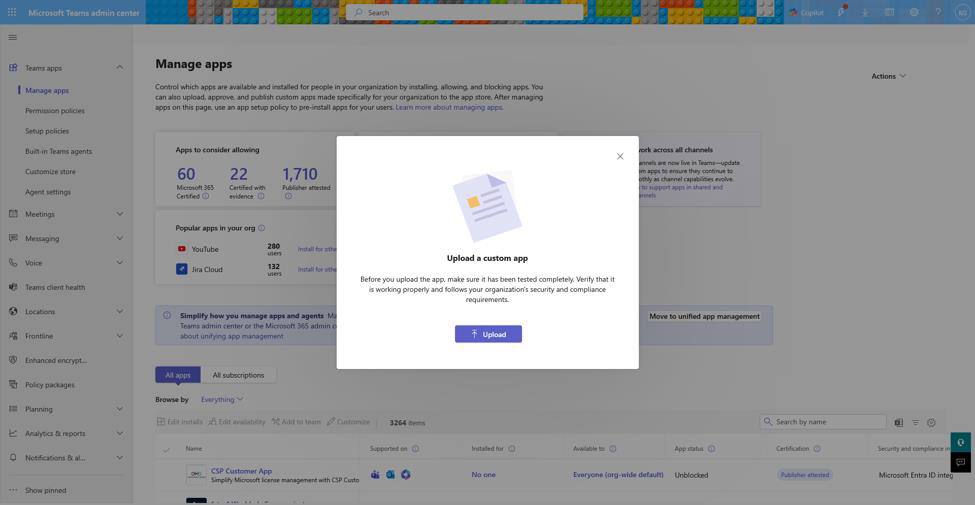
Step 5: Confirm the successful upload popup appears 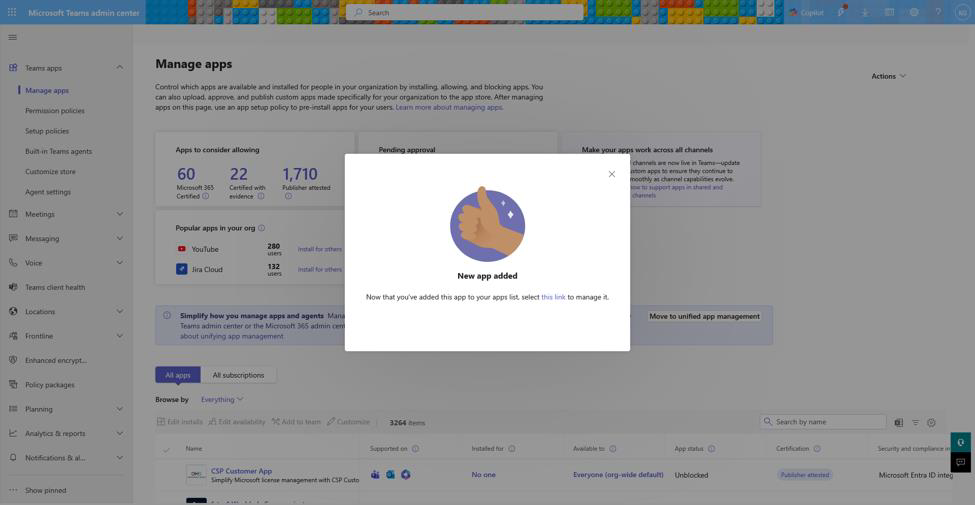
Step 6: Open the app details page using the provided link
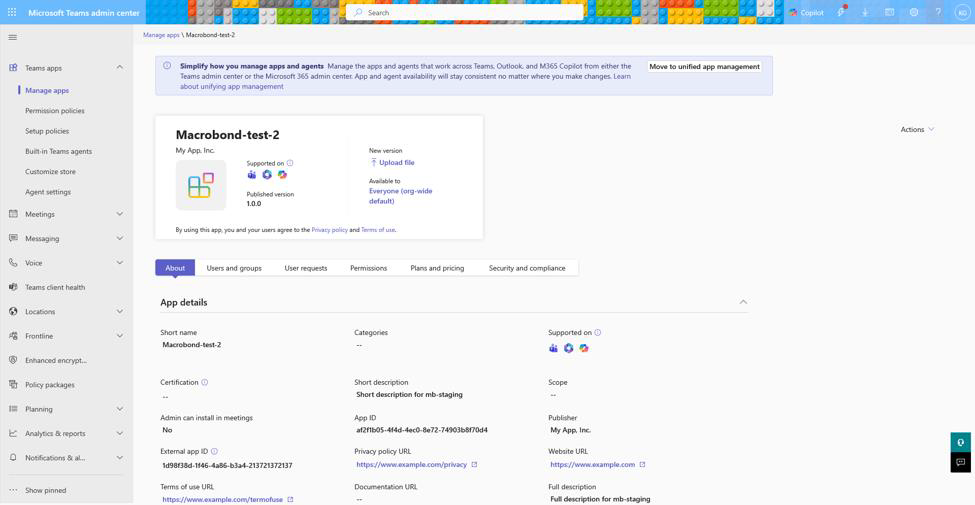
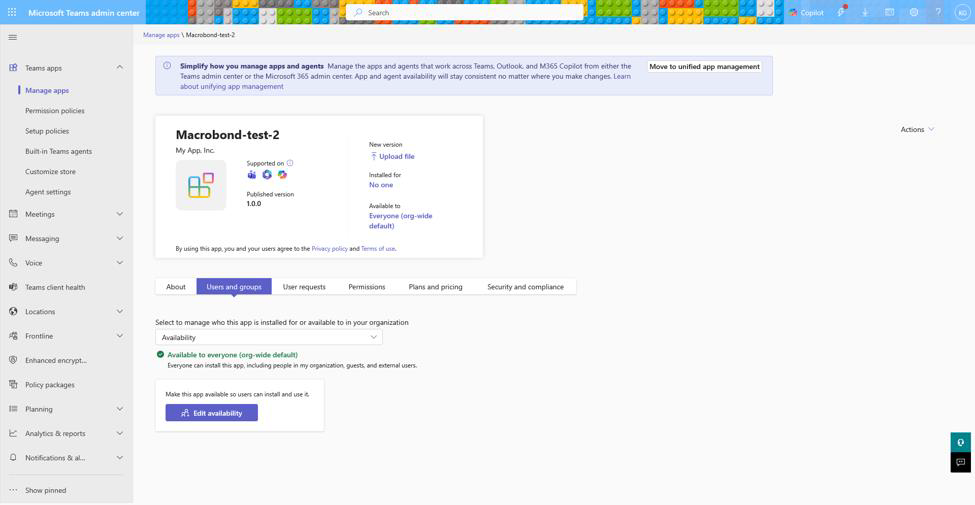
Step 7: Configure availability under Users and groups in line with your legal agreement with Macrobond. Only licensed users should be granted access.
Important Information
- Custom app uploads may be restricted by policy. Please raise with your internal IT team for support.
- Changes can take several minutes to propagate, please allow some time before testing.
- Do not modify the package provided by Macrobond. Macrobond can only provide Support on the package as provided.
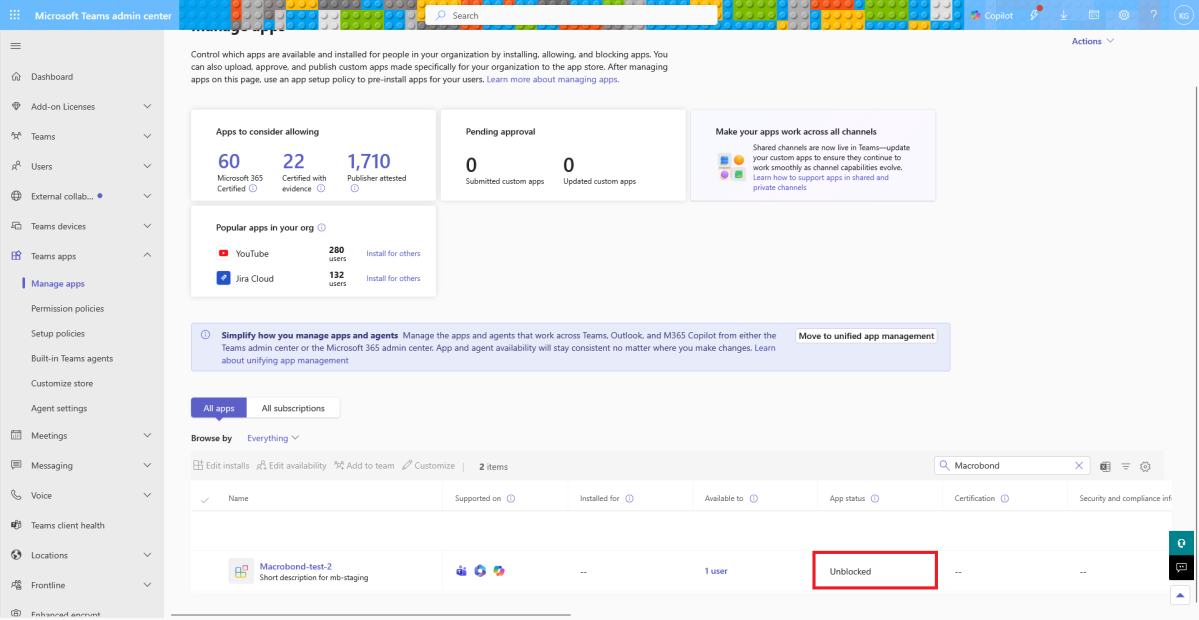
- The deployment is successful when the app is visible to assigned users, launches correctly, and appears as Allowed in Teams Admin Center.
Updating your Microsoft Copilot Agent [M365]
Admin role is needed to update the agent
Step 1: Go to https://admin.teams.microsoft.com
Step 2: Navigate to “Teams apps” > “Manage apps”:
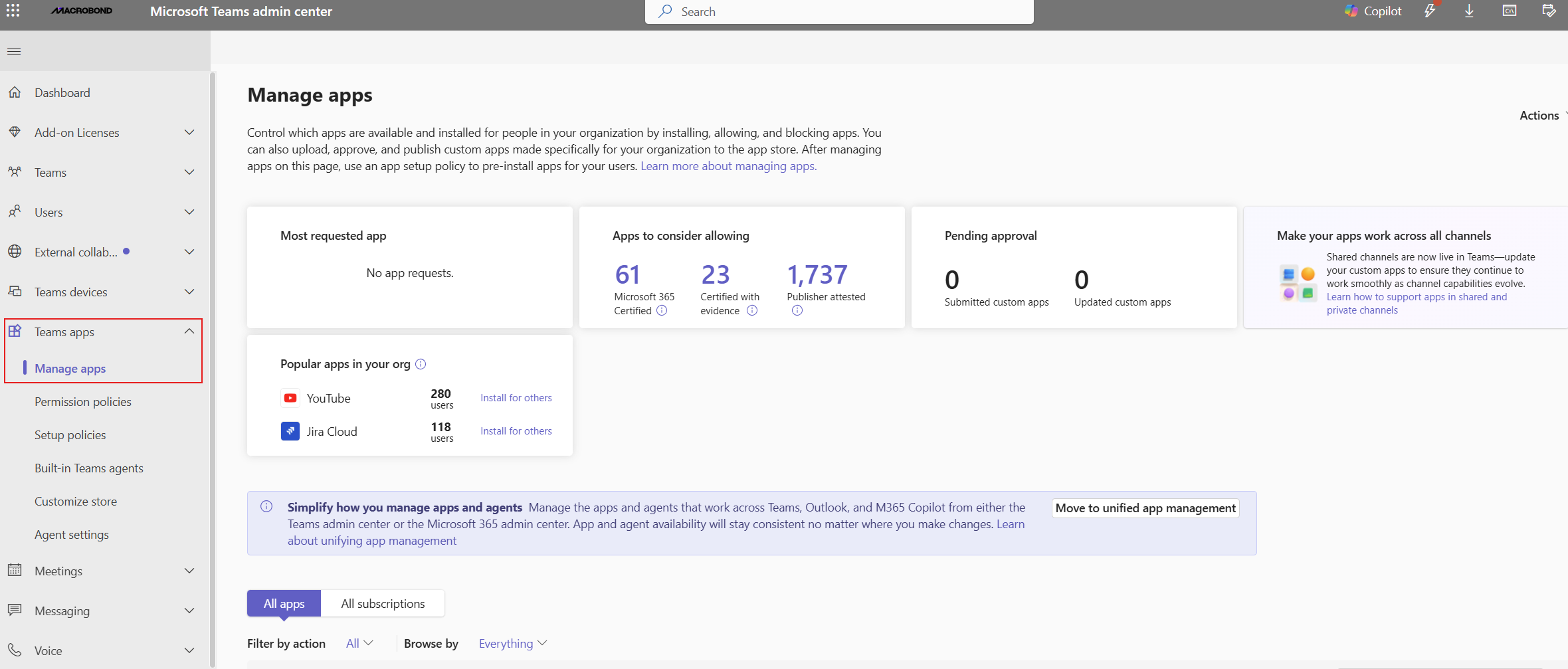
Step 3: Find and open your previously installed Macrobond agent:

Step 4: Once opened, find and click the “Upload file” under “New version”: 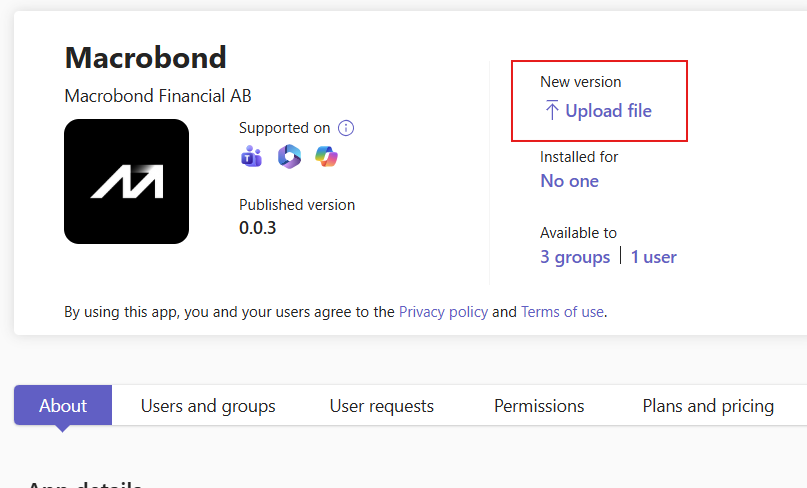
Step 5: Click the “Select a file” in the “Update app” window prompt: 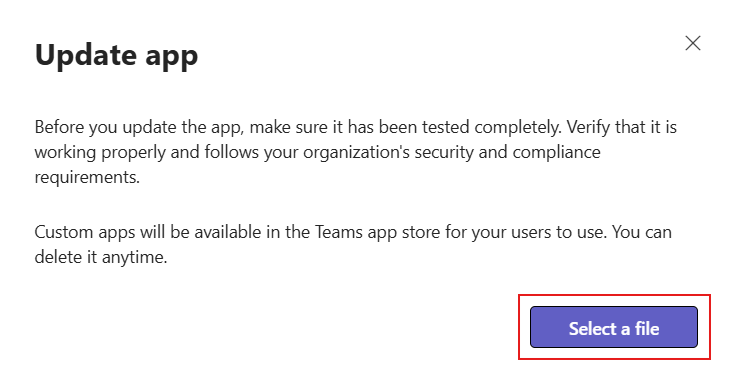
Step 6: Upload the provided updated Macrobond ZIP: you will always find the (latest) available version on github. You can follow the documentation on github here.
Testing for end user access
Teams
Step 1: Open Microsoft Teams (desktop or web).
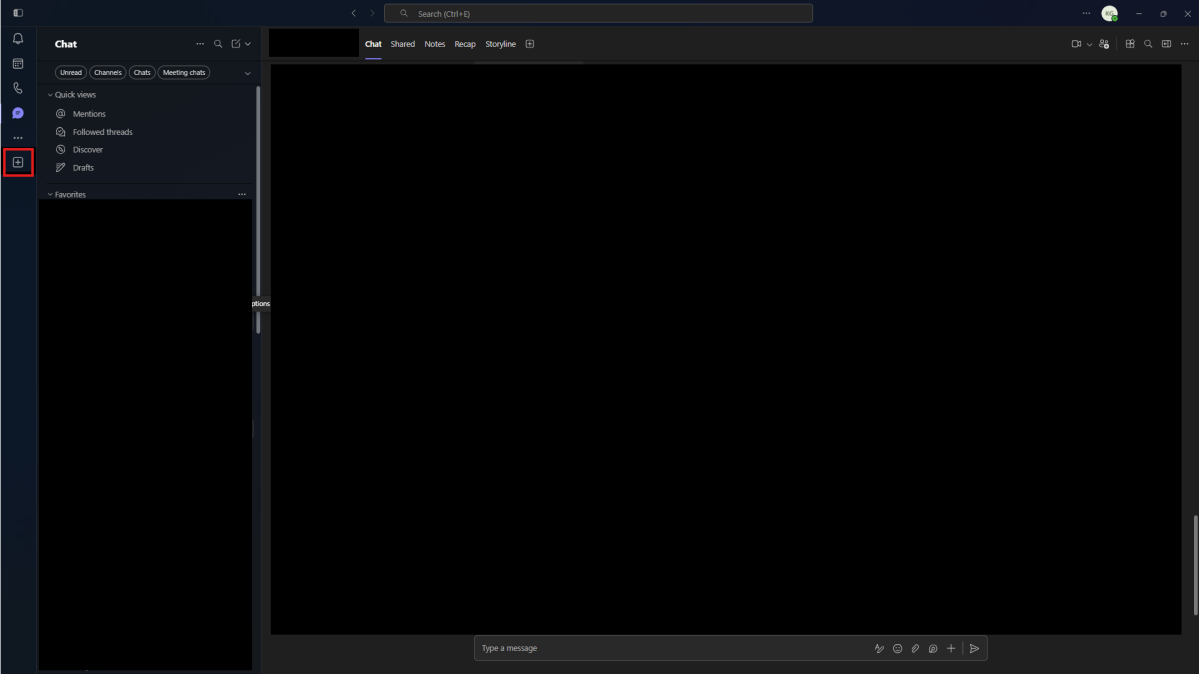
Step 2: Search for the Macrobond application in Apps. 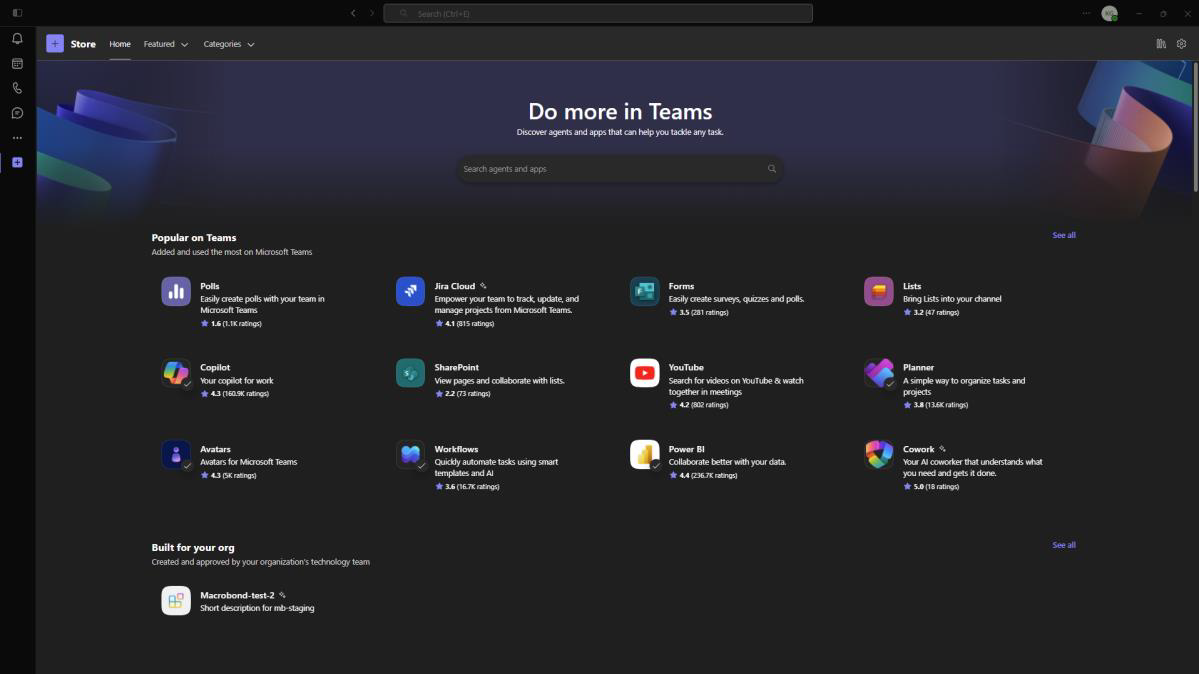
Step 3: Launch the app and verify it opens without errors. 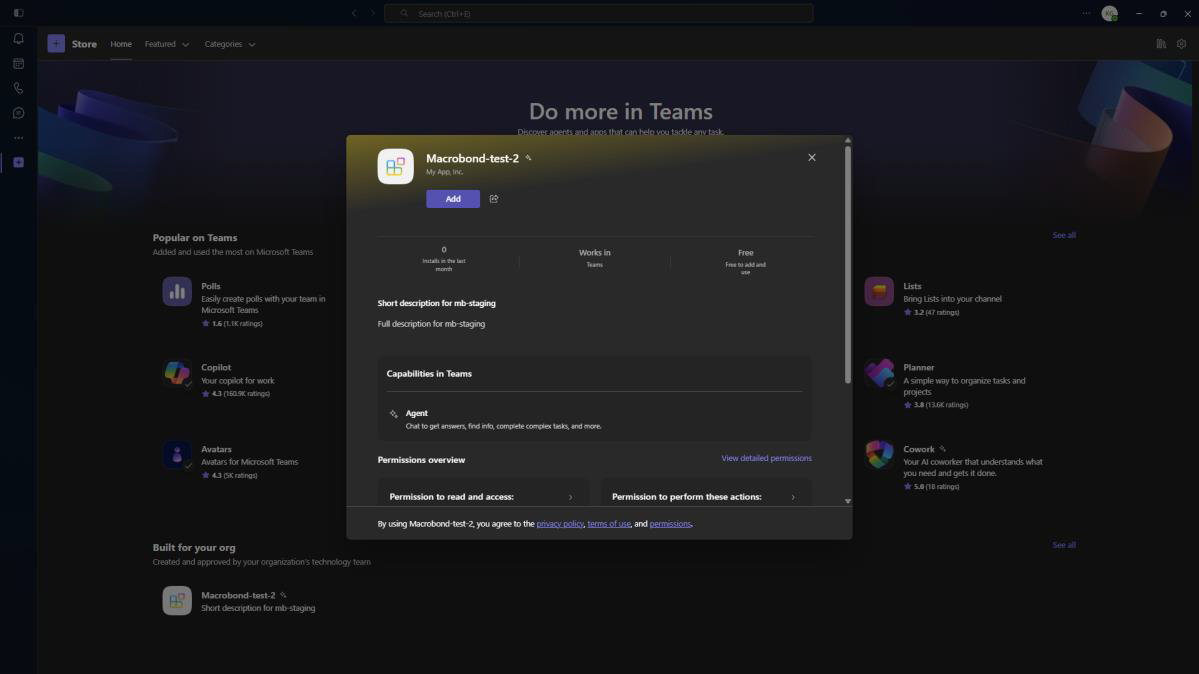
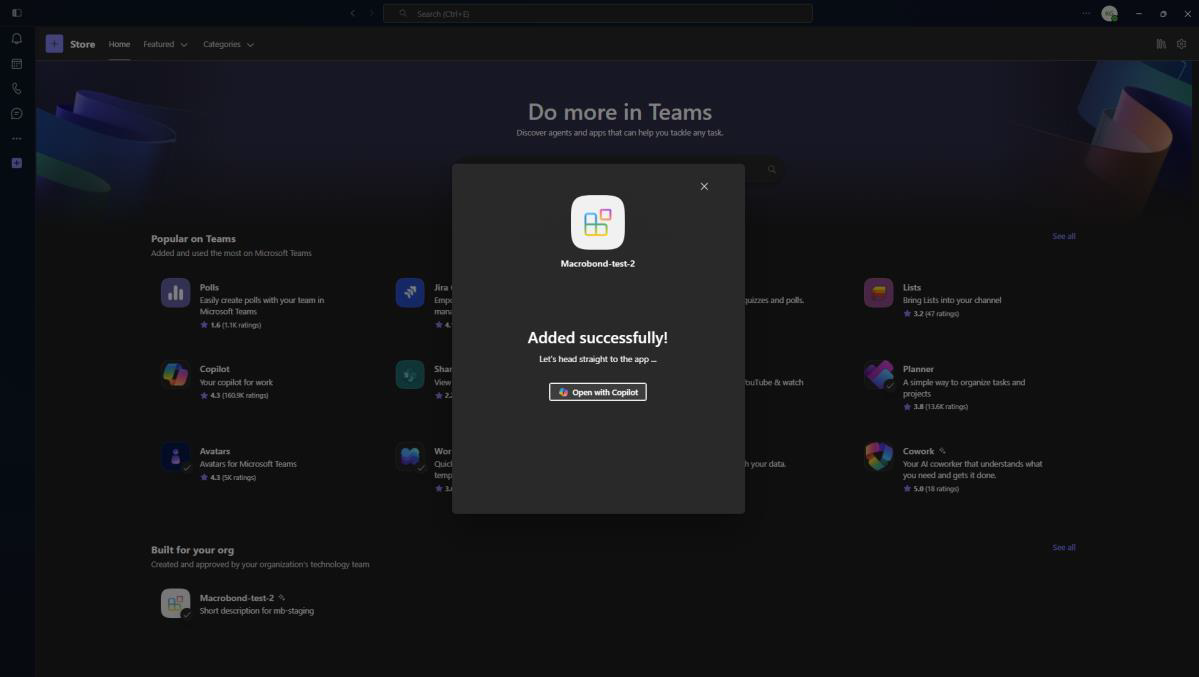
Note: If the Copilot addon for Teams wasn’t installed beforehand, you’ll be prompted to do so. 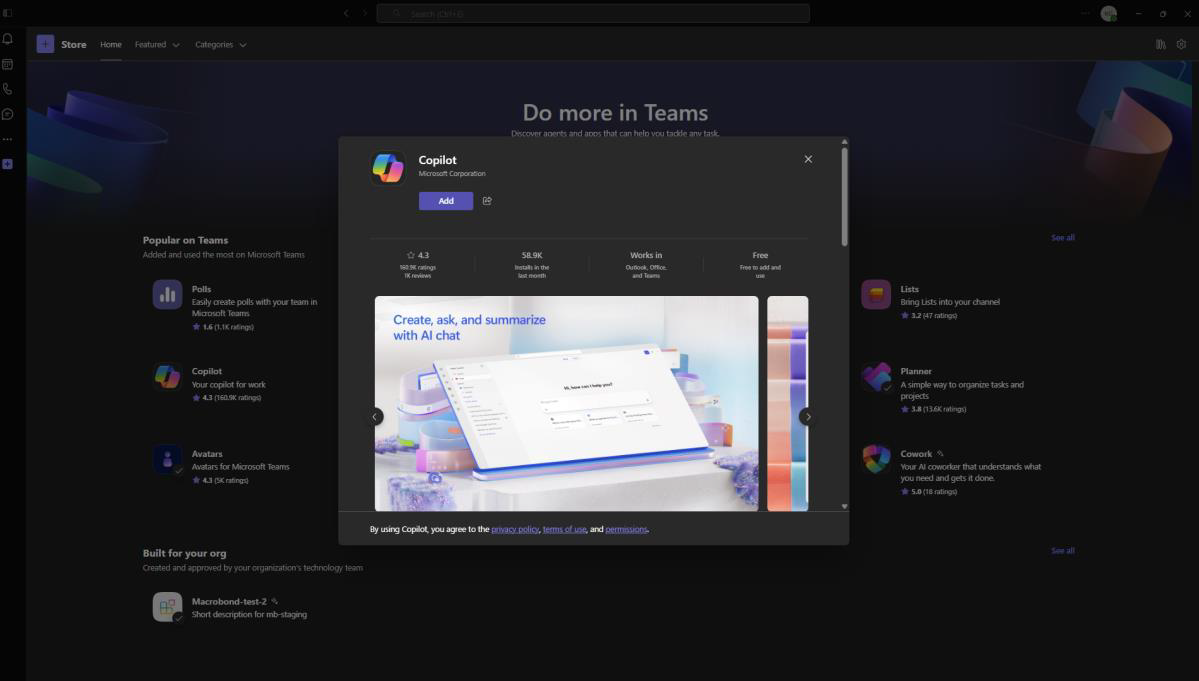
Step 4: In Teams Admin Center, verify the app status is Allowed and assignments are correct.
Adding the App to Microsoft 365 Copilot (Standalone)
Open Microsoft 365 Copilot and sign in.
Step 1: Navigate to Apps or available enterprise apps and search for Macrobond.
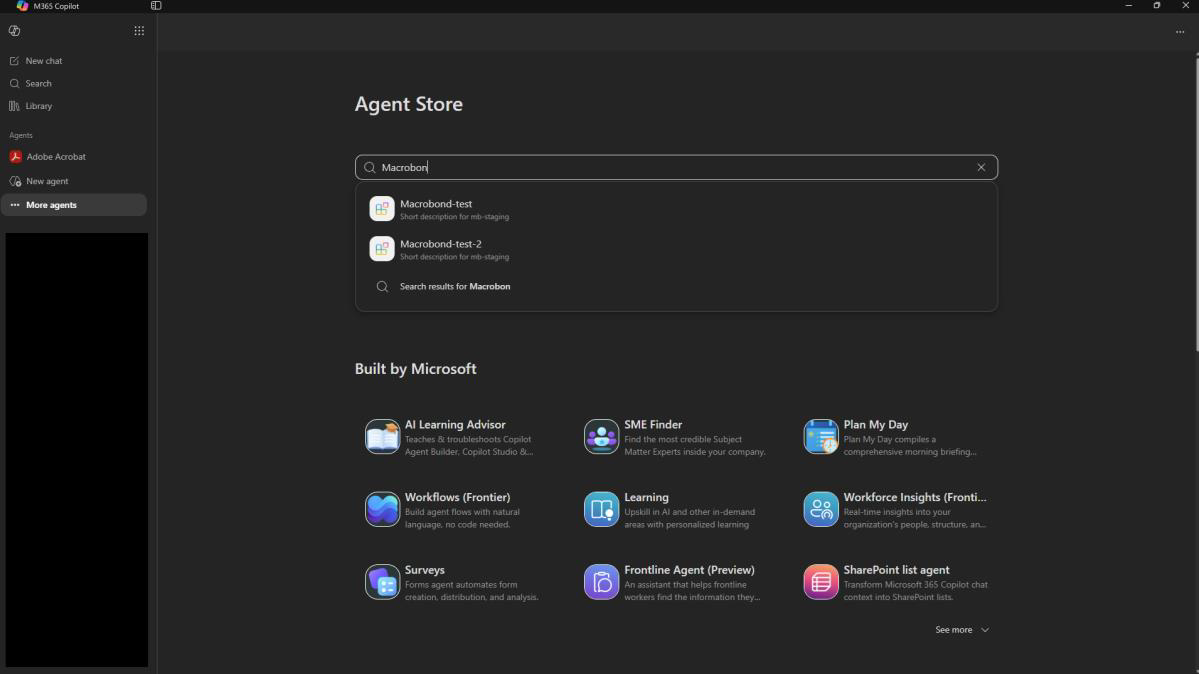
Step 2: Verify that Macrobond is available to target users. 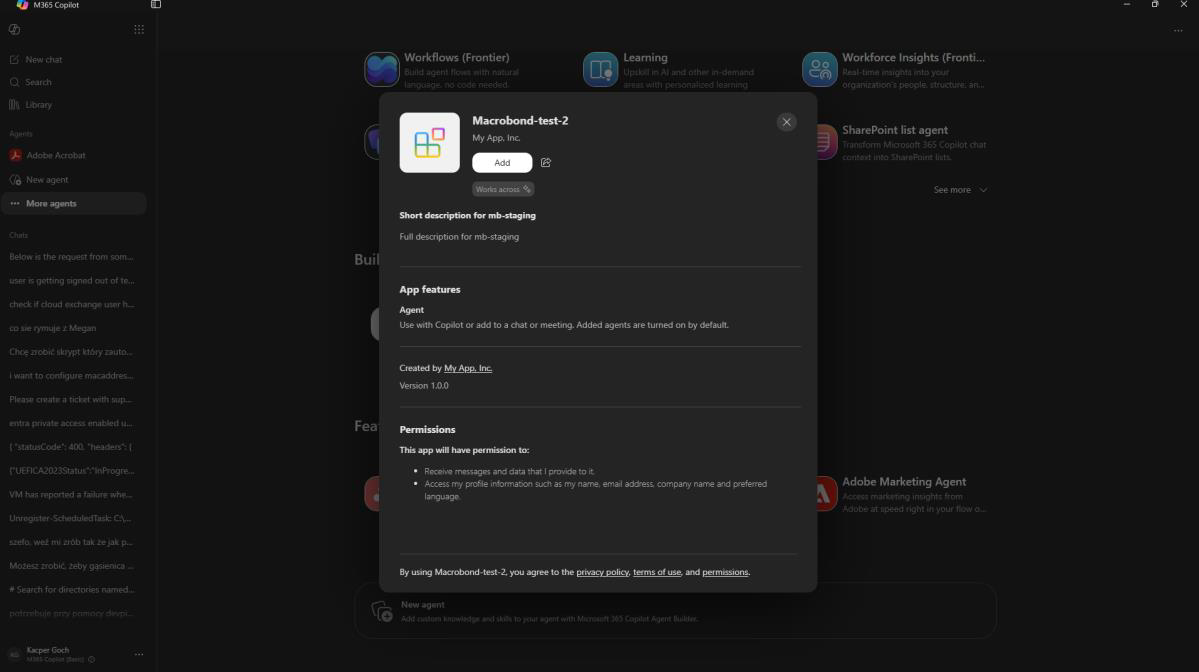
Step 3: Open the app from Copilot. 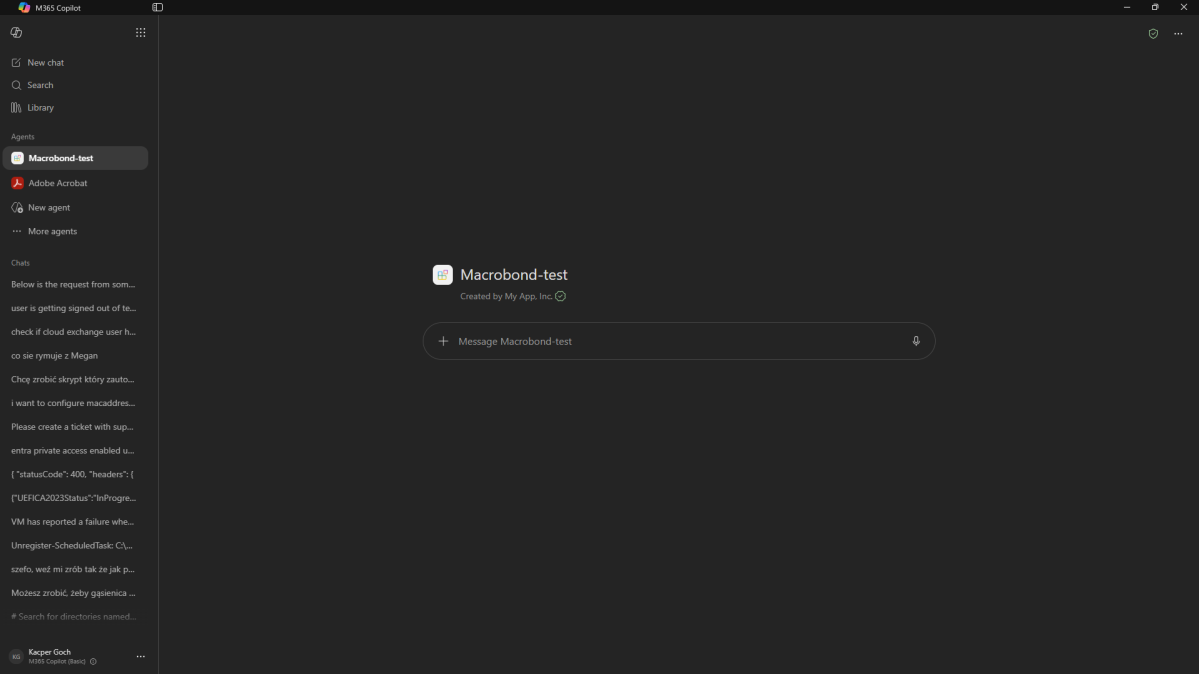
Step 4: Remember to set the model to “Think Deeper”:
Tips / Best Practices
- Remember to be explicit and provide as much information as possible in your prompts
- Remember that search and retrieval is from Macrobond, there are dependencies on the model that you are using on Microsoft side – you need “Think Deeper” for the best results
- We recommend starting a new chat for a new research topic to reset the context for your AI model.
AI Coding Environments – Macrobond Plugin
The Macrobond Plugin has packaged both the Skill & MCP together.
Claude Code
Step 1: Open Claude Code in the terminal
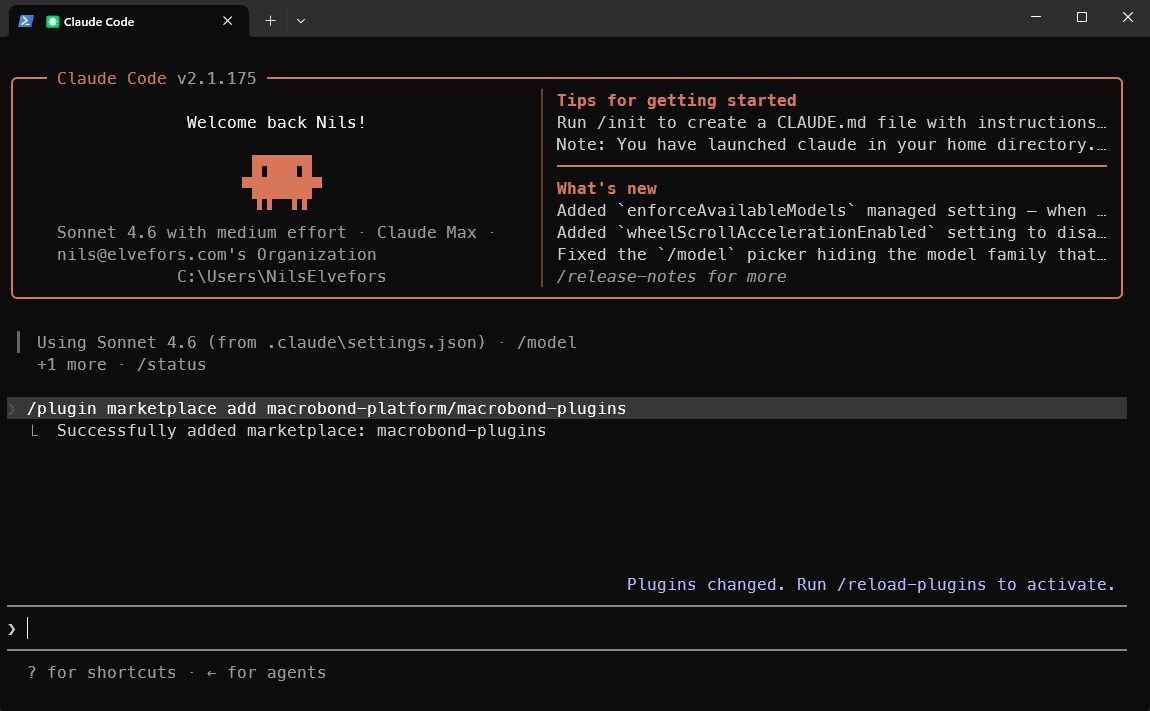
Step 2: type: /plugin marketplace add macrobond-platform/macrobond-plugins
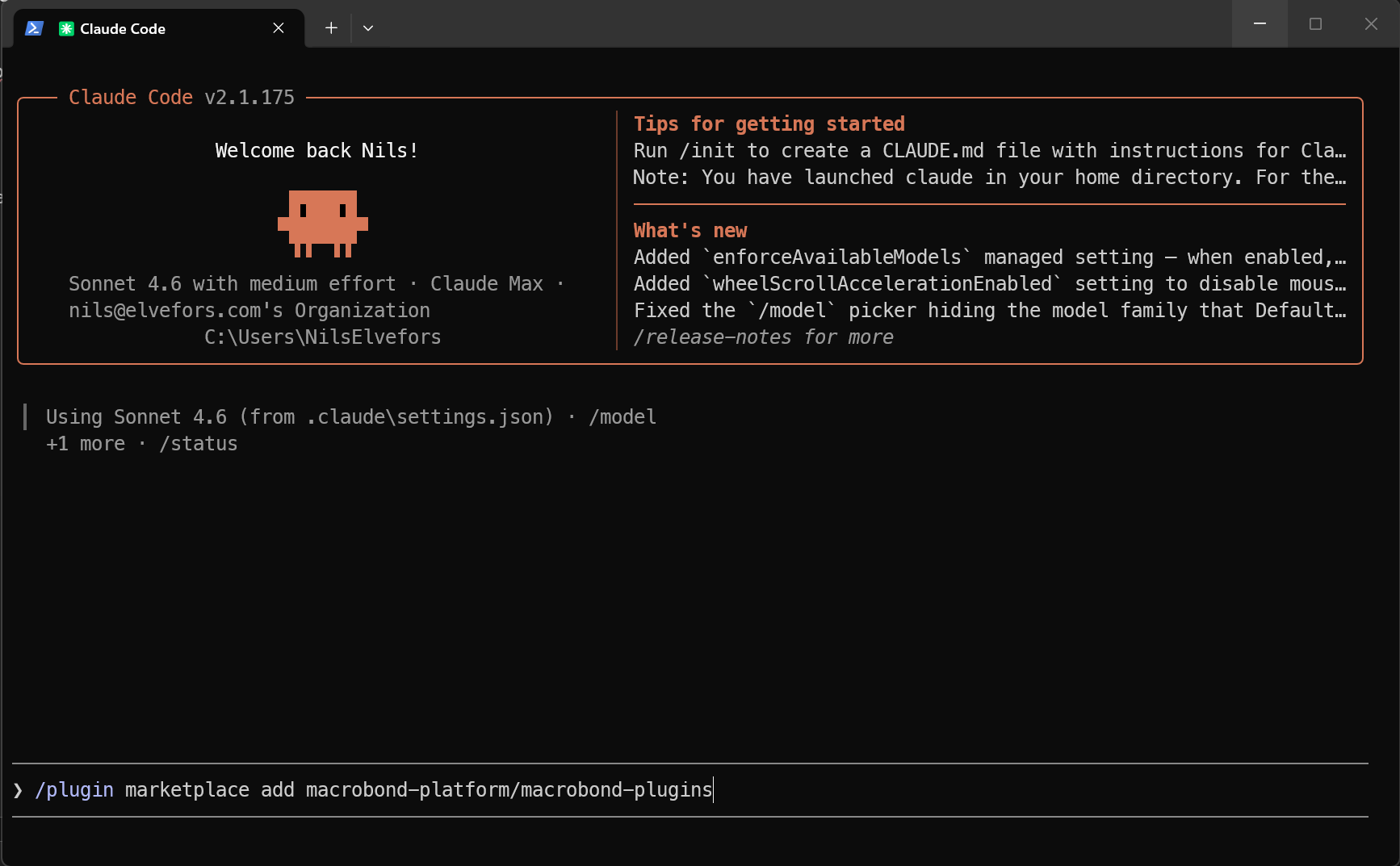
You should see a success message:
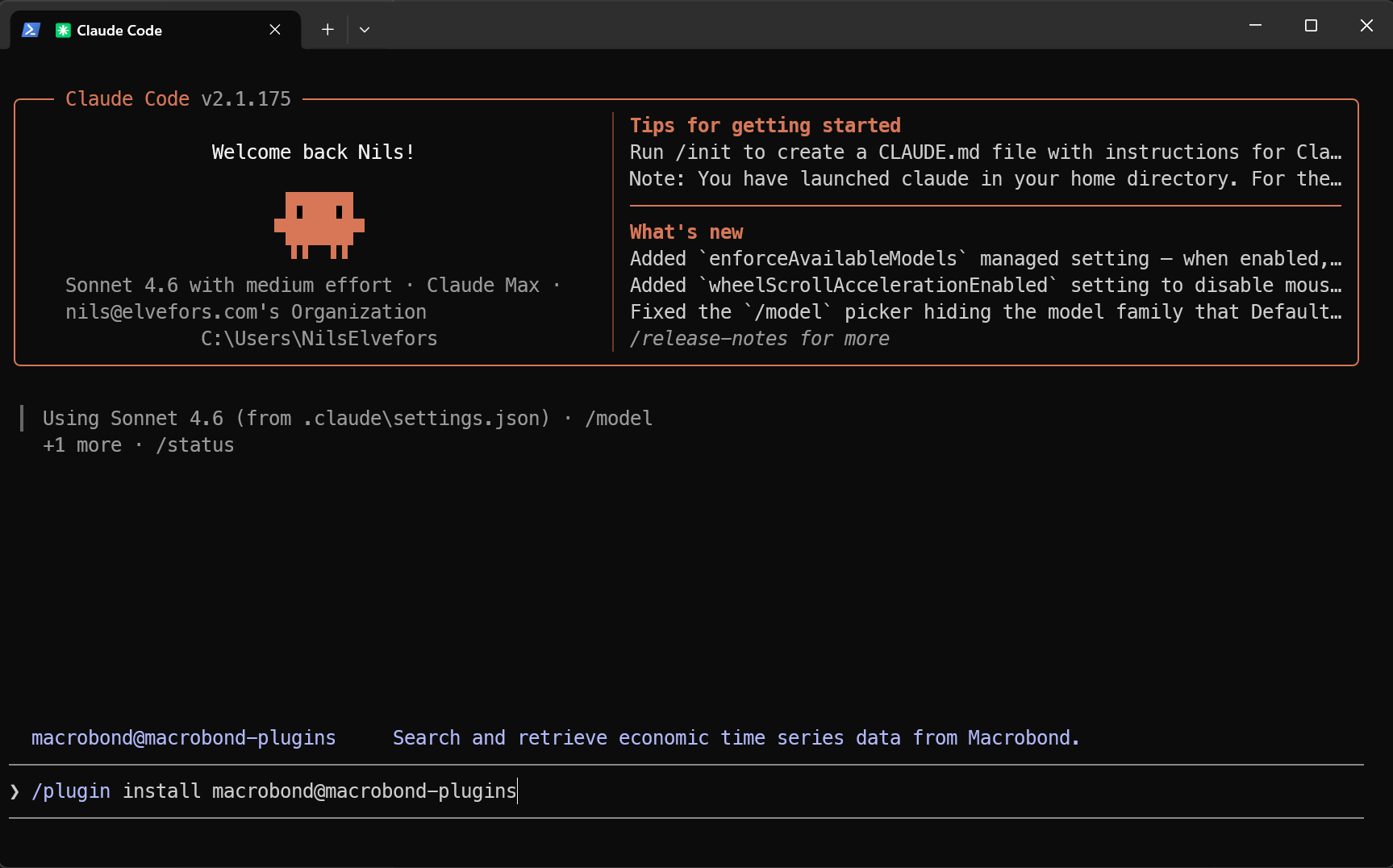
Step 3: type: /plugin install macrobond@macrobond-plugins
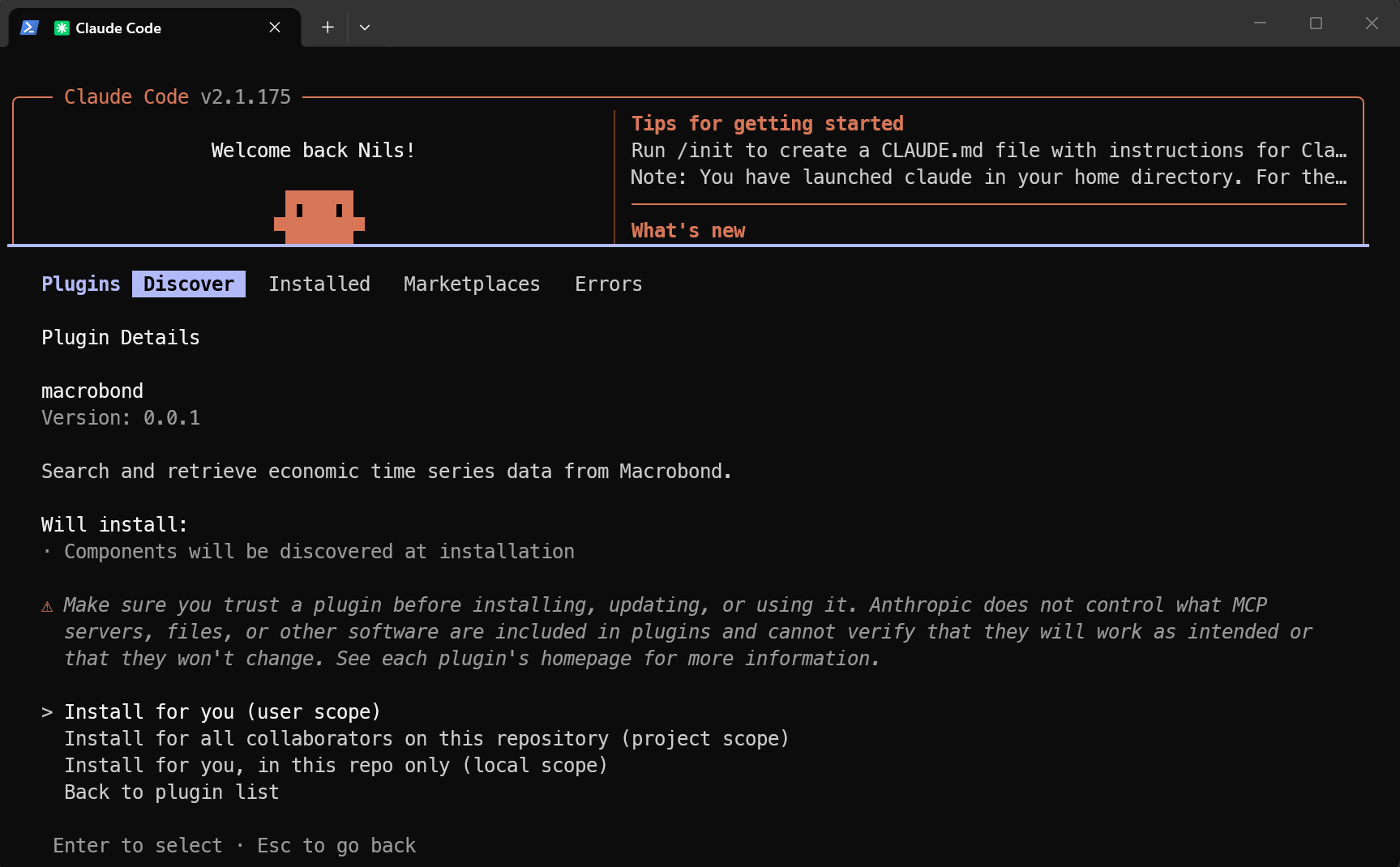
We recommend installing for user scope
Step 4: Exit Claude Code and open the application again or type /reload-plugins
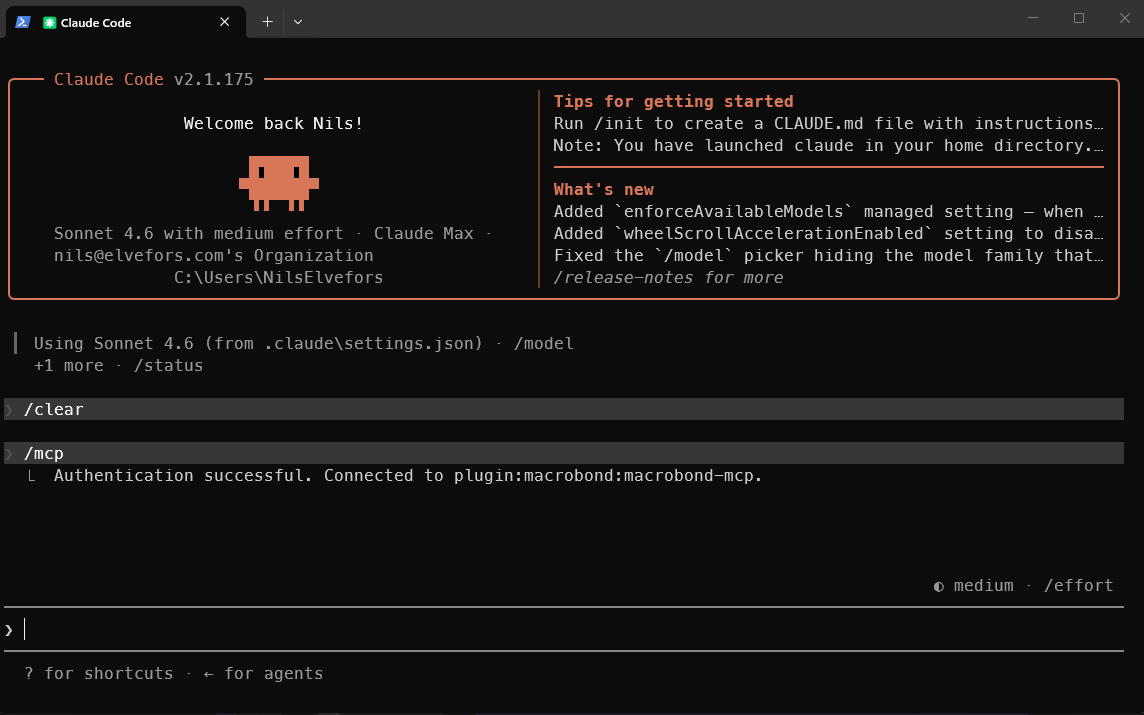
Step 5: Type /mcp
Make sure the Macrobond MCP is activated and that you are authenticated to the MCP. If you have installed the Connector before (see Conversational Interfaces), the Connector will replace the MCP Server.
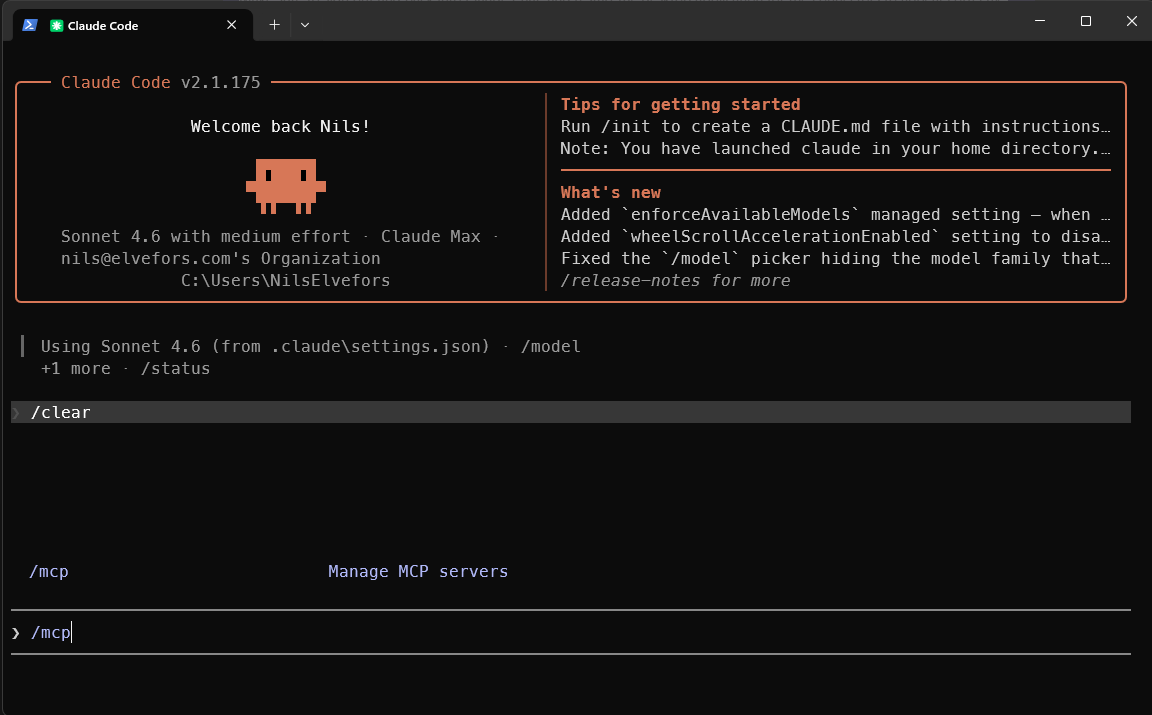
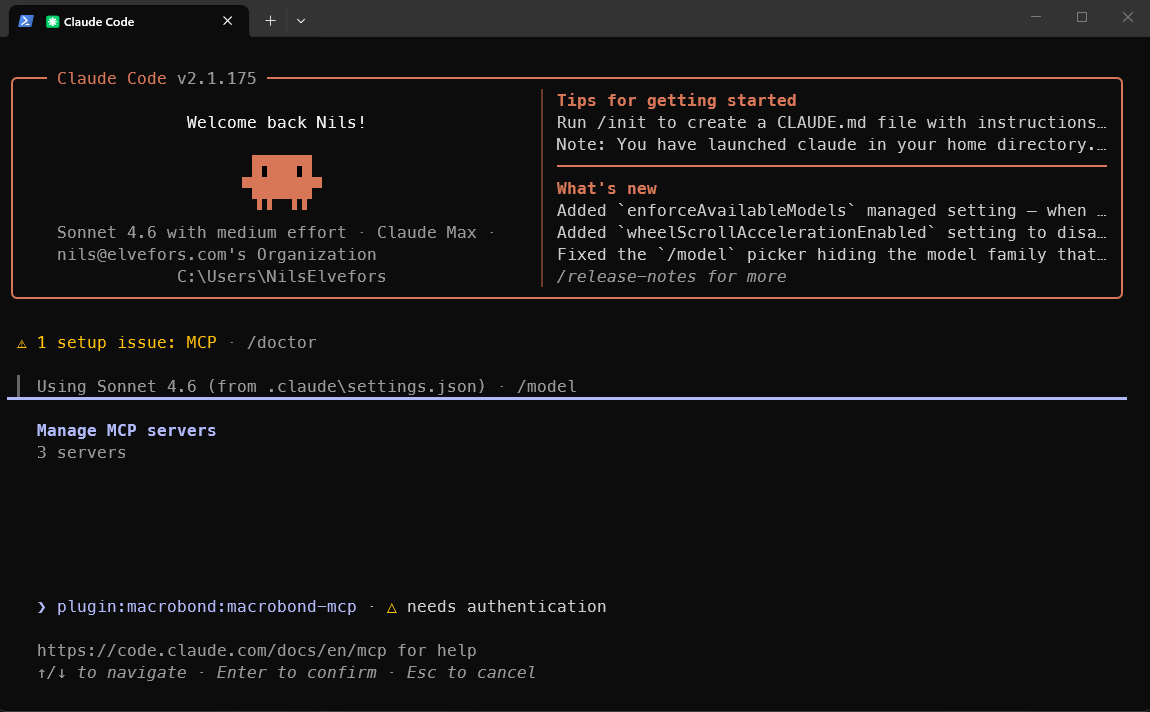
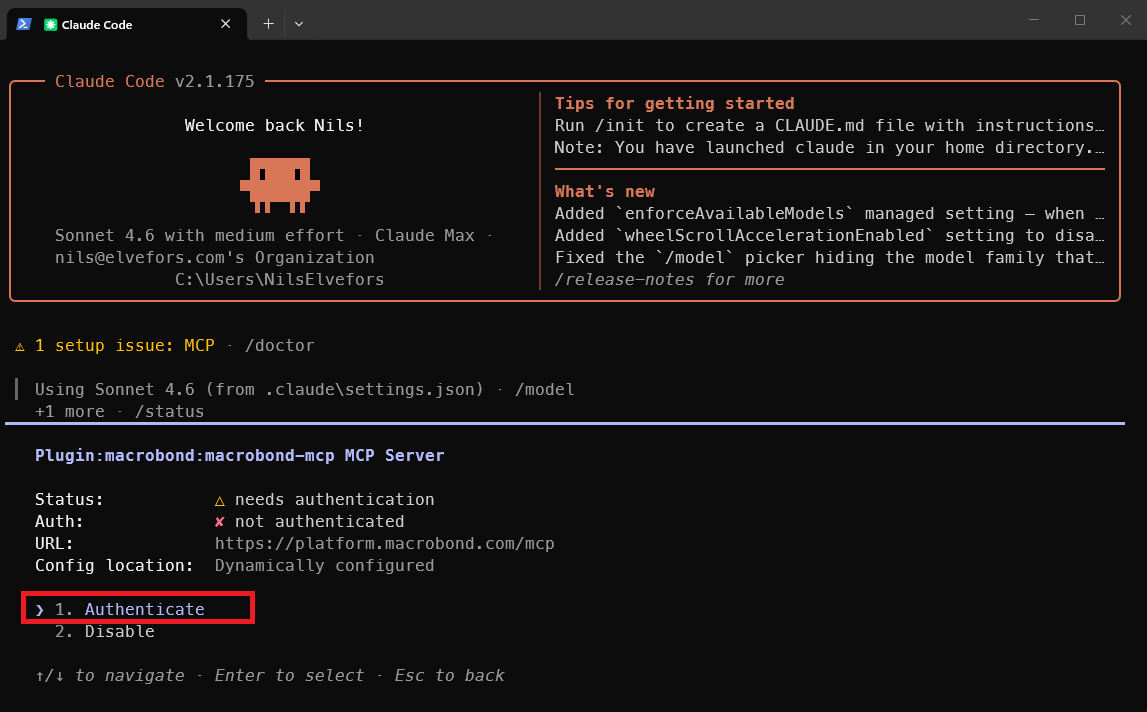
To authenticate, copy and paste the URL in the browser and enter your AI Data Feed Web API credentials. These are the credentials you received in your welcome email.
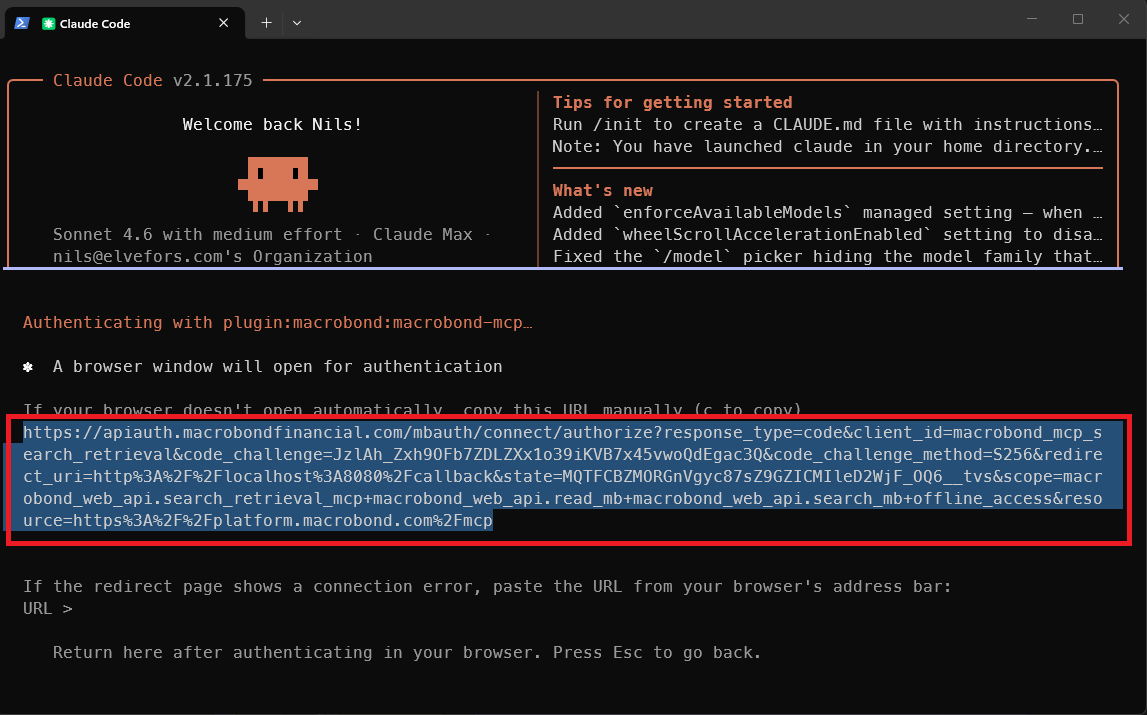
You should see a success message:
Step 6: Type a test command
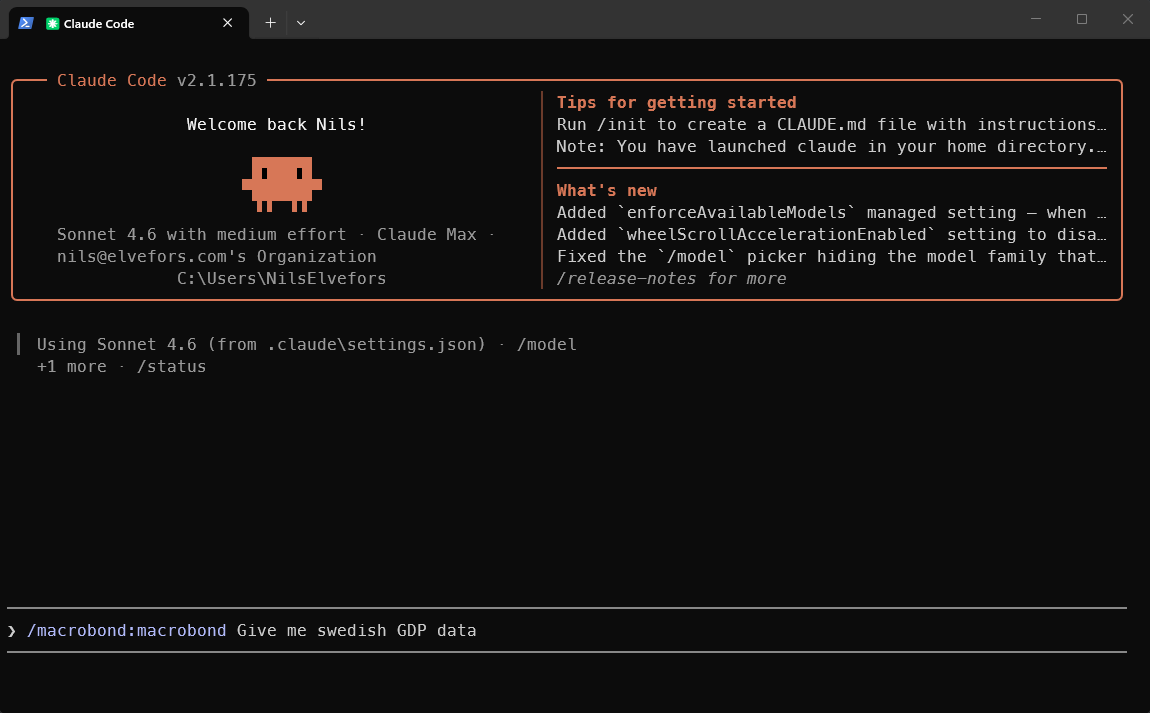
Please refer to: macrobond-platform/macrobond-plugins: Macrobond Plugins for AI Code Assistants
Github Copilot CLI – Macrobond Plugin
Step 1: Open Copilot in Terminal
Step 2: type “/plugin marketplace add macrobond-platform/macrobond-plugins”
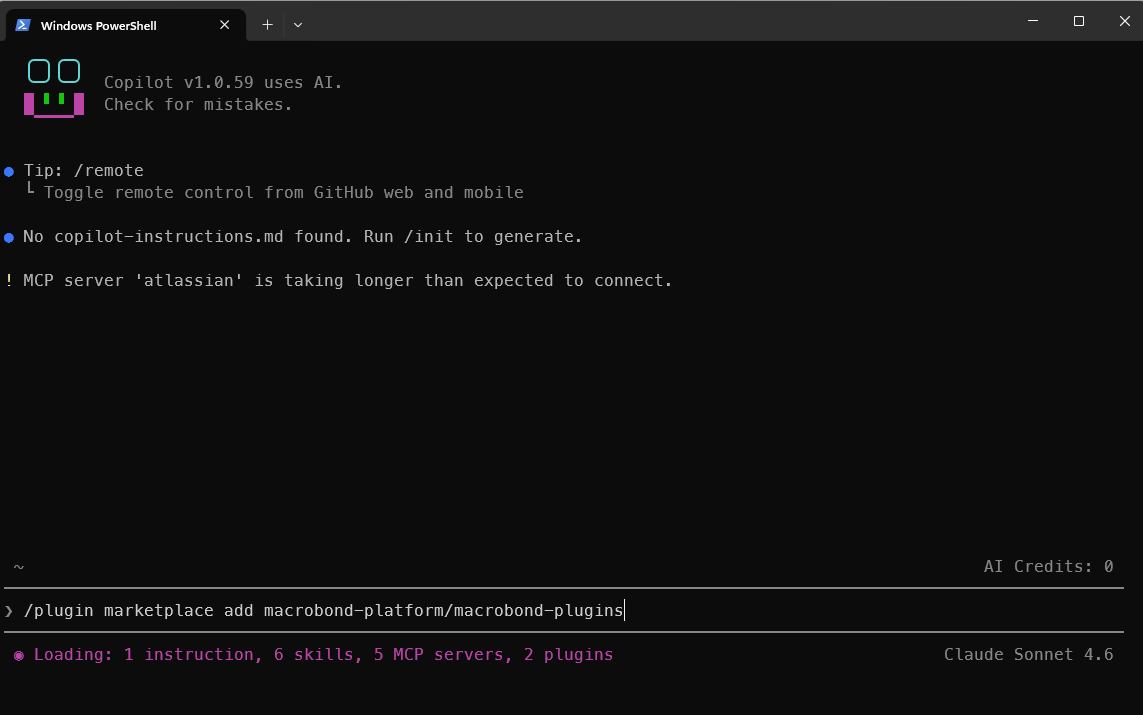
You may see messages like the below, this is expected, please wait for the install to complete:
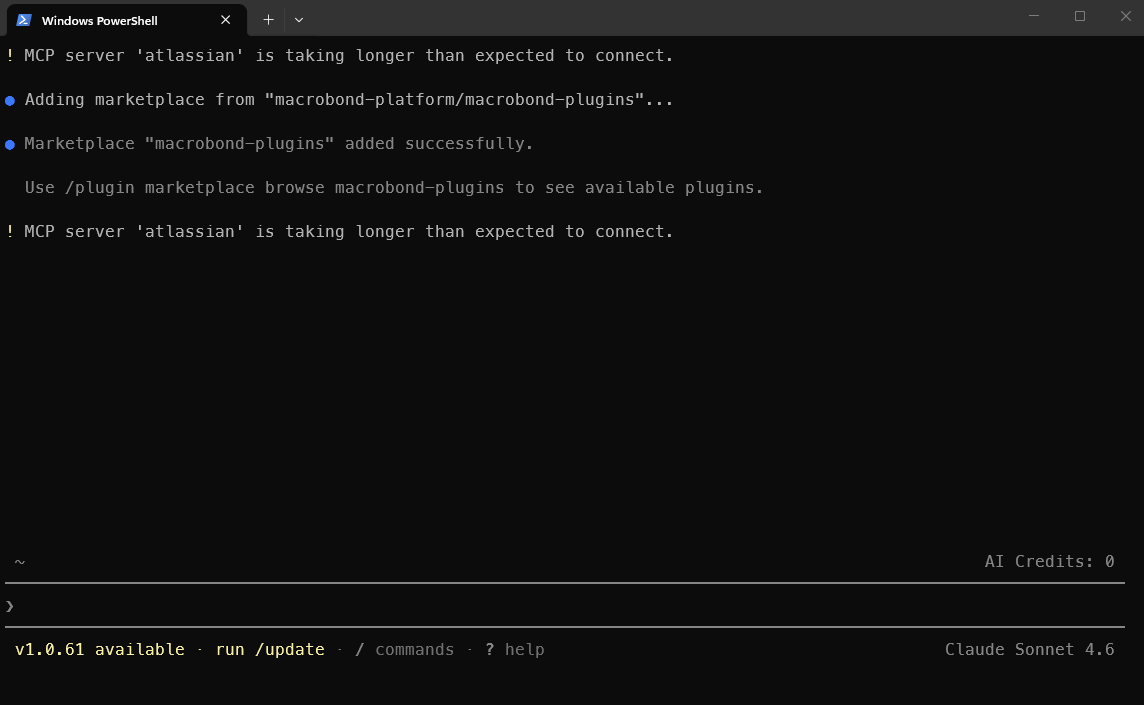
Step 3: Type “/plugin install macrobond@macrobond-plugins"
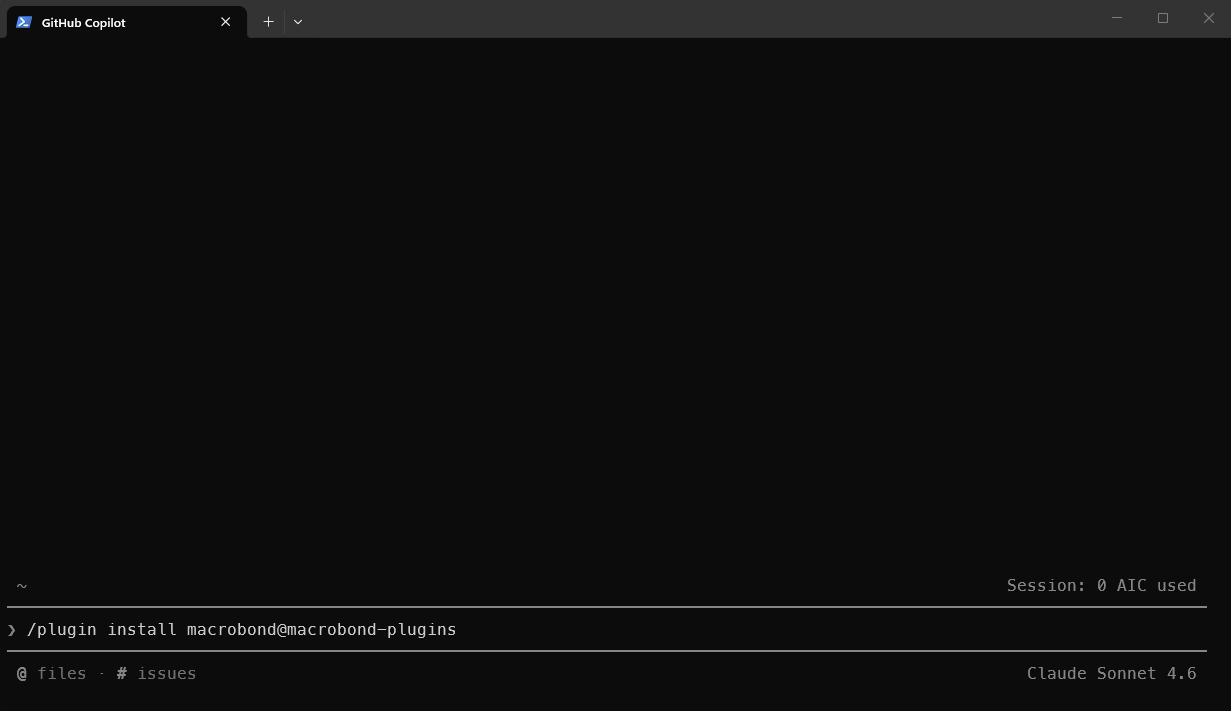
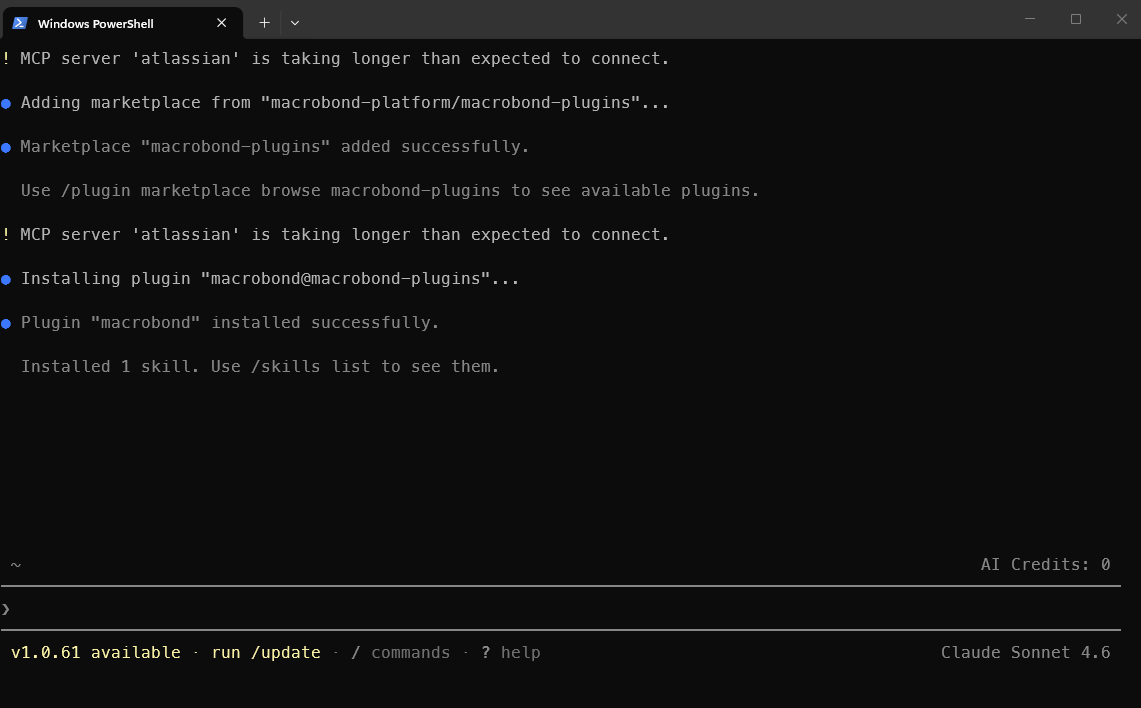
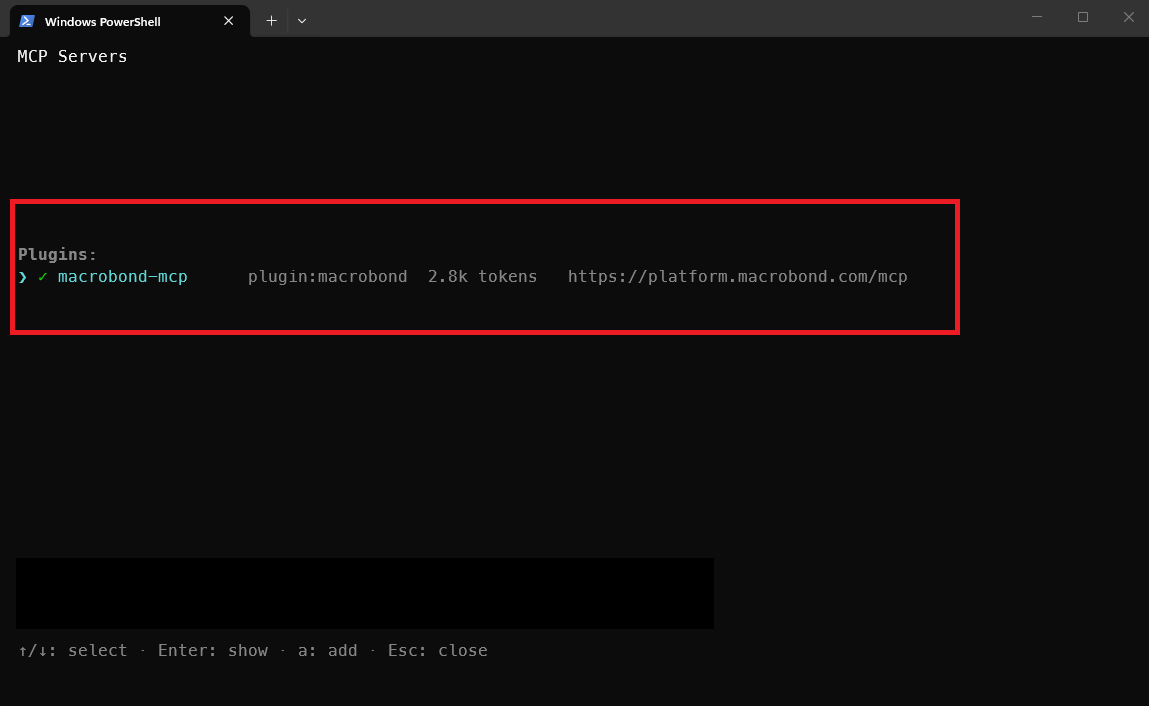
Step 4: Type /mcp and make sure the Macrobond MCP Connector is enabled and authenticated using your AI Data Feed Web API credentials that you received in your welcome email:
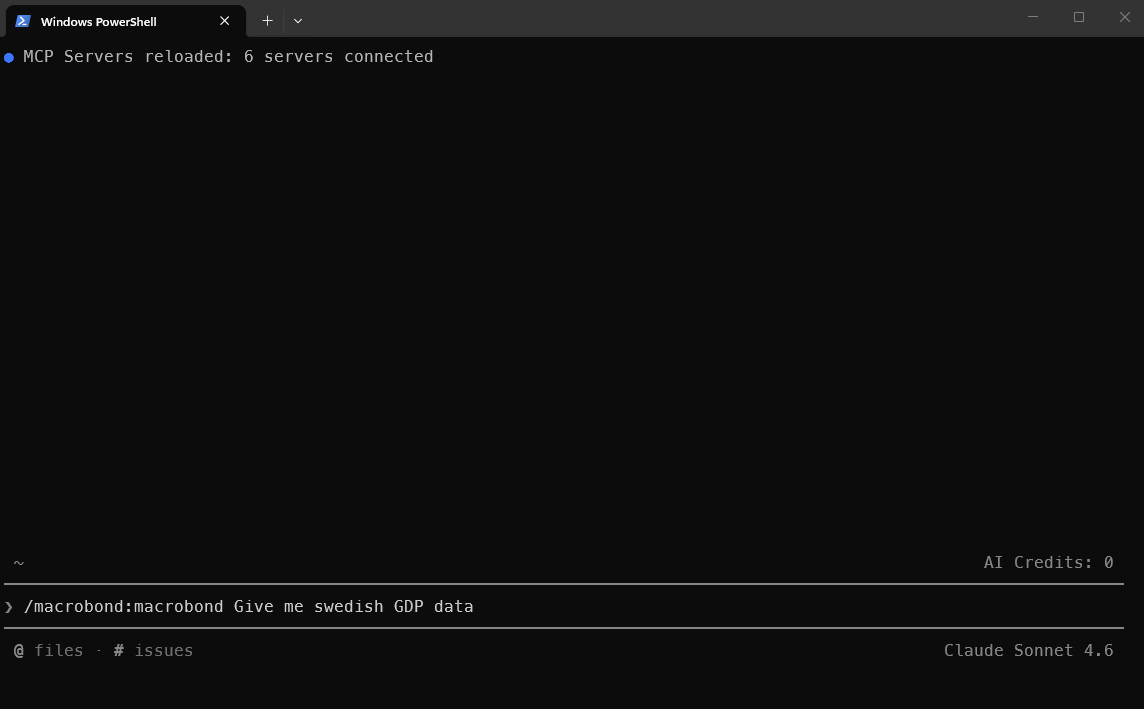
Step 5: Type a test command:
Please refer to: macrobond-platform/macrobond-plugins: Macrobond Plugins for AI Code Assistants
Visual Studio Code (VS Code)
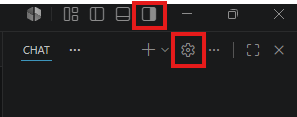
Step 1. Open Settings:
Step 2. Select Plugins and Install plugin from Source.
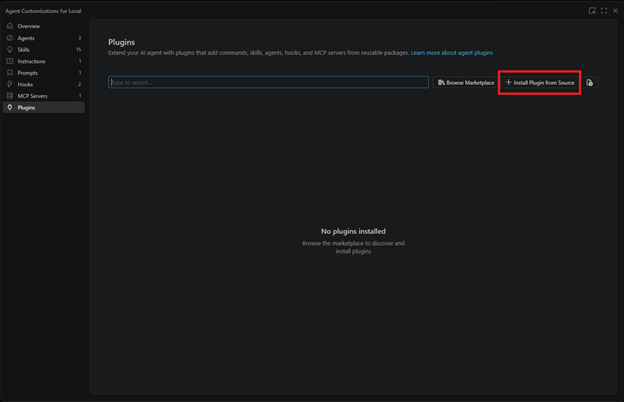
Step 3. Paste https://github.com/macrobond-platform/macrobond-plugins.git

Then you will see:
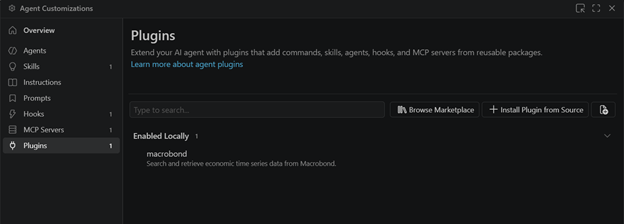
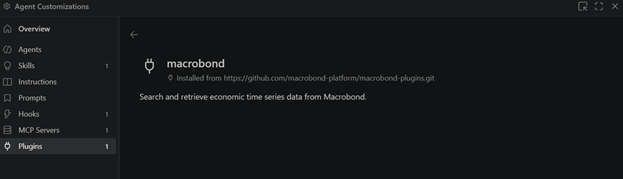
If you click on macrobond, you will see:
Step 4. type /macrobond in the chat to use the plugin. You will see a popup:
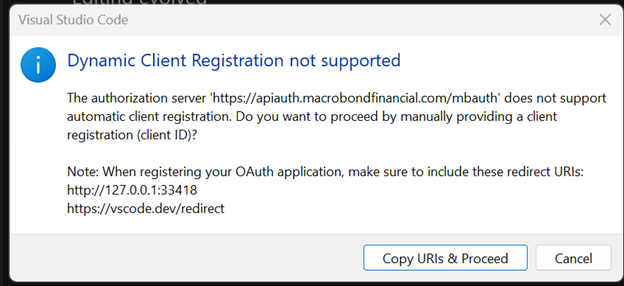
Step 5: click copy URIs & proceed and you will be prompted to enter a client ID:

Enter: macrobond_mcp_search_retrieval
Then you will be asked for an optional client secret. Leave this field blank:
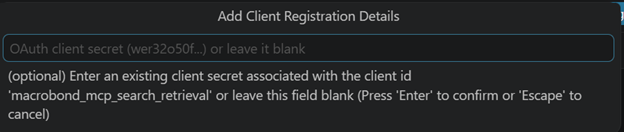
Press enter.
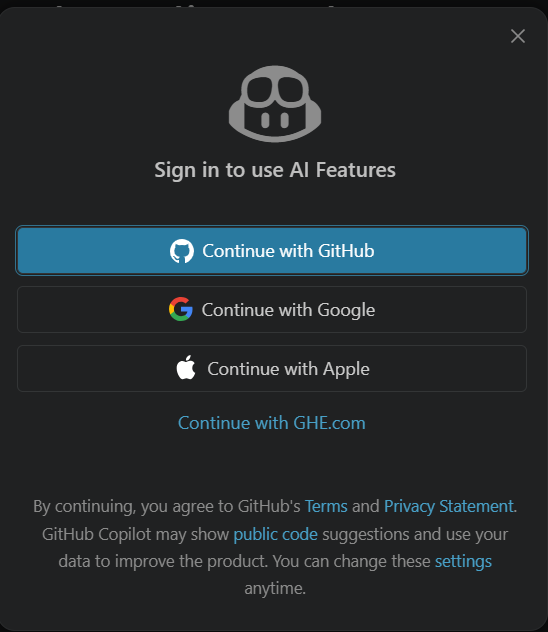
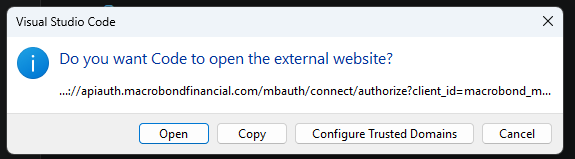
Step 6: You may be prompted to sign in:
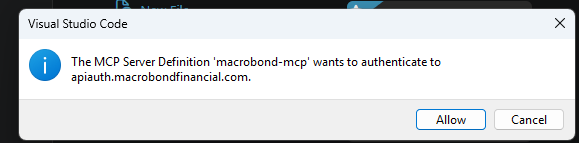
Step 7: You will need to authenticate using your AI Data Feed Web API credentials you received in your welcome email – click allow, and then open:
OpenAI Codex
Follow the guide on github here.
Python - Web API
Please refer to: The Macrobond Data Web API feed – Macrobond Help