Overview
Publishers and admins can invite external users straight into an asset, and those invited readers set themselves up through a quick sign-up link - no need to pre-whitelist every individual.
Adding access
Note, access can be given either when asset is a Draft or Published.
When your chart is in a Draft mode go to Publishers tool ribbon > Edit access tab.

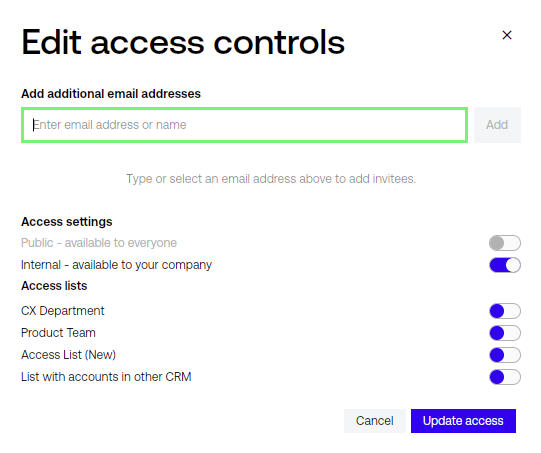
From here you can enable access for a Access list (see more here about creating them) or for individual users (through 'Add additional email addresses' field). The users will gain access only to that one asset.
Add recipient's email addresses and press 'Update access' button. Note that this won't send the link to asset yet.
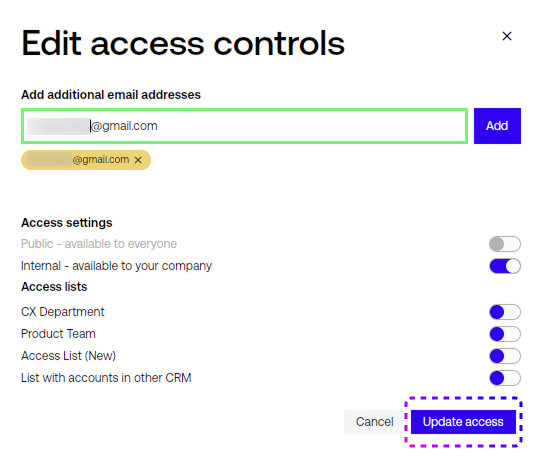
When asset is published you can still edit access through Publisher Tools ribbon > Edit access.
Sending invitations
In published asset go to Share button > Send invites.
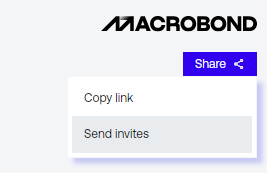
It will create new email:
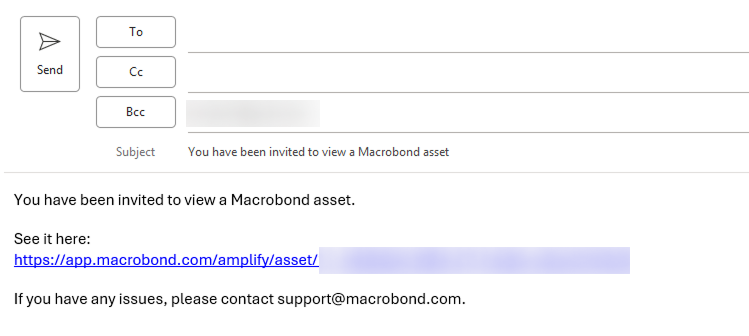
Note that users' emails are in BCC field - they can't see each other email addresses.
When you press Send, the Amplify accounts will be ready for those users. They only have to click on the link in the email and generate a password.
See below how it looks like for the user.
I've received an invitation
Welcome to Macrobond Amplify! Please click on the link - you will be redirected to login page.
Type in your email and press 'Log in'.
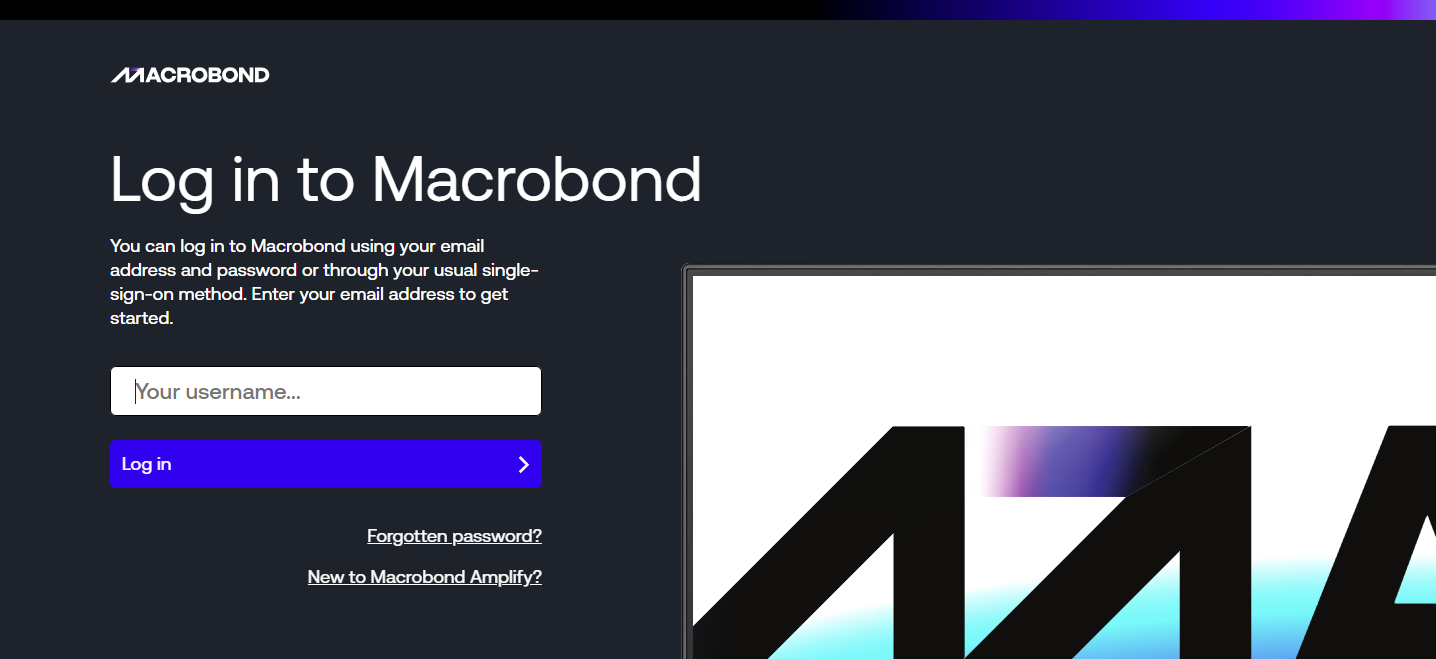
Now you need to generate a password. Press 'Are new to Macrobond? ' (or 'Forgotten password?') and follow the procedure.
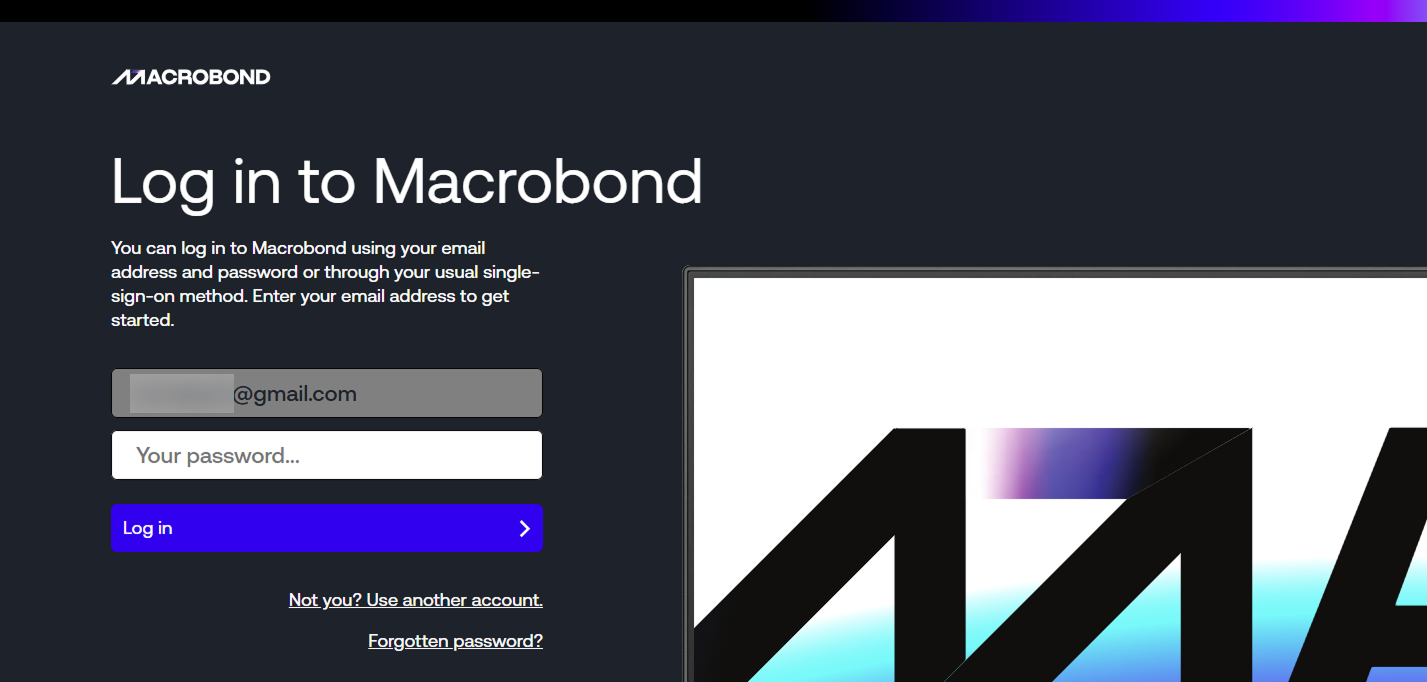
You'll receive an email with a secure link. Please click on it to receive your password. Due to security reasons it can't be changed. If you ever forget it you can always Reset Password by yourself.
Go back to login page and type in password.
As a first time user you'll see 'Customise your experience' page. After that you are ready to access the chart - click on it and press Access asset:
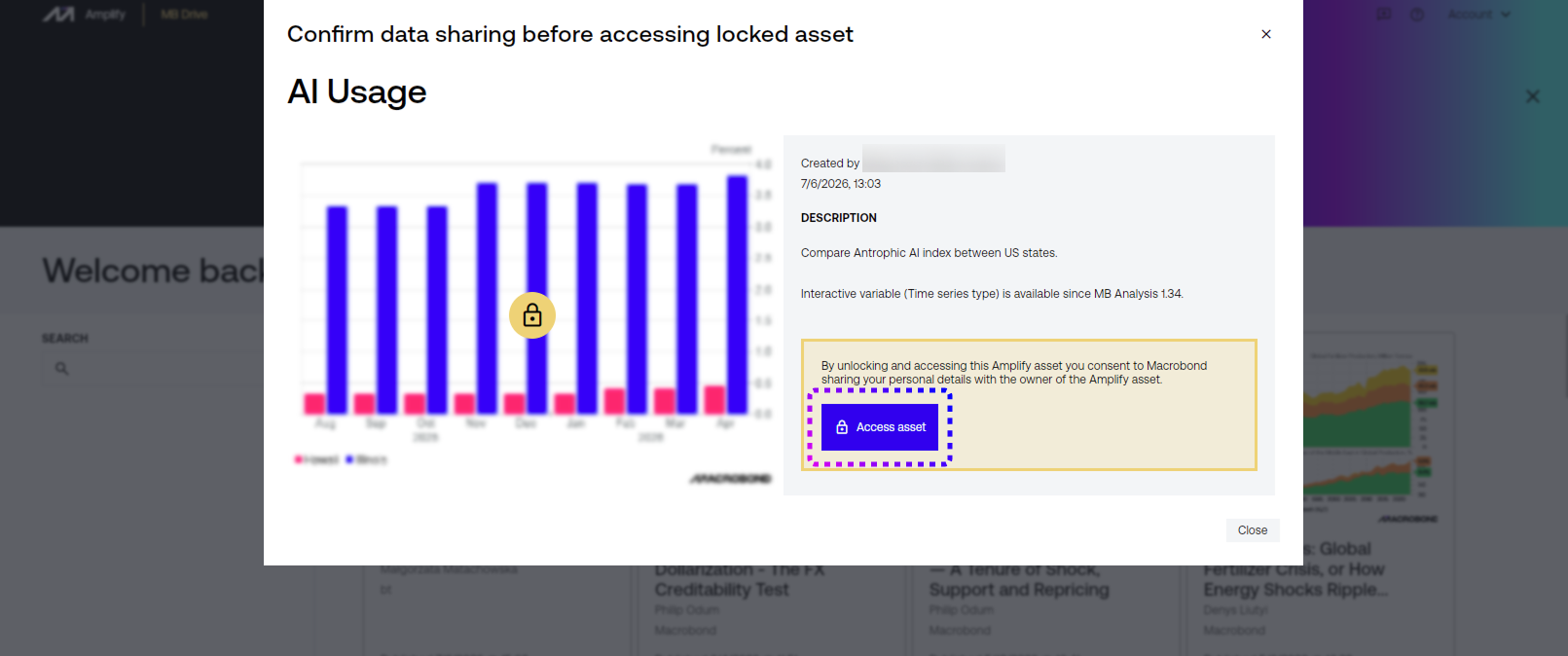
Enjoy!
For more information see Viewing Assets page.