- Pre-requisites
- Installation & Set-up
Pre-requisites
You need to have:
- Your Macrobond credentials provided to you by Macrobond
- Access to the Macrobond Github repository (links are embedded below in the documentation)
- Depending on your company’s IT and security policies, you may need to allow-list certain domain names
- Depending on your AI tool of choice, you may need to turn on developer mode in GPT settings to enable you to connect to external MCPs
Installation & Set-up
AI Chat Interfaces
Claude
Pre-requisites for Claude Chat
If you have a Team or Enterprise plan, you must be an Owner to add a connector. Once the connector has been added to the Team or Enterprise organization, then users can individually connect to and enable that connector.
Please follow Claude’s documentation here.
Remember to prompt the AI to use Macrobond to search and retrieve data and economic intelligence.
Claude Chat – Plugin
For Claude Chat, Claude Code & Cowork, please follow the guide on github here.
ChatGPT
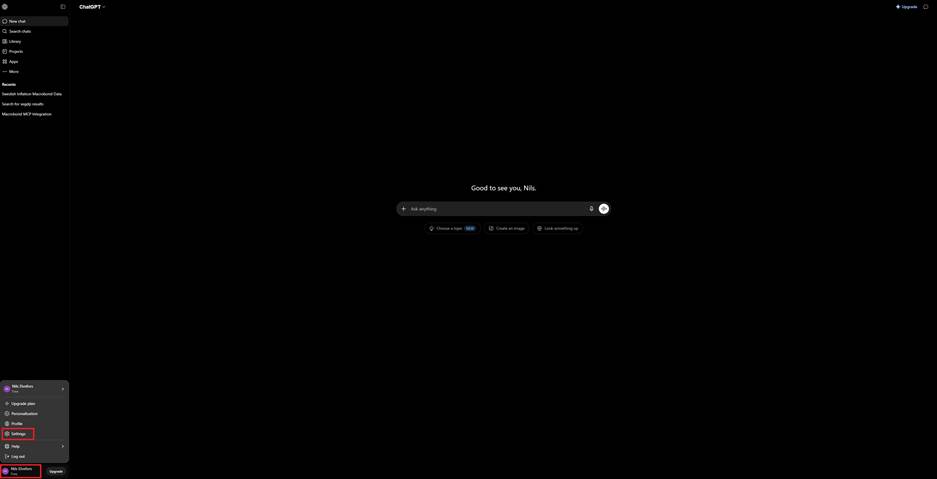
1. Open Settings
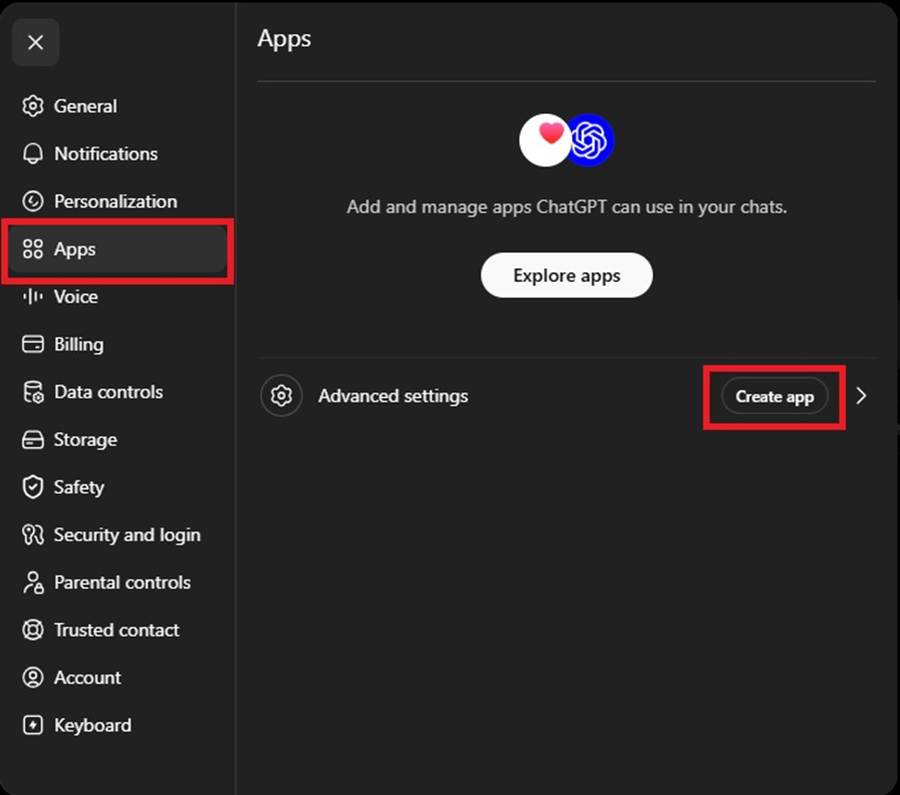
2. Select Apps, then create app
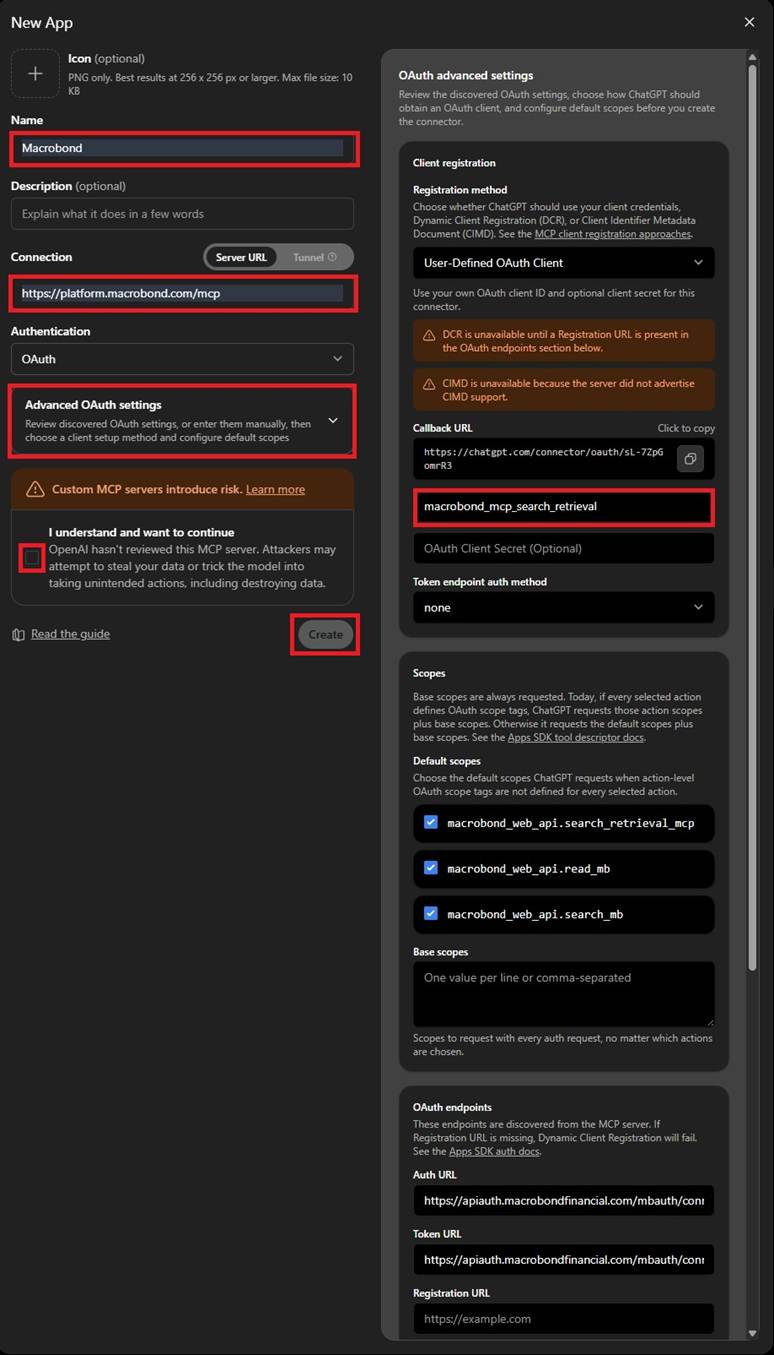
3.Input the following fields – you only need to change the fields shown in red:
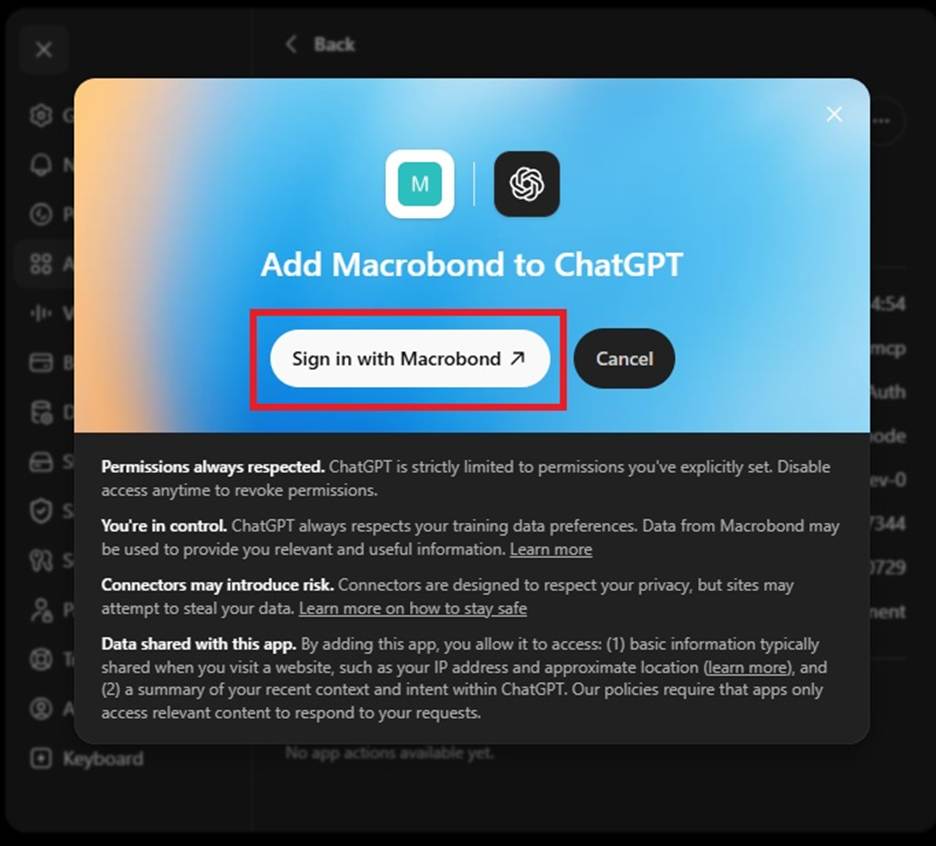
You will be prompted to sign in. You authenticate using the Macrobond credentials you received in the welcome email.
Perplexity
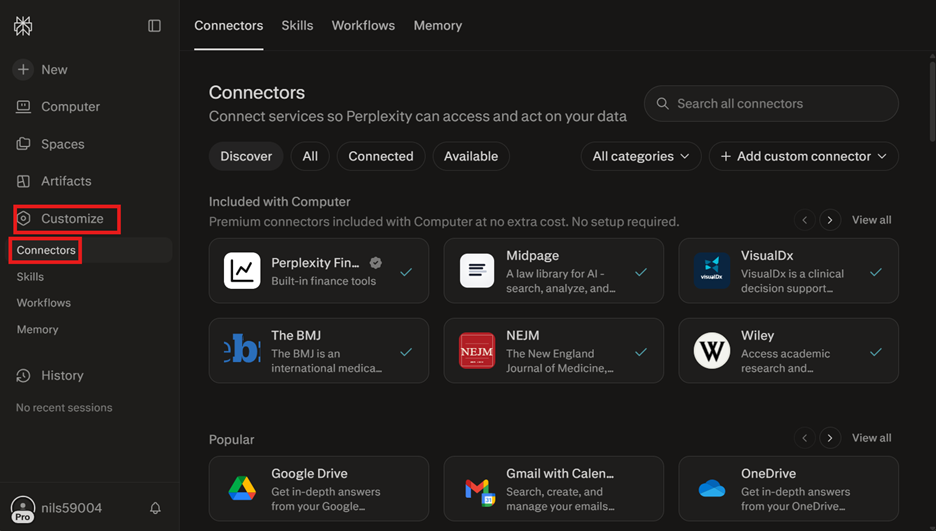
Step 1: Select Customize and Connectors
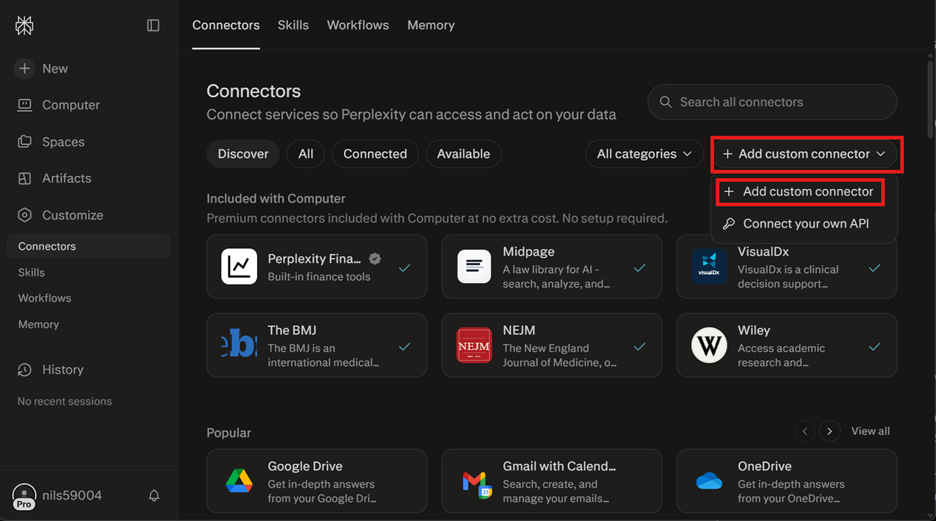
Step 2: Select Add custom connector
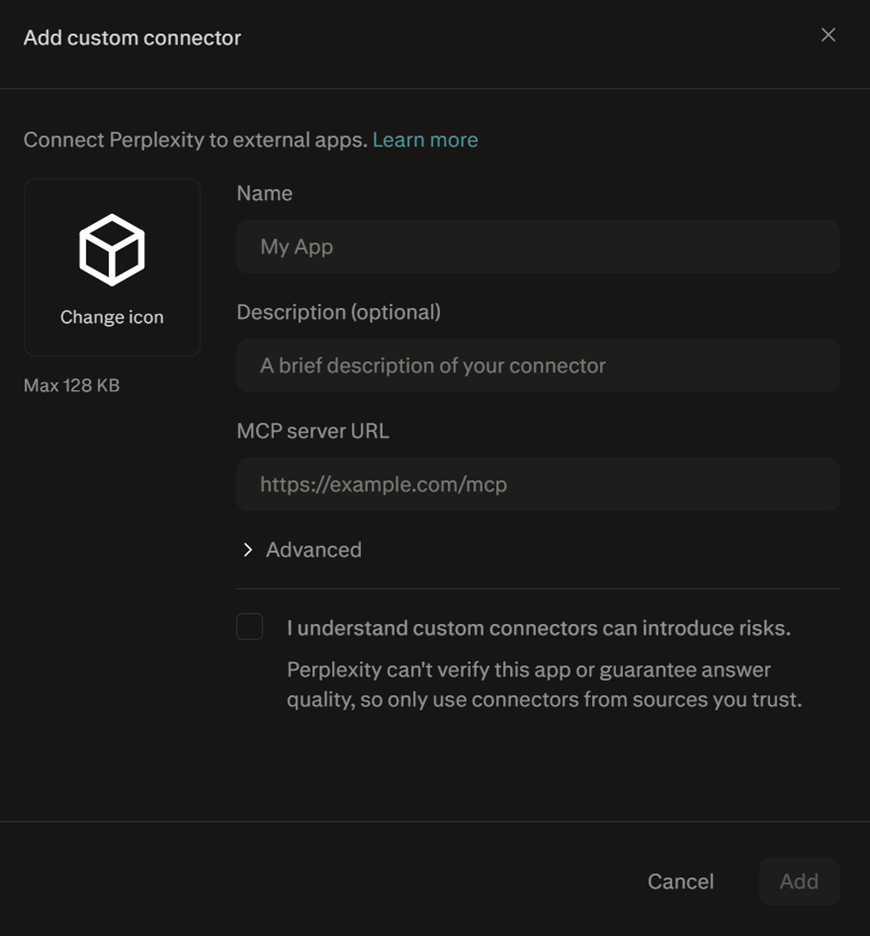
Step 3: you will see this screen
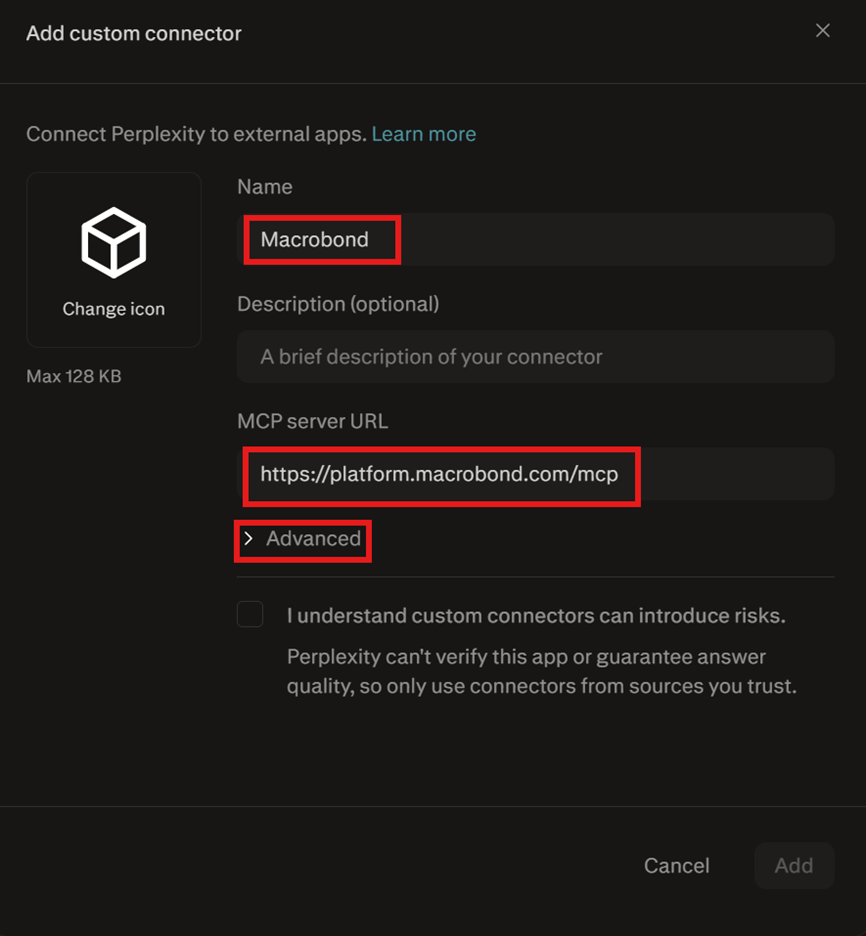
Step 4: enter the details as below:
Name: Macrobond
MCP server URL https://platform.macrobond.com/mcp
Open the Advanced section.
Step 5: under Advanced, enter the following details
Client ID: macrobond_mcp_search_retrieval
Check the box and click Add.
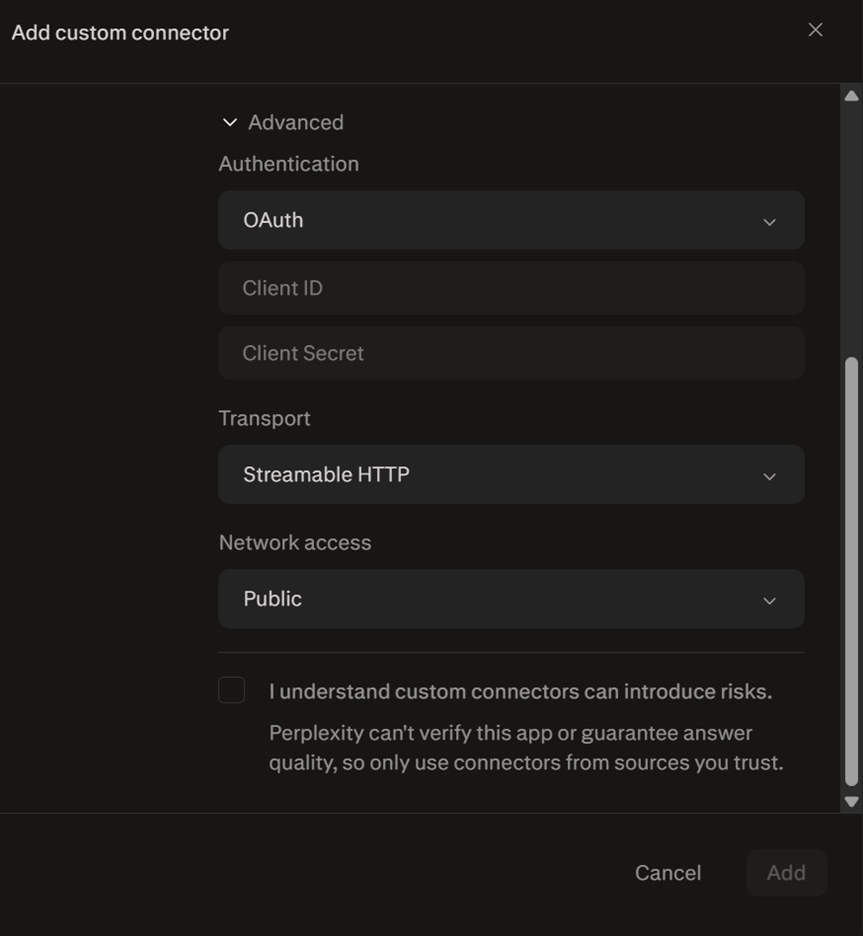
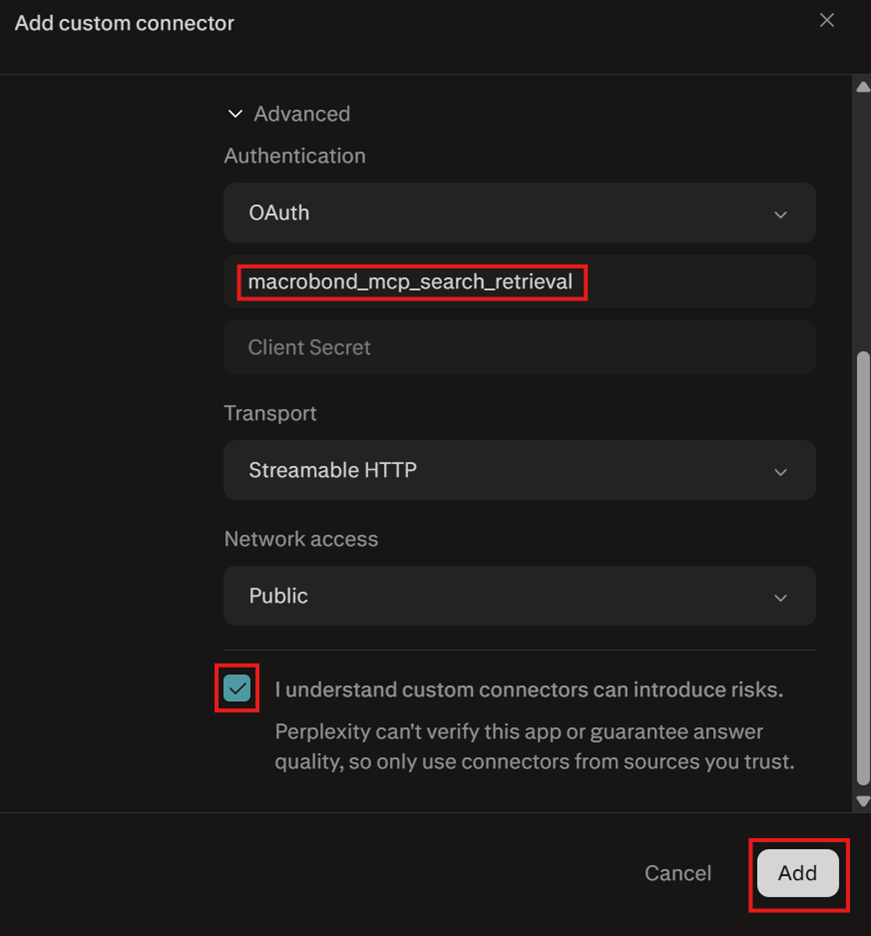
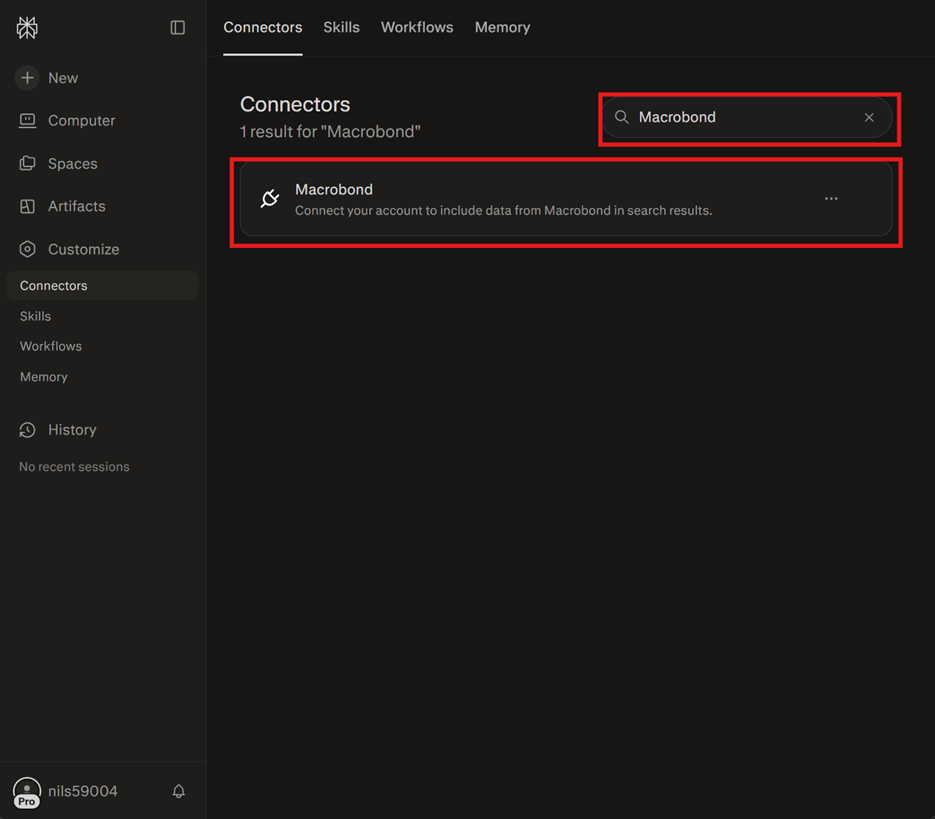
Step 6: check Connectors, you should see Macrobond appear. Select it.
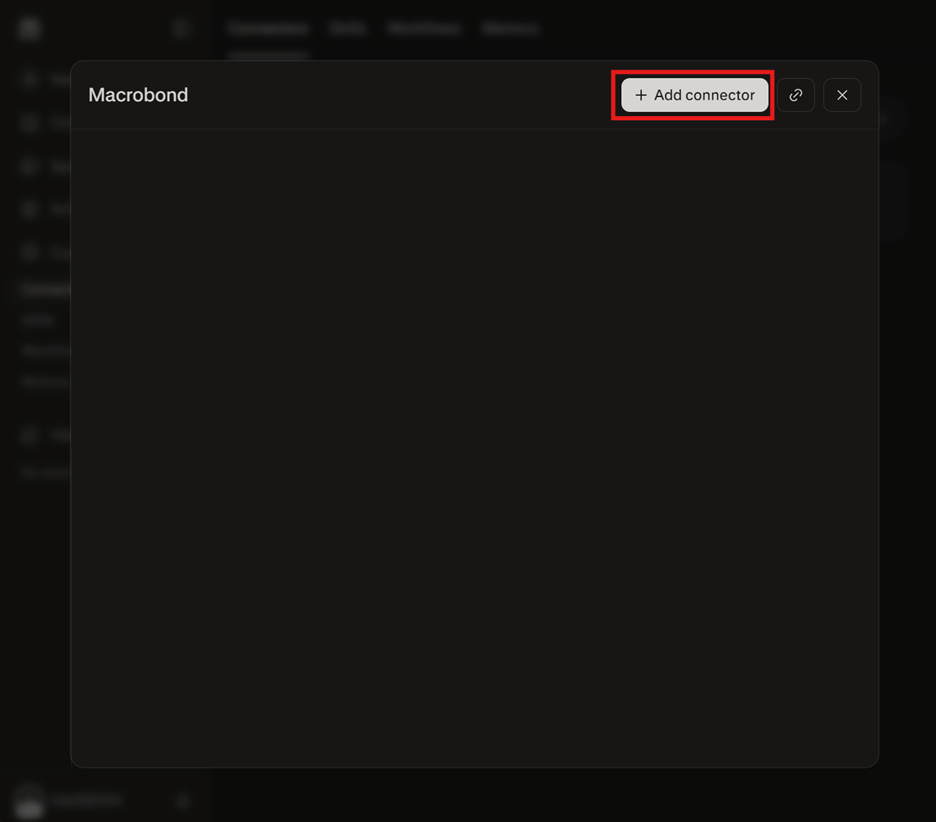
Step 7: select Add Connector
Microsoft Copilot
Microsoft Copilot Agent [M365]
Prerequisites
- You will likely need support from your internal IT team to set-up Macrobond’s Agent for M365 Copilot;
- Teams Administrator or Global Administrator access is required and
- Access to Microsoft’s Teams Admin Center
- Access to Macrobond’s zip package on github: https://github.com/macrobond-platform/macrobond-plugins/releases
- Your tenant must permit custom app uploads
- End users who will be using the Agent need either standalone Copilot application or the Copilot addon for MS Teams on their device
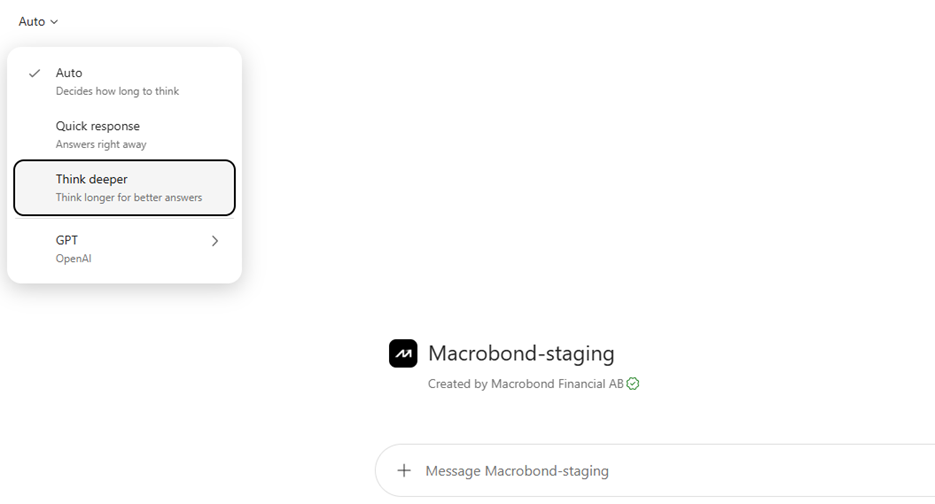
- Users must set the “Think Deeper” model when using Macrobond in M365 Copilot
Set-up Guide
These steps must be taken by the Admin, per prerequisites.
Step 1: Go to https://admin.teams.microsoft.com
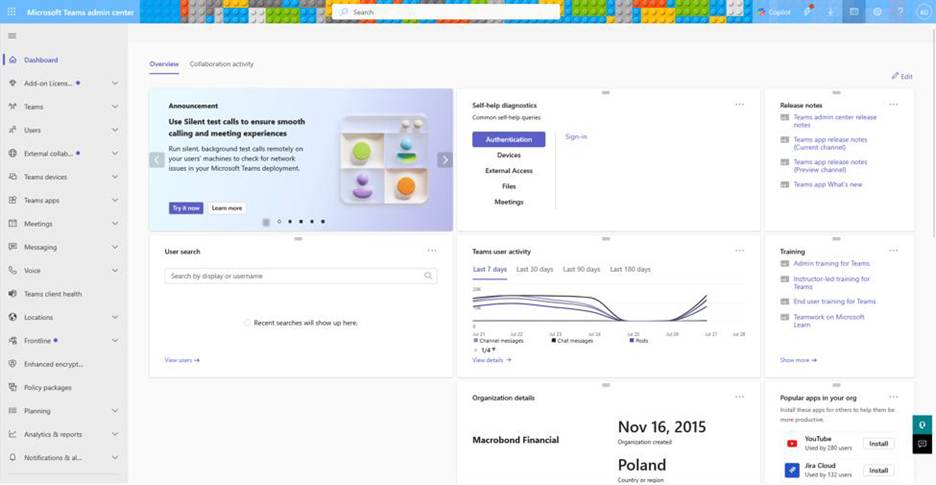
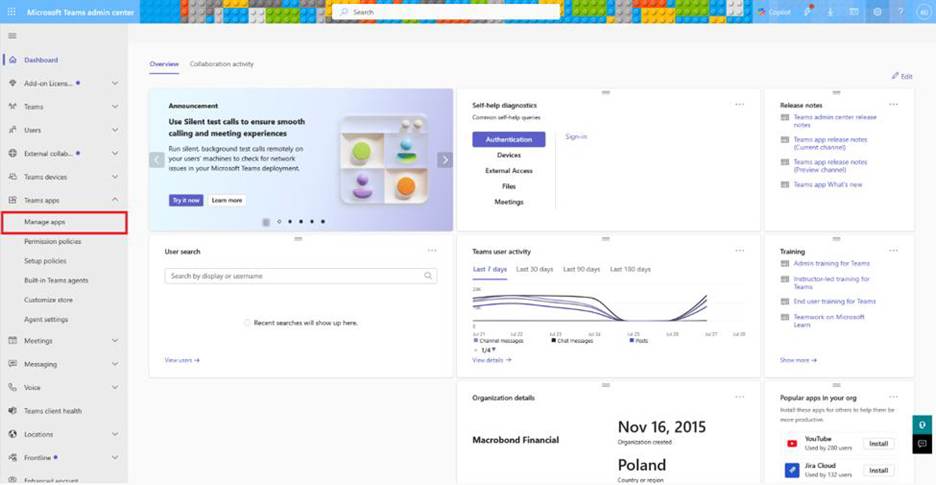
Step 2: Navigate to “Teams apps” > “Manage apps”
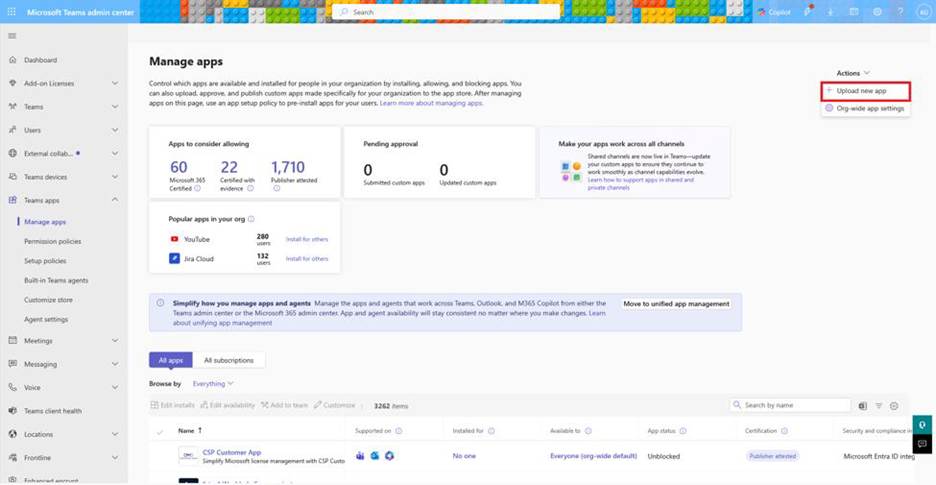
Step 3: Select “+ Upload new app” from the “Actions” menu
Step 4: Upload the provided Macrobond ZIP file: Macrobond AI Data Feed - M365 Copilot Agent (latest)
Documented here: https://github.com/macrobond-platform/macrobond-plugins
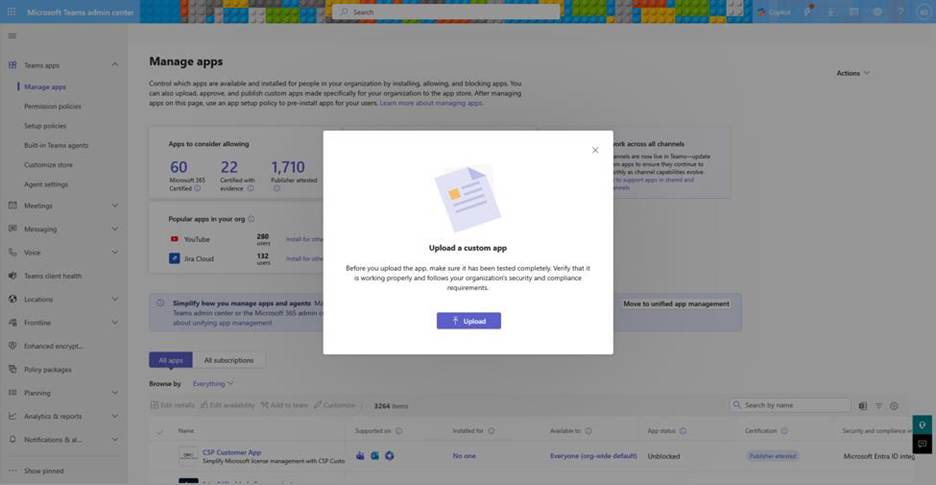
Step 5: Confirm the successful upload popup appears
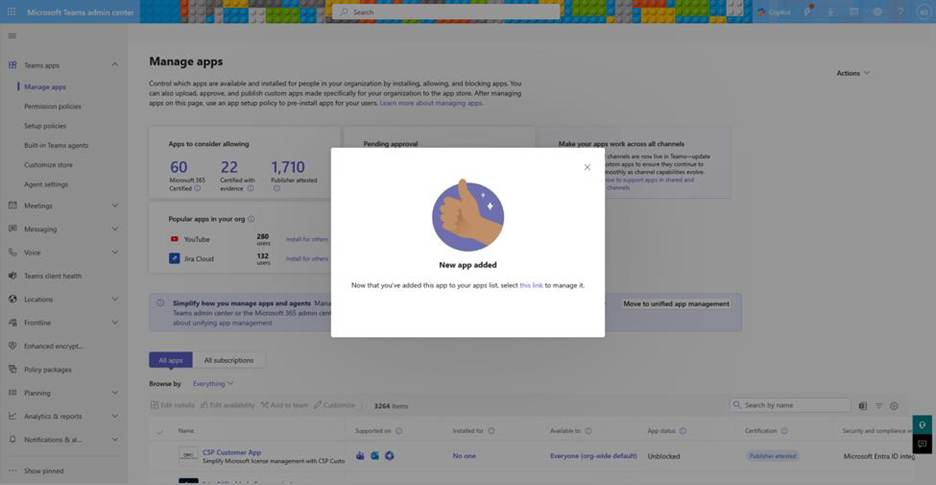
Step 6: Open the app details page using the provided link
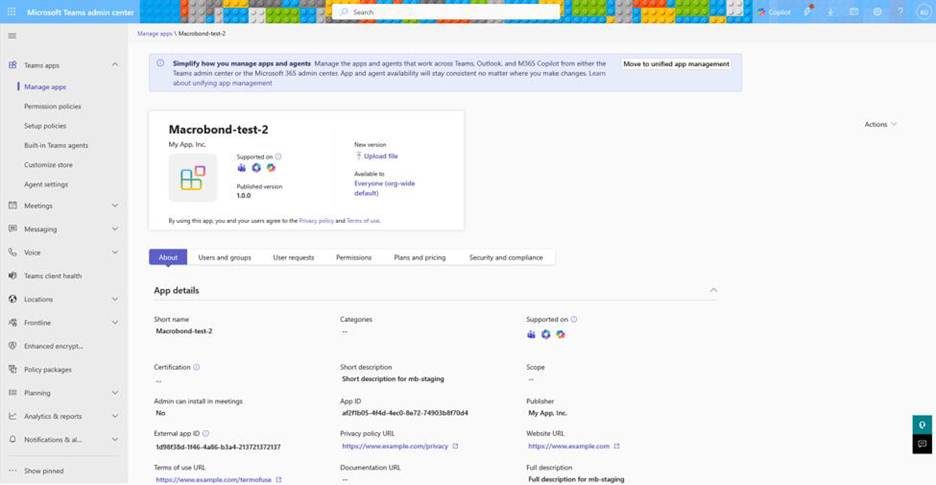
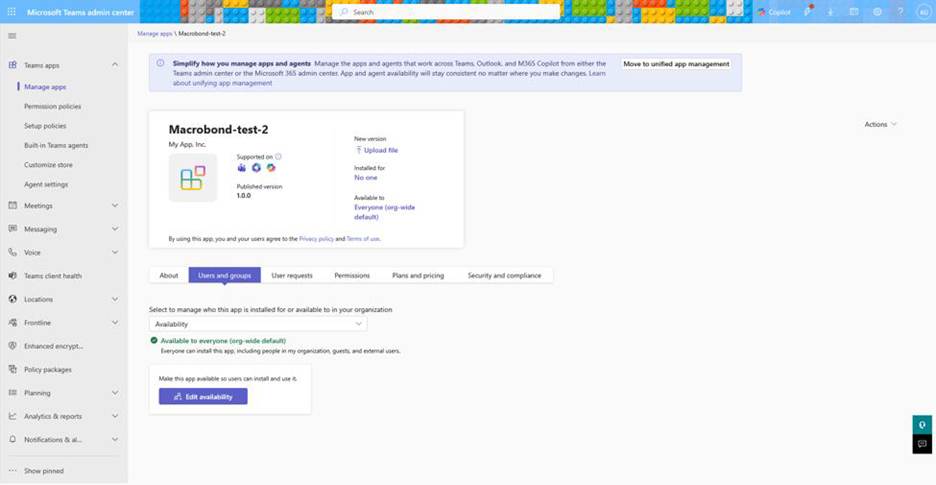
Step 7: Configure availability under Users and groups in line with your legal agreement with Macrobond. Only licensed users should be granted access.
Important Information
- Custom app uploads may be restricted by policy. Please raise with your internal IT team for support.
- Changes can take several minutes to propagate, please allow some time before testing.
- Do not modify the package provided by Macrobond. Macrobond can only provide Support on the package as provided.
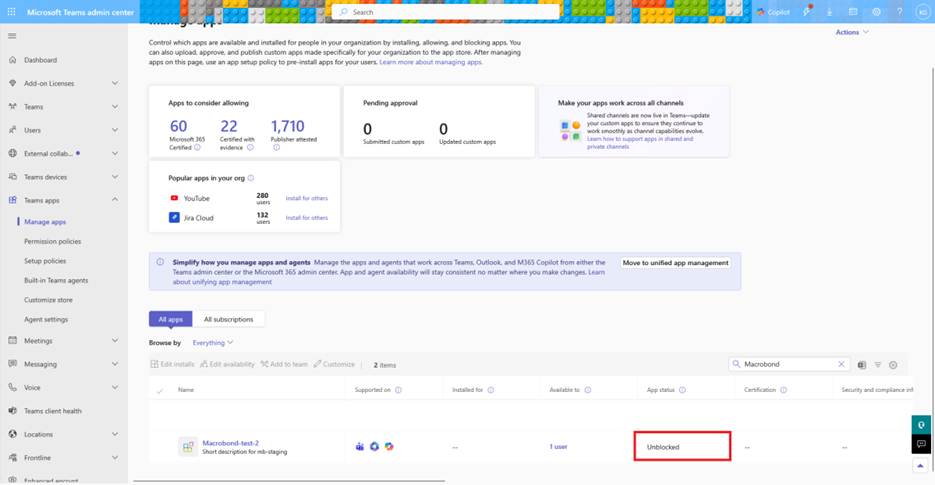
- The deployment is successful when the app is visible to assigned users, launches correctly, and appears as Allowed in Teams Admin Center.
Updating your Microsoft Copilot Agent [M365]
Admin role is needed to update the agent
Step 1: Go to https://admin.teams.microsoft.com
Step 2: Navigate to “Teams apps” > “Manage apps”:
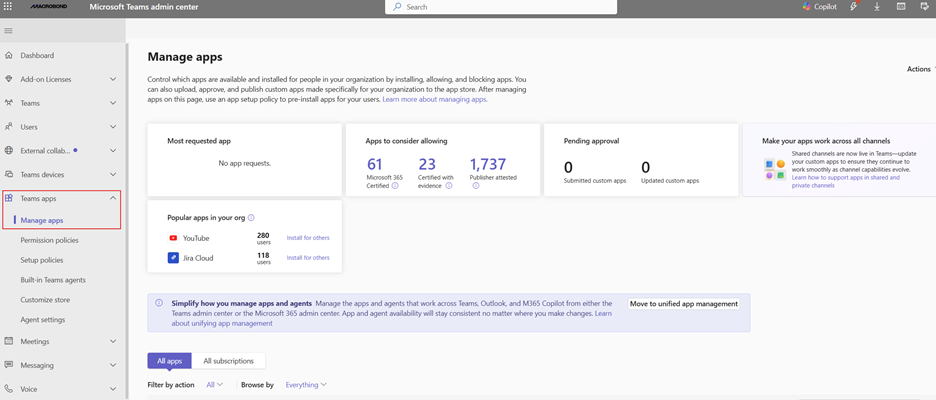
Step 3: Find and open your previously installed Macrobond agent:

Step 4: Once opened, find and click the “Upload file” under “New version”:
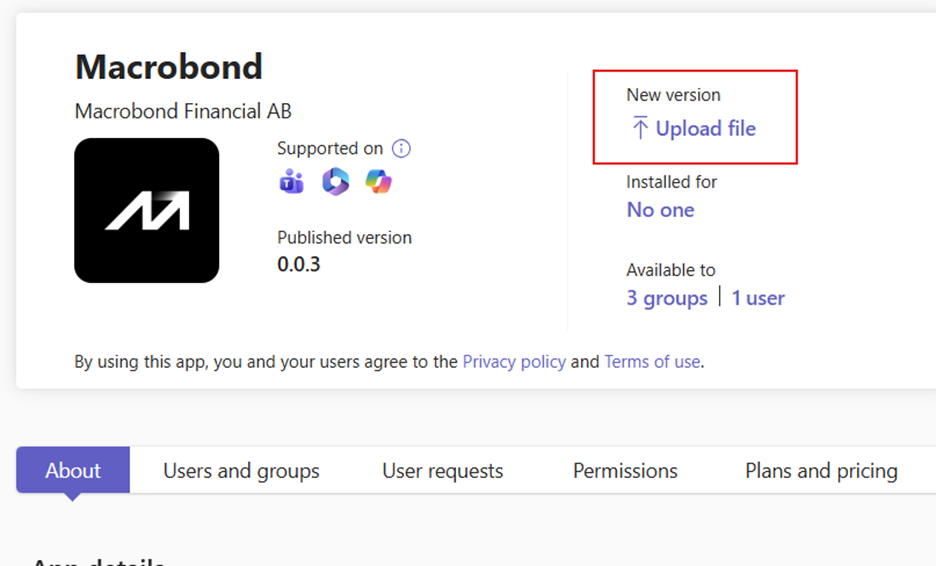
Step 5: Click the “Select a file” in the “Update app” window prompt:
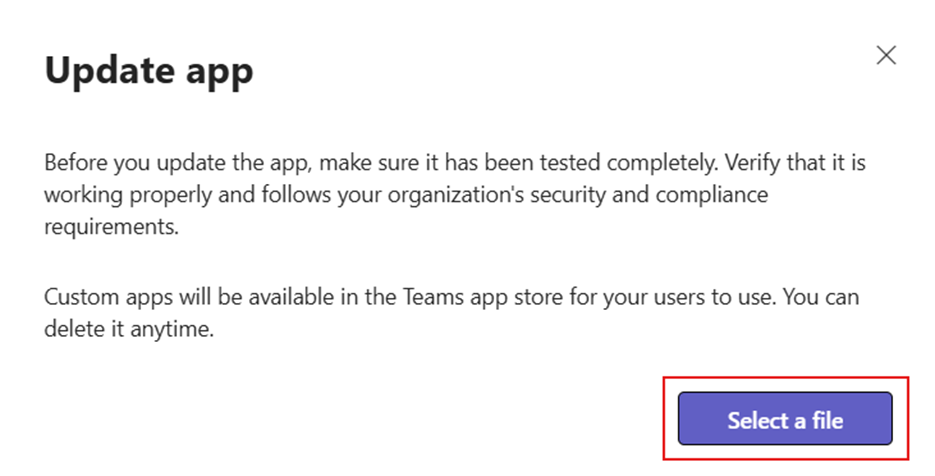
Step 6: Upload the provided updated Macrobond ZIP: you will always find the (latest) available version on github. You can follow the documentation on github here.
Testing for end user access
Teams
Step 1: Open Microsoft Teams (desktop or web).
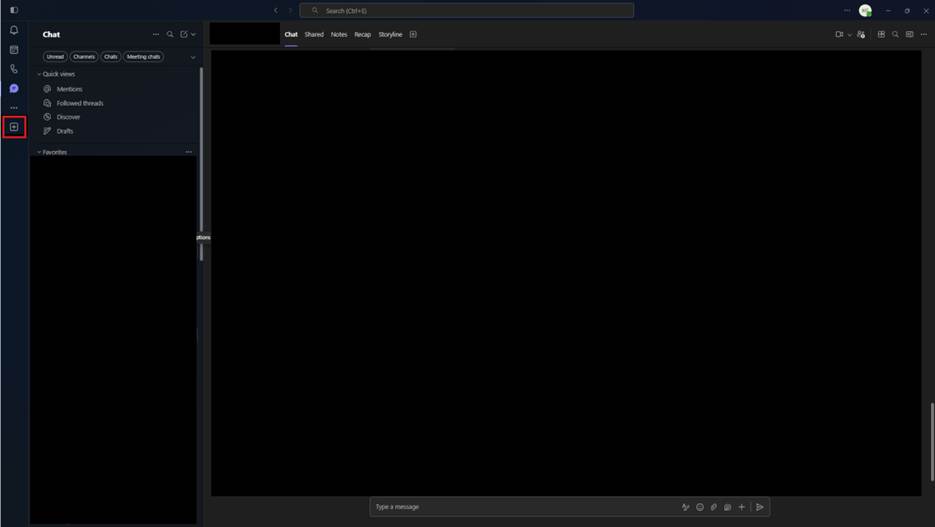
Step 2: Search for the Macrobond application in Apps.
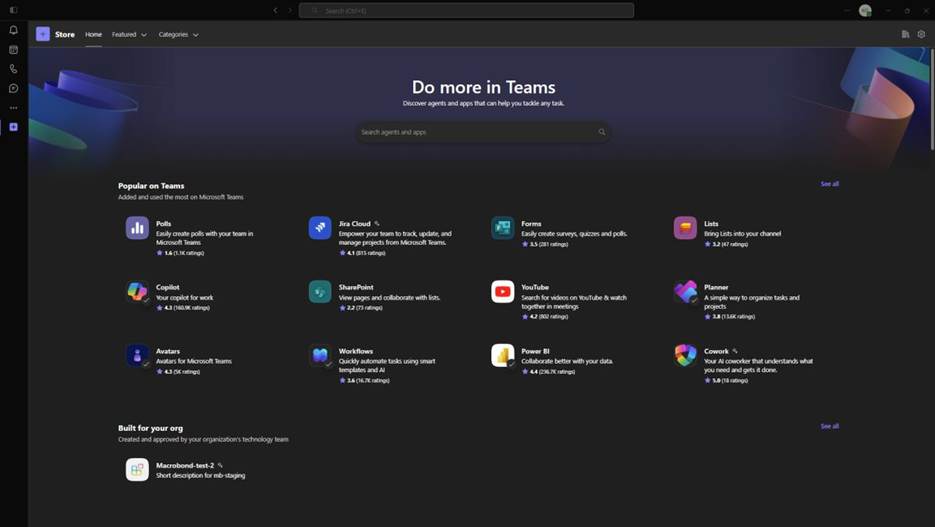
Step 3: Launch the app and verify it opens without errors.
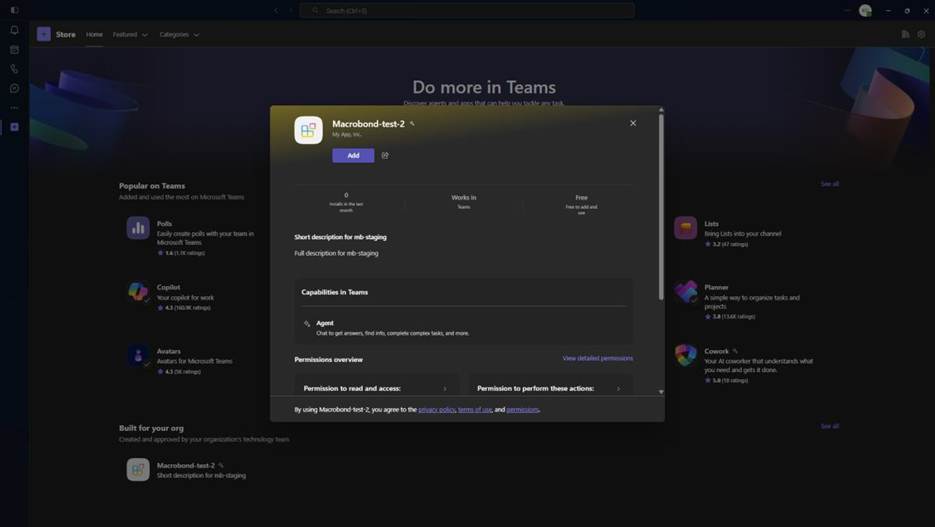
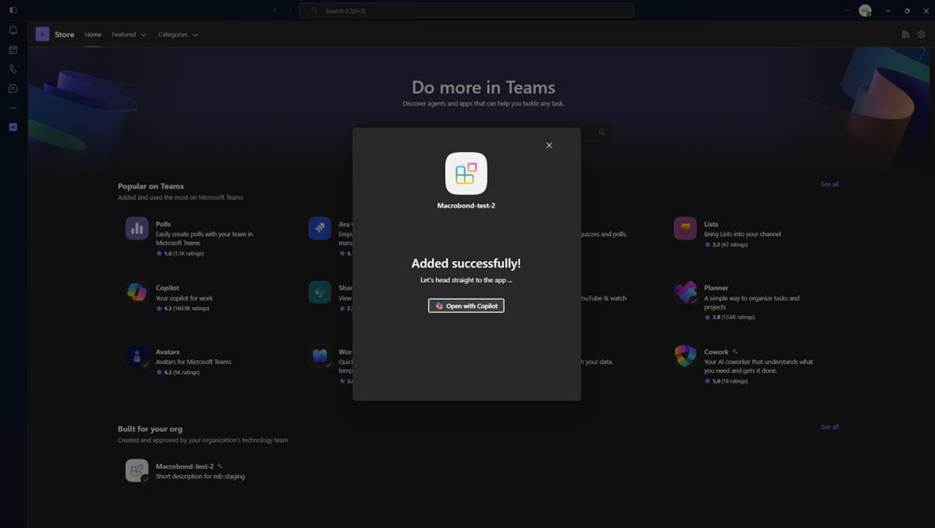
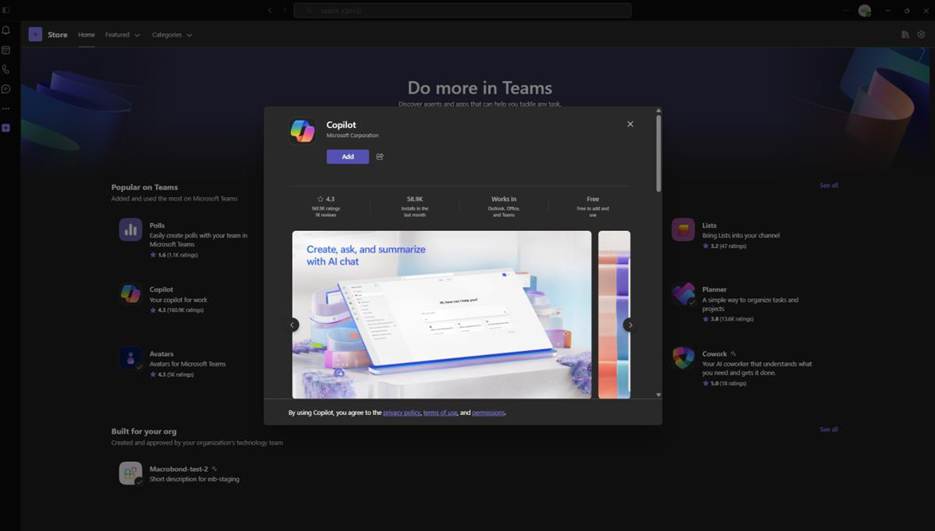
Note: If the Copilot addon for Teams wasn’t installed beforehand, you’ll be prompted to do so.
Step 4: In Teams Admin Center, verify the app status is Allowed and assignments are correct.
Adding the App to Microsoft 365 Copilot (Standalone)
Open M365 Copilot and sign in.
Step 1: Navigate to Apps or available enterprise apps and search for Macrobond.
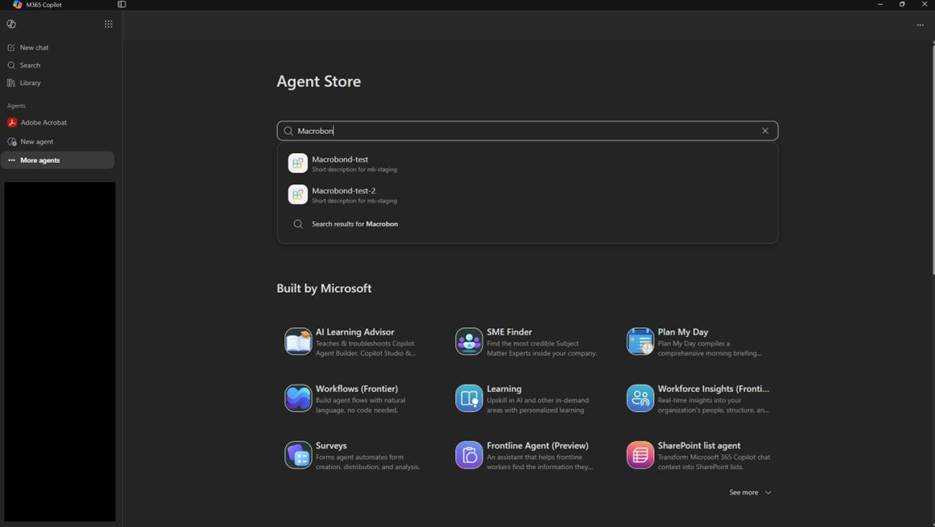
Step 2: Verify that Macrobond is available to target users.
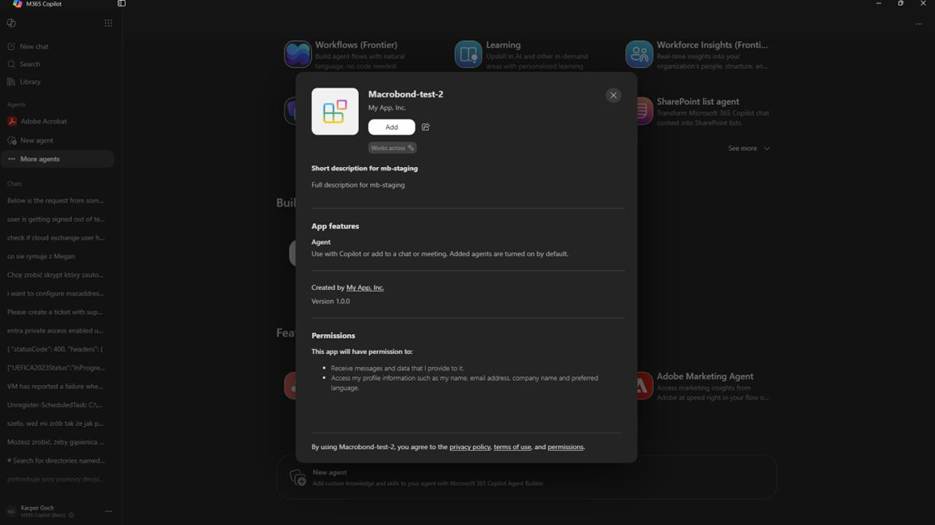
Step 3: Open the app from Copilot.
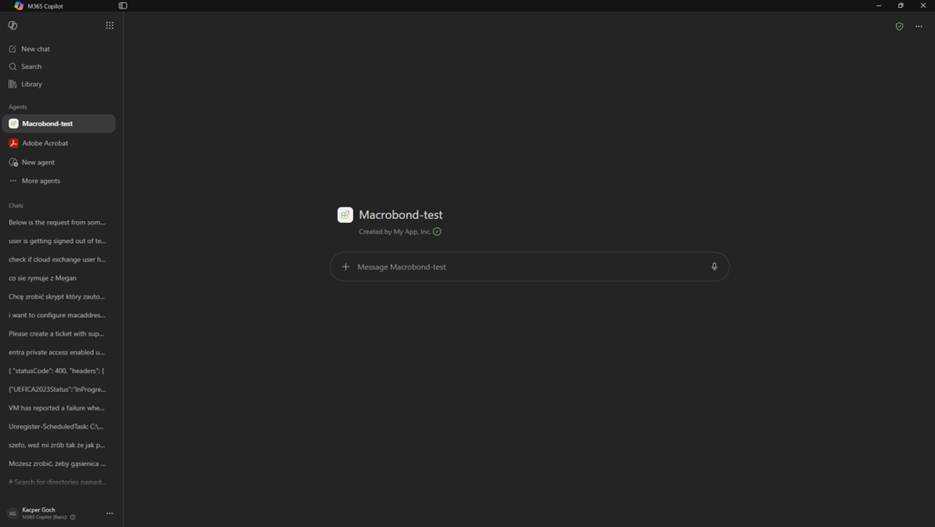
Step 4: Remember to set the model to “Think Deeper”:
Tips / Best Practices
- Be explicit and provide as much information as possible in your prompts
- Search and retrieval is from Macrobond, there are dependencies on the model that you are using on Microsoft side – you need “Think Deeper” for the best results
- Start a new chat for a new research topic to reset the context for your AI model
AI Coding Environments
Please refer to the documentation on github macrobond-platform/macrobond-plugins: Macrobond Plugins for AI Code Assistants
Claude Code
Please refer to: macrobond-plugins/packages/claude at main · macrobond-platform/macrobond-plugins
Github Copilot CLI
Please refer to: macrobond-plugins/packages/copilot at main · macrobond-platform/macrobond-plugins
Visual Studio Code (VS Code)
Please refer to: macrobond-plugins/packages/agent-plugin at main · macrobond-platform/macrobond-plugins
OpenAI Codex
Please refer to: macrobond-plugins/packages/codex at main · macrobond-platform/macrobond-plugins
Cursor
Please refer to: macrobond-plugins/packages/cursor at main · macrobond-platform/macrobond-plugins