- All series selector
- Transforming in Excel
- In-house templates
- Migrating while changing storage place - old codes in documents
All series selector
In Excel, open the Macrobond tab and select All series.

Make sure the data is set to Raw. Under Browse, select Account in-house. Select the series you want to migrate and click Add selected time series.
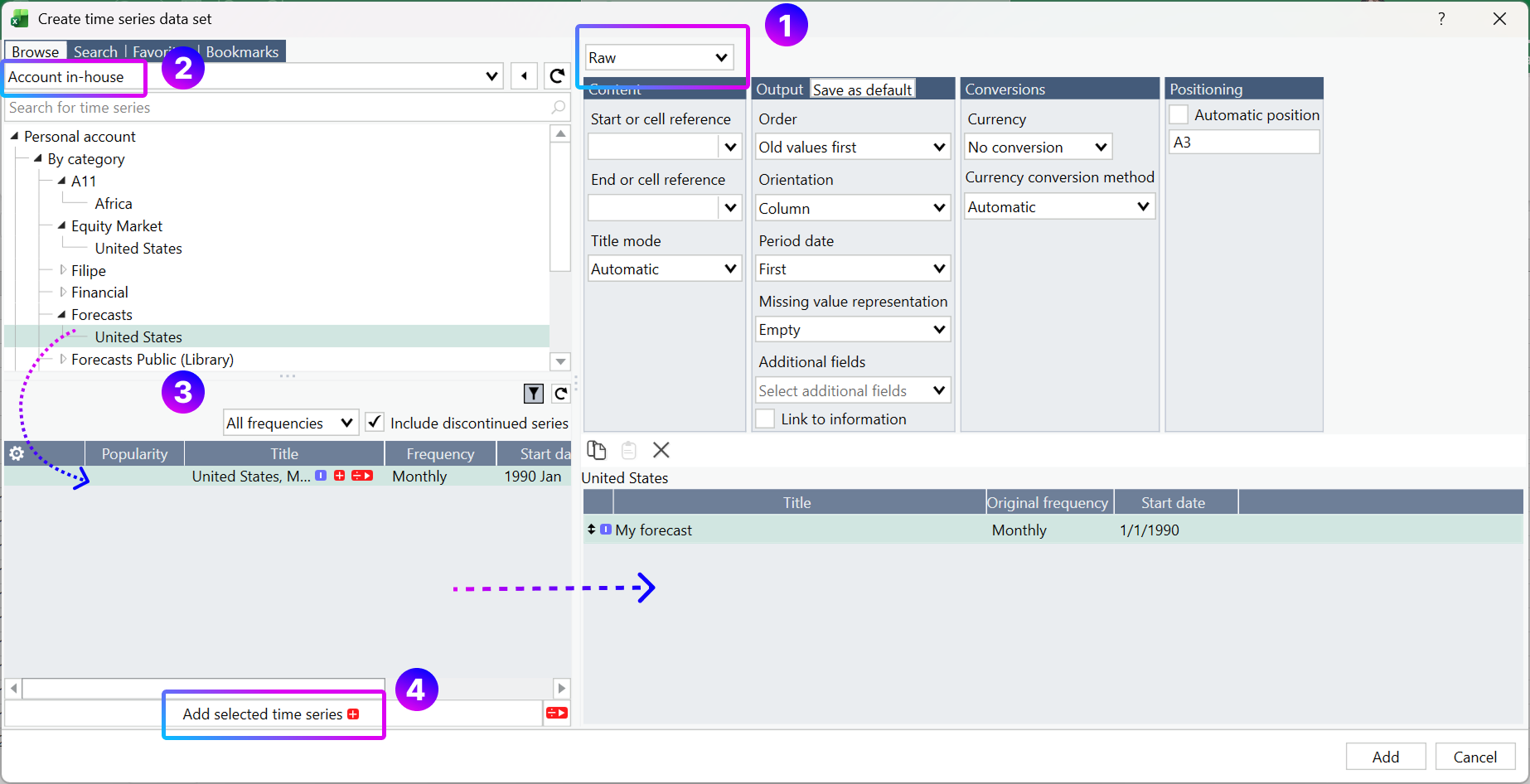
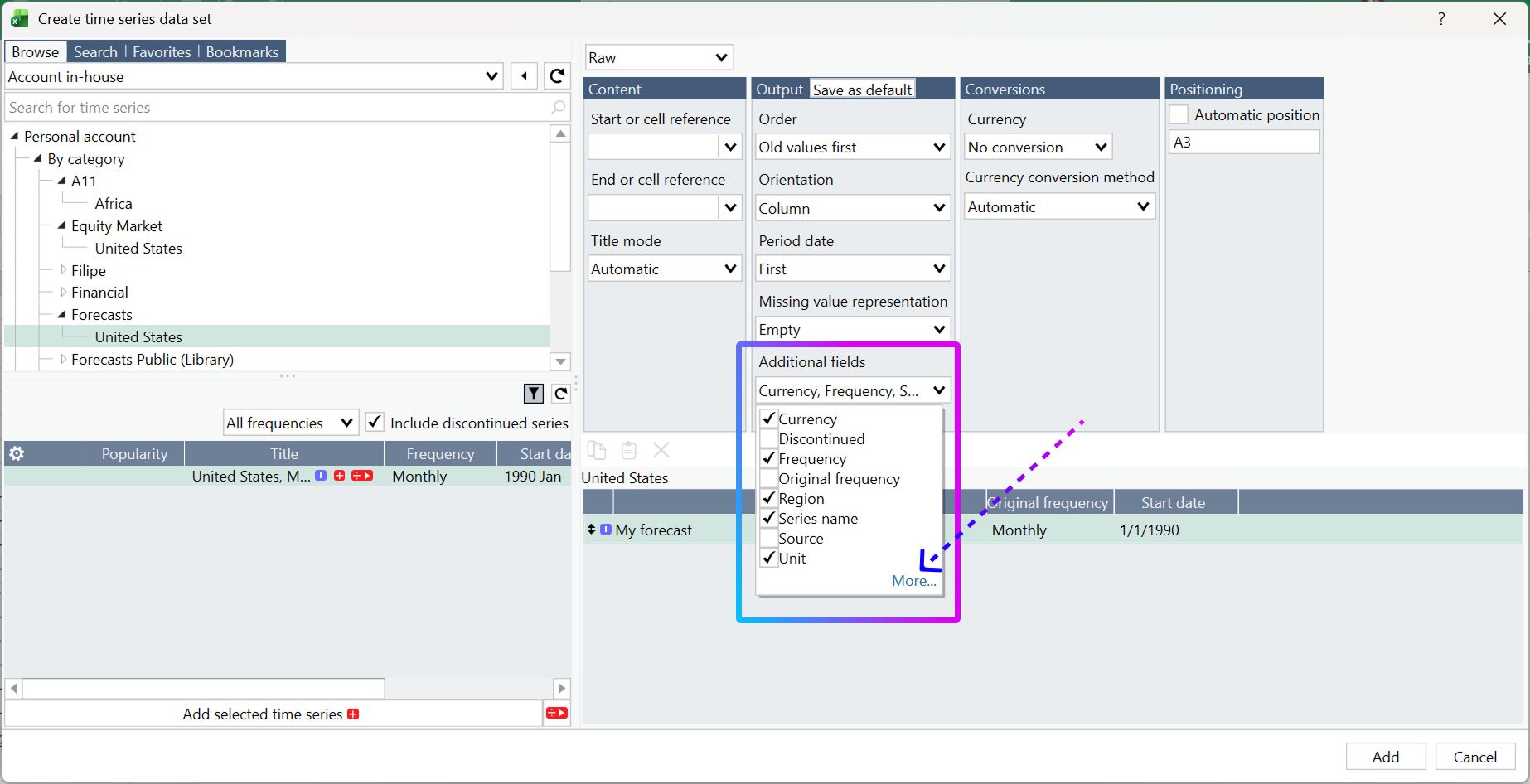
Under Additional fields, add:
- Currency
- Frequency
- Region
- Series name
- Unit
Click More.
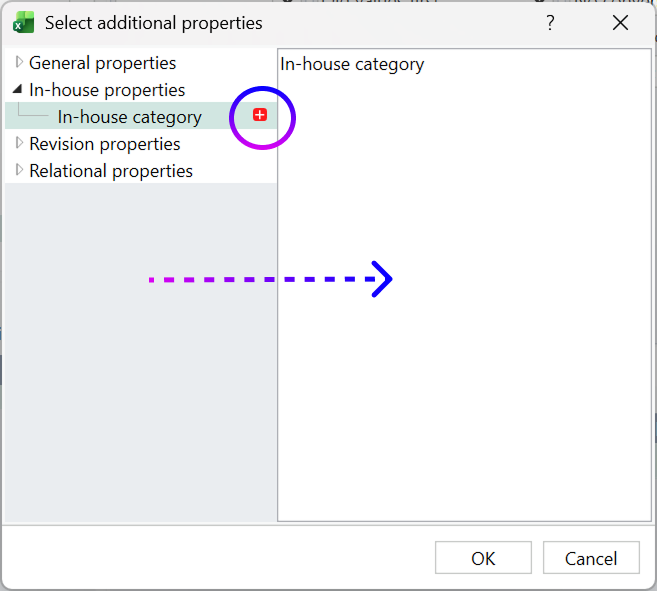
Navigate to In-house properties > In-house category. Click the red + icon to add the field and select OK. Click Add to download the selected series into Excel.
Transforming in Excel
Country names
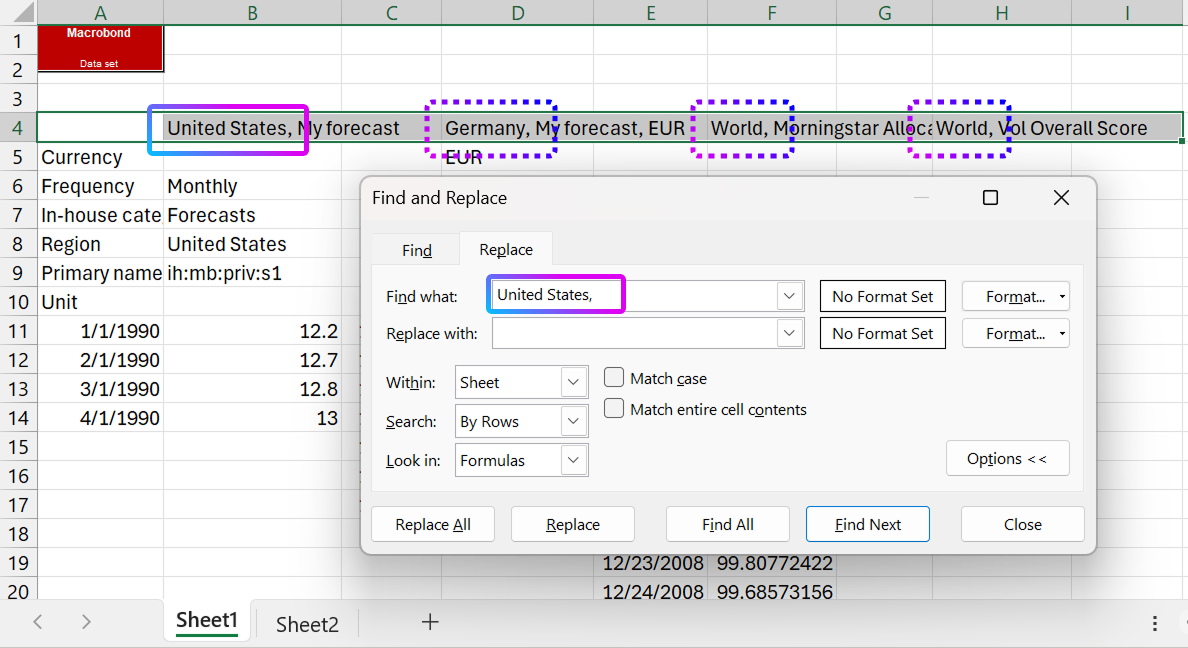
Use Excel's Home > Replace function to remove country names followed by a comma (for example, United States, ).
This step prevents duplicate country names in the uploaded series descriptions. During upload, the description is constructed using the format Region + Description. If the original description already includes the country name, the resulting description may contain the country name twice.
Repeat this process for all countries used in your in-house series.
Storage place
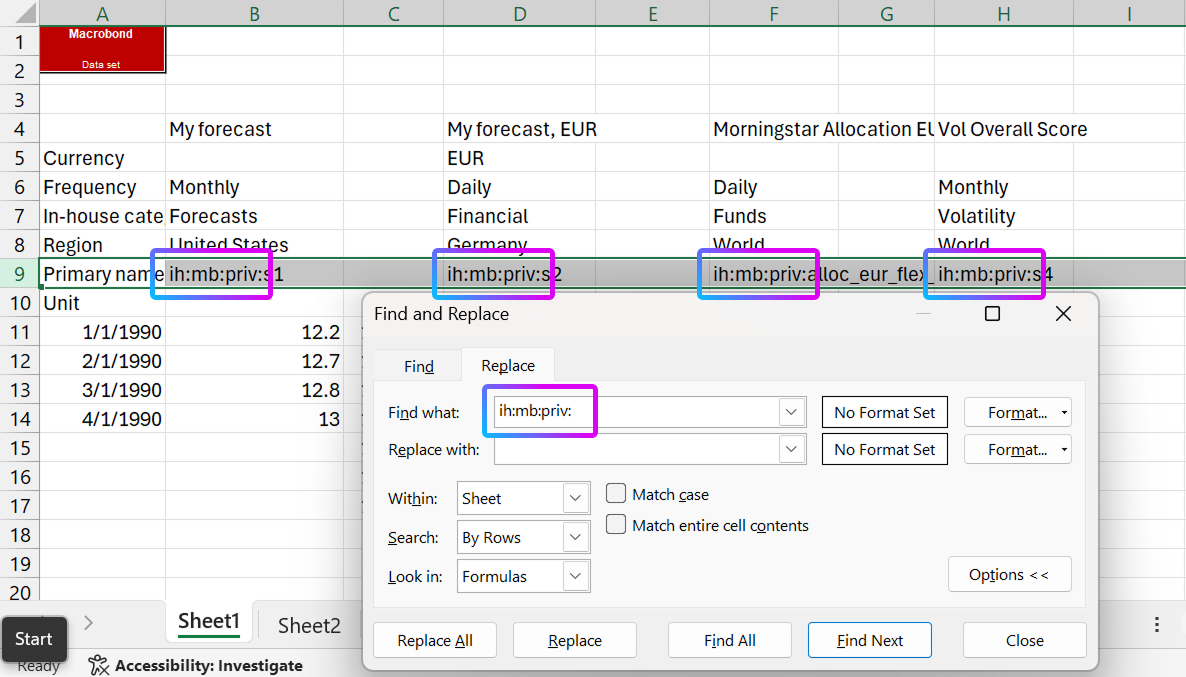
Use the same Replace function to remove the storage location prefix from the series name, for example ih:mb:priv.
ih:mb:priv= Private accountih:mb:dept= Department accountih:mb:com= Company account
Because the uploaded code is built using Storage location + Series name leaving the original prefix in place will duplicate it.
In-house templates
Create first template
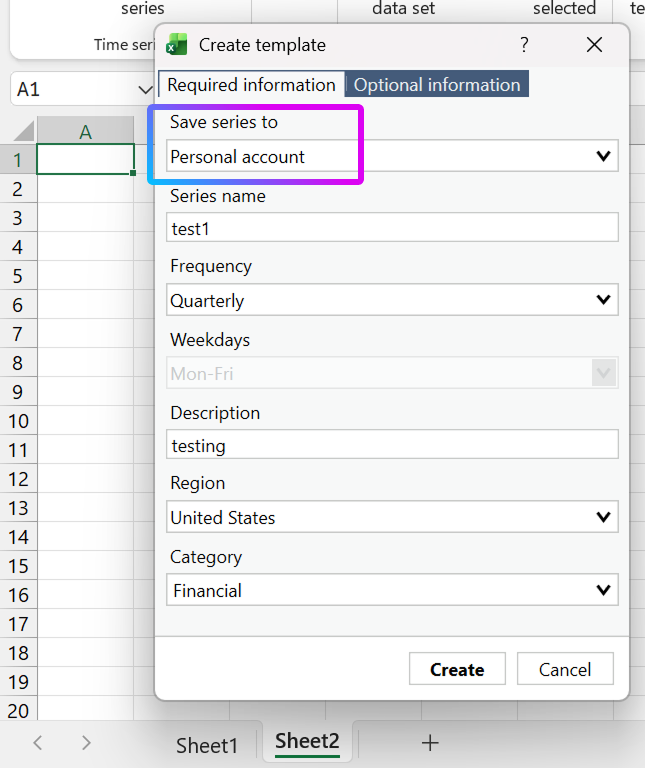
Create a new worksheet. Select cell A1. From the Macrobond tab, choose Create template.

Under Save series to, select the correct destination:
- Private
- Department
- Company
Complete the remaining fields as needed. These can be updated later.
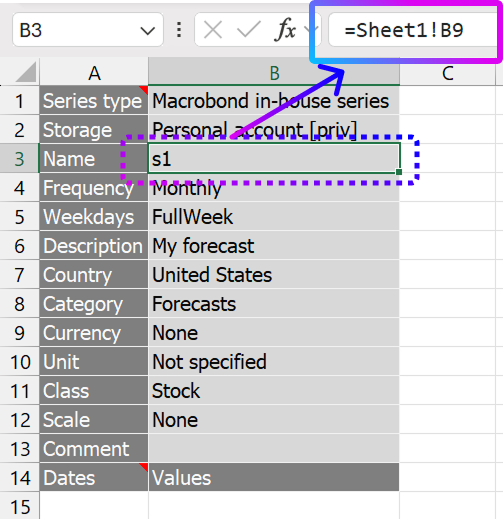
Use cell references to populate the template from the data sheet.
| Template field | Reference |
|---|---|
| Name | =Sheet1!B9 |
| Frequency | =Sheet1!B6 |
| Description | =Sheet1!B4 |
| Country | =Sheet1!B8 |
| Category | =Sheet1!B7 |
Currency and Unit
To ensure that empty values are handled correctly, use formulas that return default values when Currency or Unit is blank.
Currency:
=(IF(Sheet1!B5="","None",Sheet1!B5))
Unit:
=(IF(Sheet1!B10="","Not specified",Sheet1!B10))
Important: These examples assume Currency is stored in cell B5 and Unit in cell B10. Update the references if your worksheet uses different locations.
Copy template
After completing the first template:
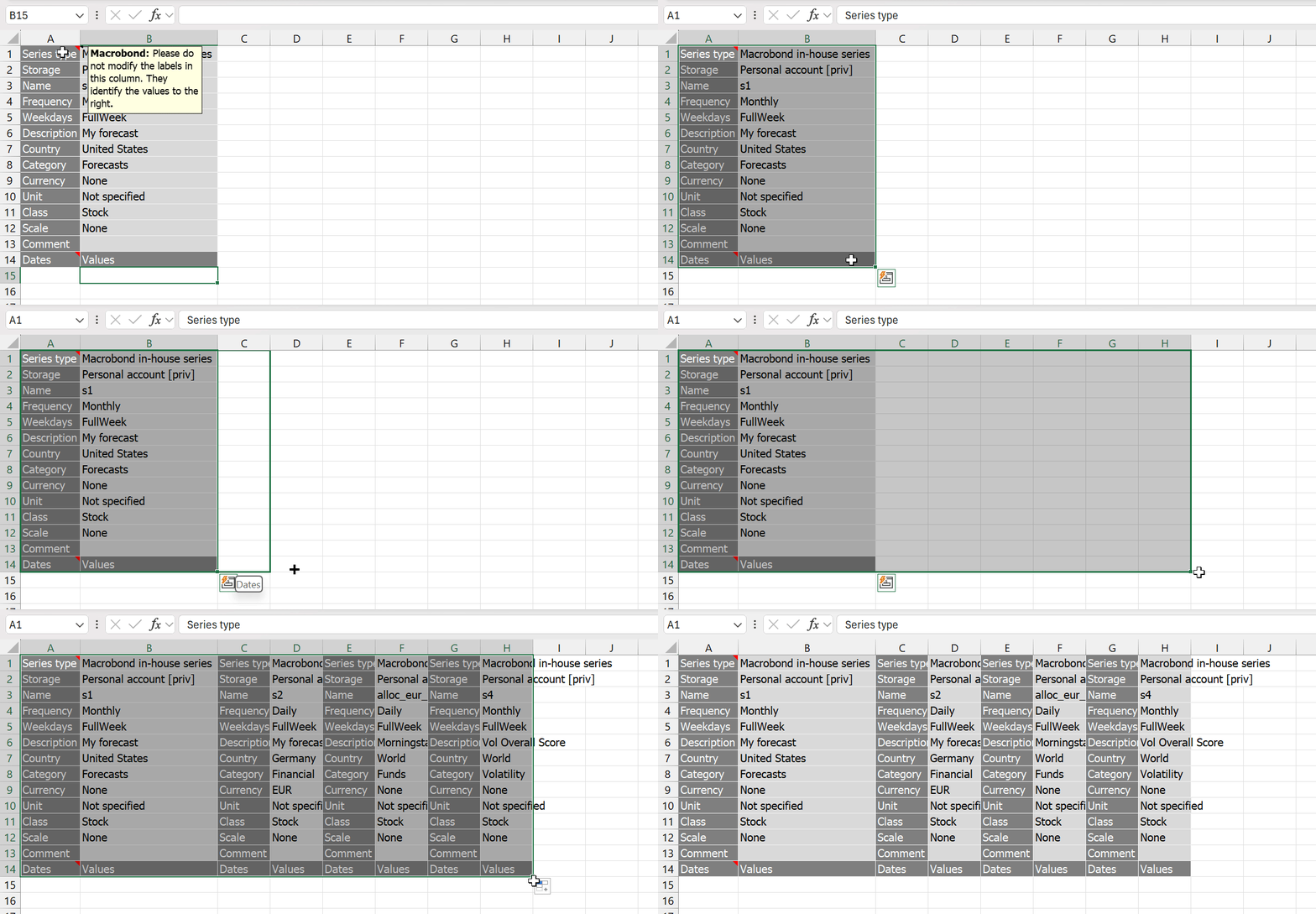
- Select cells A14:B14.
- Drag the selection across all columns that contain source series data.
For example, if the final series in Sheet1 is located in column AZ, extend the template to column AZ as well. Excel automatically updates the cell references for each series.
Dates and values
In Sheet1, copy all dates and values starting from cell A11.
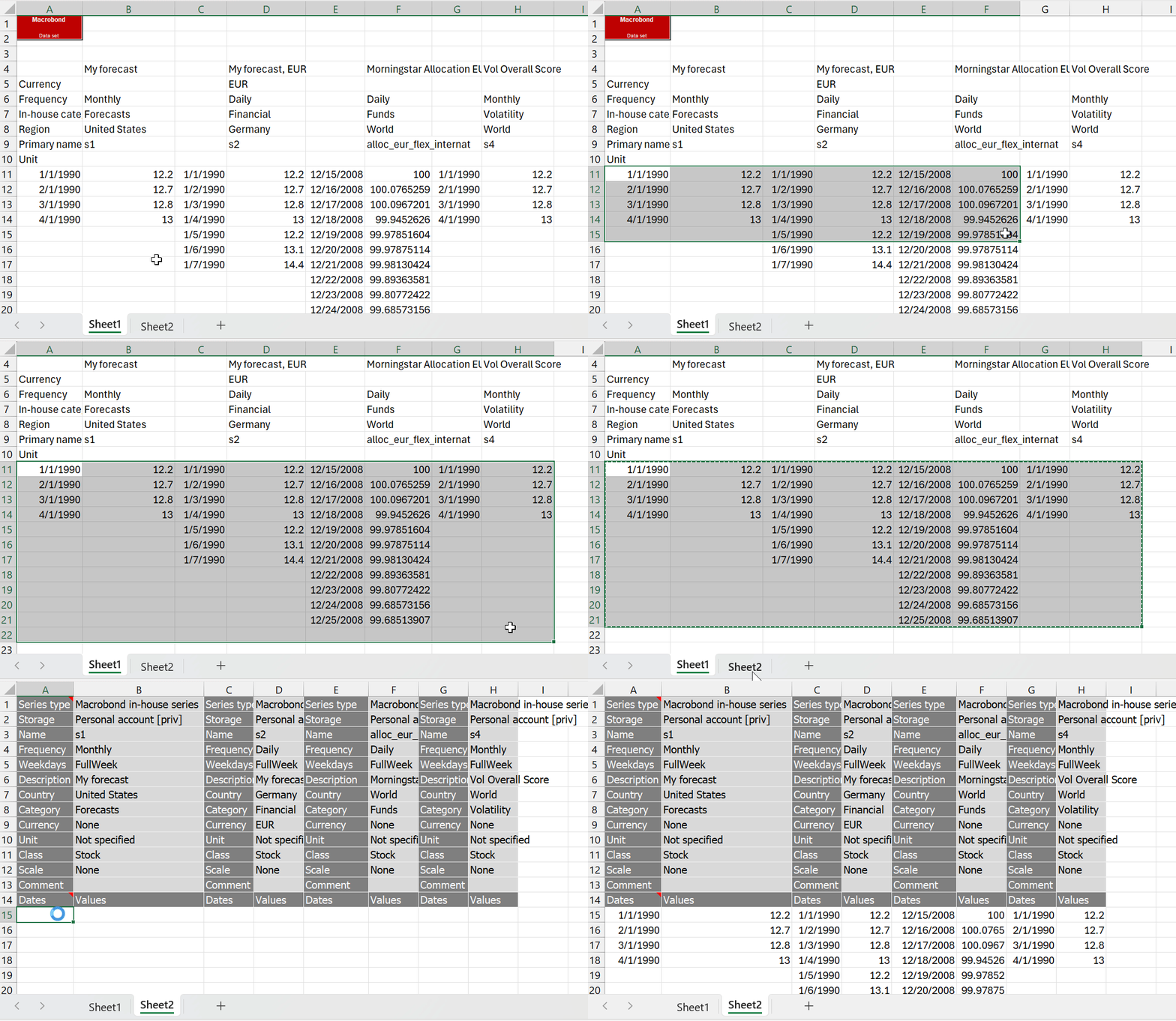
The templates are now ready for upload. To upload the series open the Macrobond tab. Click Upload all templates.
- Save the workbook.
- Close Excel.
- Sign in to the target account in Macrobond Analysis.
- Reopen the workbook.
Excel will then connect using the correct account.
Migrating while changing storage place - old codes in documents
If you move series to a different storage location, existing documents that reference the original series codes will display errors because the links are no longer valid.
Update the storage portion of the series code in each affected document.
For example:
ih:mb:priv:gdpforall123
Change to:
ih:mb:com:gdpforall123
Only the storage location segment needs to be changed. The remainder of the series code stays the same.