- All series selector
- Transforming in Excel
- In-house templates
- Migrating while changing storage place - old codes in documents
All series selector
In Excel go to Macrobond tab in the ribbon, and press 'All series'.

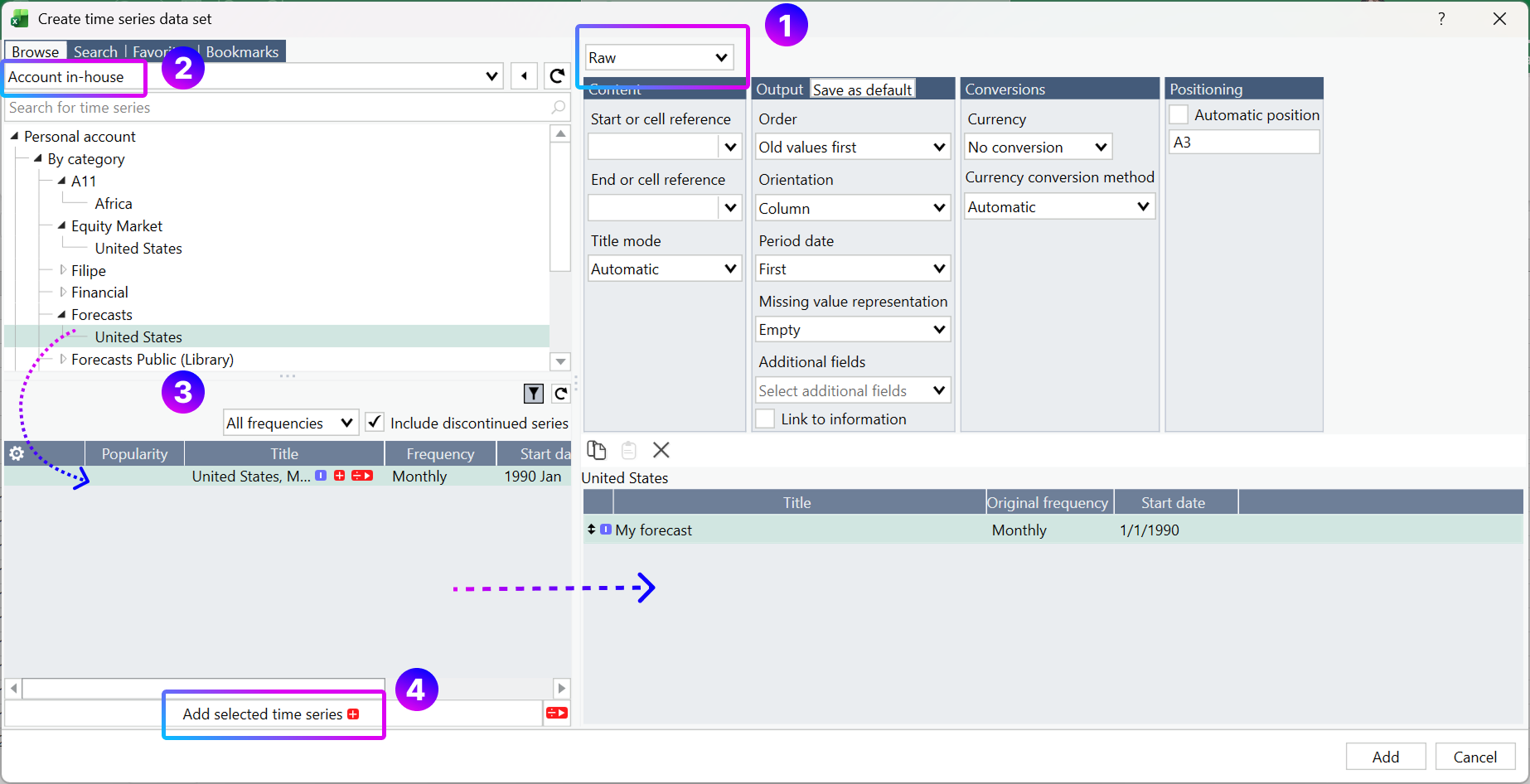
Make sure that your data is set to Raw. Under Browse select 'Account in-house'. Select series and use 'Add selected time series' to add them on the right-side panel.
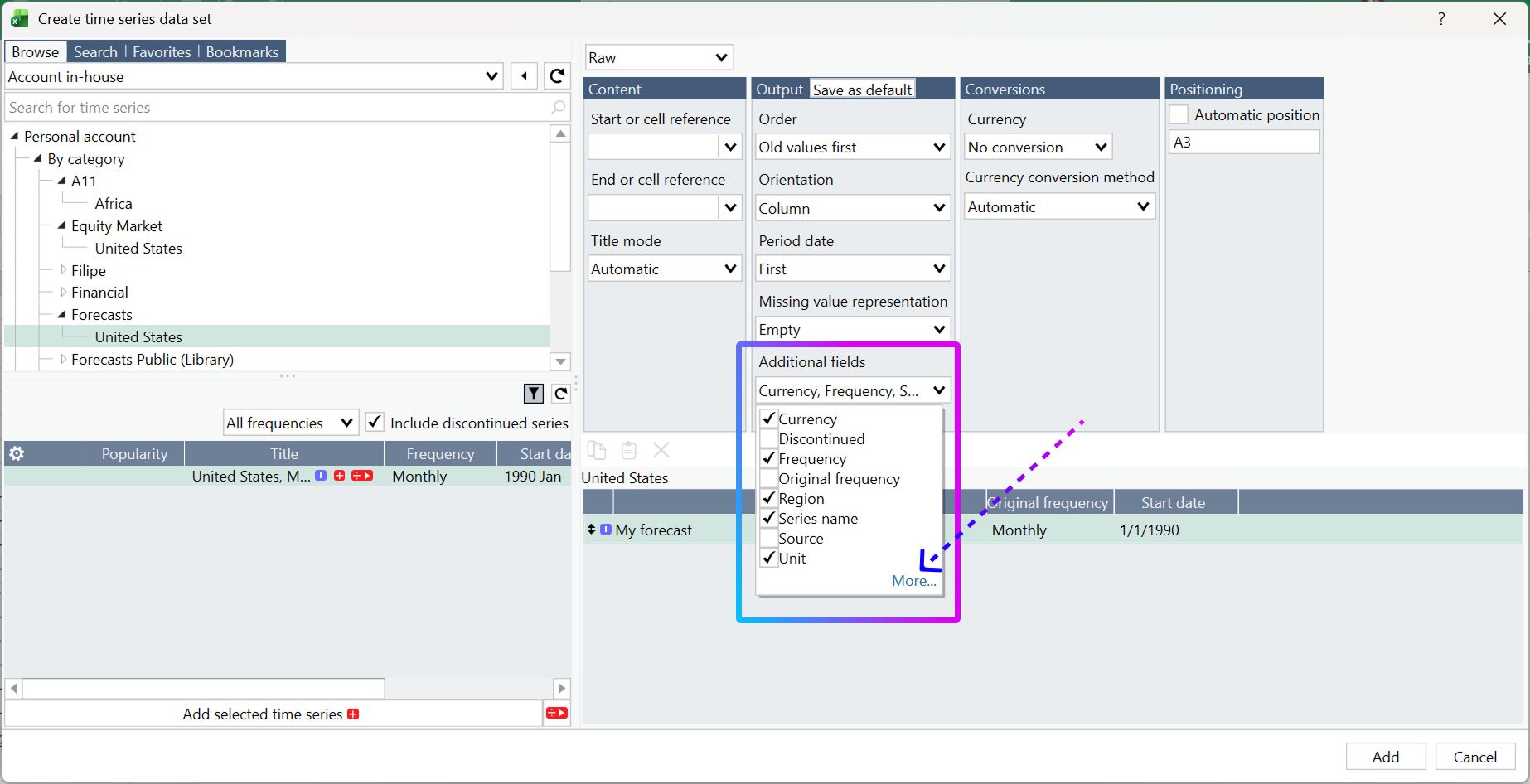
Under Additional fields select:
- Currency
- Frequency
- Region
- Series name
- Unit
and then click on More.
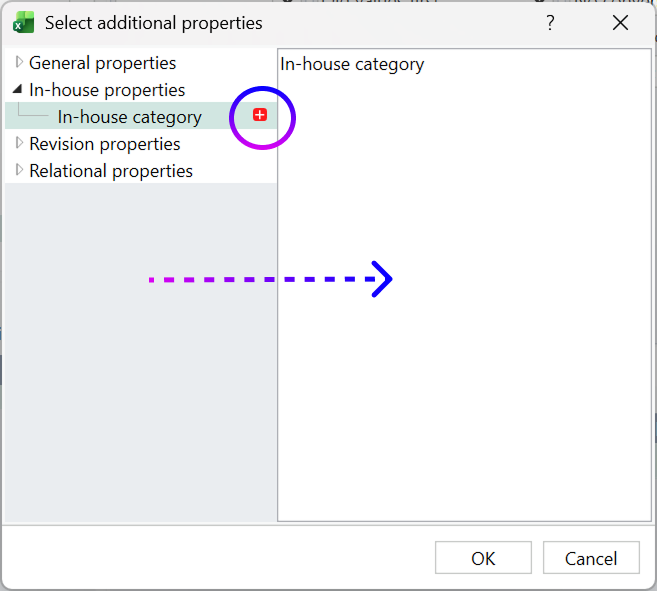
Navigate to In-house properties > In-house category and add it with red + icon to the right side. Click 'OK':
Now everything is ready - press button 'Add'. It will close selection window, and download all selected data.
Transforming in Excel
Country names
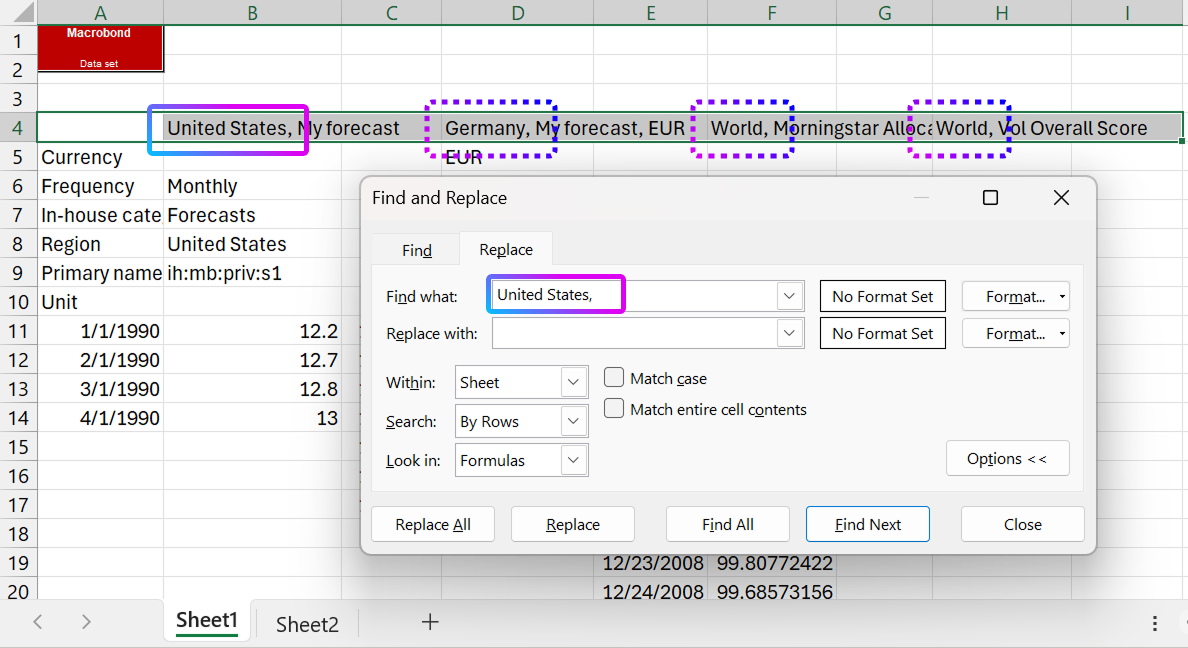
Use Replace option available under Excel's Home > Replace to change all of the 'country names with comma' (i.e., ' United States, ' )to nothing. Please note you will have to do it for all countries used in your in-house series.
You need to transform them because later template constructs the description as 'Region + Description'. If you leave your description as 'United States, description' your uploaded series will be named 'United States, United States, description'.
Storage place
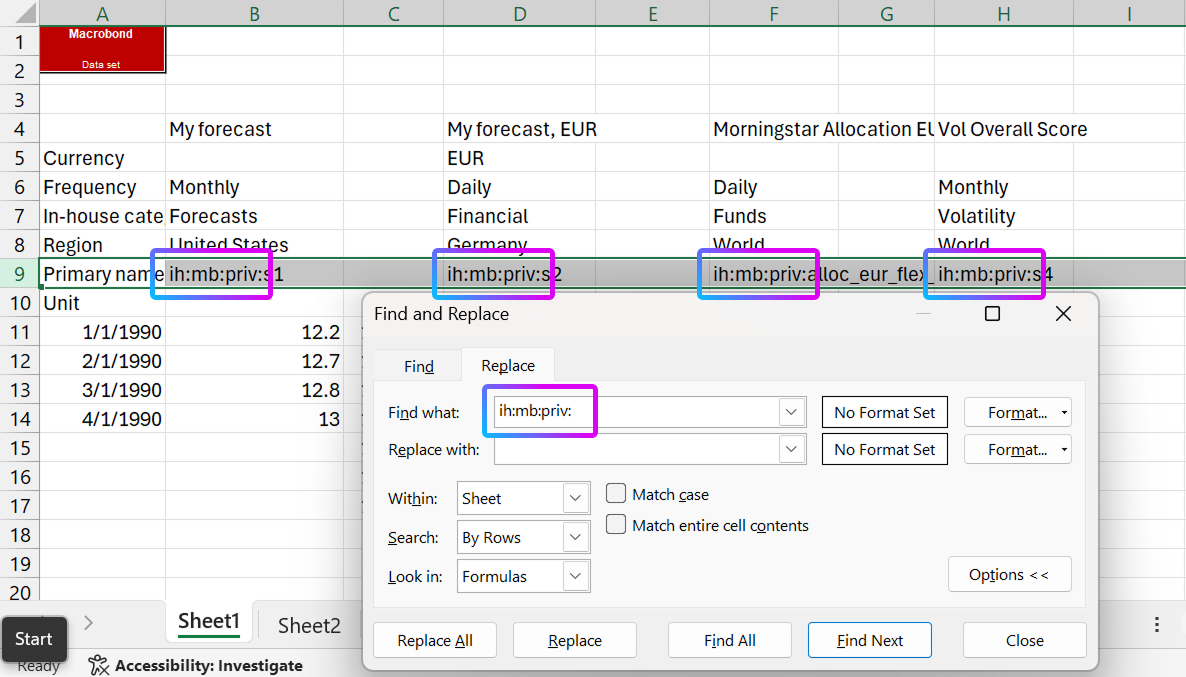
Using same Replace option change all of series’ 'storage place' (i.e., ' ih:mb:priv: ' ) to nothing. This part of in-house series name points to its storage place: ih:mb:priv for Private account, ih:mb:dept for Department account, ih:mb:com for Company account.
Like with description step earlier, series code is constructed as 'Storage place + Series name' so if you leave ' ih:mb:priv:name' without adjustment your uploaded series will be named 'ih:mb:priv:ih:mb:priv:name'.
In-house templates
Create first template
Now that your series are ready to be moved to the template, please create new Sheet, click on cell A1 and from Macrobond tab in ribbon select 'Create template'.

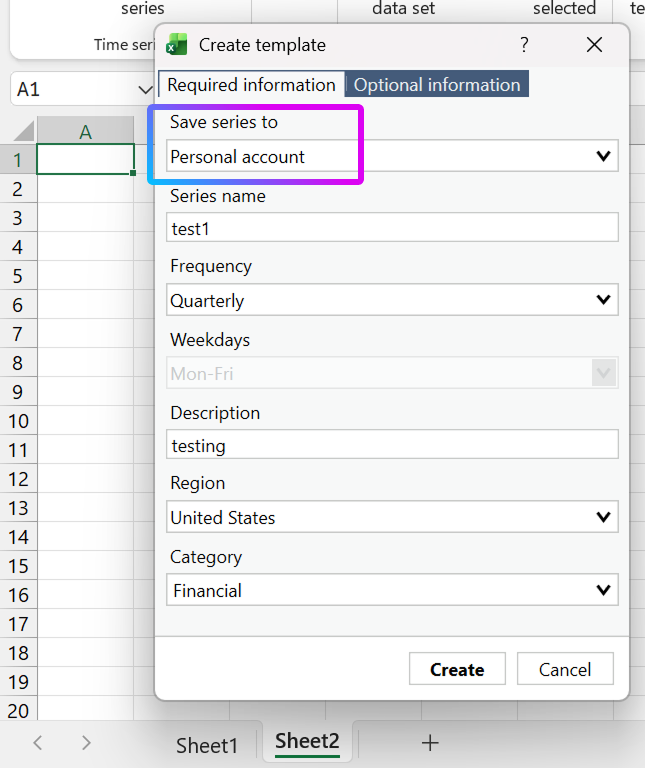
While creating template the most important part is to make sure correct storage place is selected (under 'Save series to') – either Private, Department or Company account. Rest of the template can be filled with anything, you can always change them later:
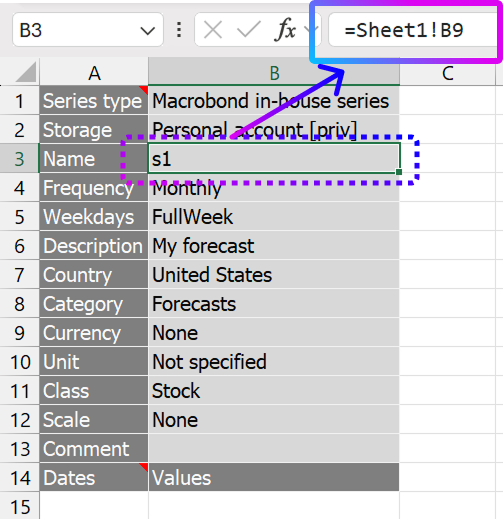
Using = sign will call out cells from the first series in Sheet!1 in following manner:
Sheet 2, B3 Name =Sheet1!B9 (Primary name)
Sheet 2, B4, Frequency =Sheet1!B6 (Frequency)
Sheet 2, B6, Description =Sheet1!B4 (unnamed row)
Sheet 2, B7, Country =Sheet1!B8 (Region)
Sheet 2, B8, Category =Sheet1!B7 (In-house category)
Currency and Unit
Regarding Currency and Unit things are a little bit more complicated, because you will need to use formula that will either return mentioned currency/unit or 'None' for currency, and 'Not specified' for unit. To do that, use following formula:
- for Currency:
=(IF(Sheet1!B5="","None",Sheet1!B5))
- for Unit:
=(IF(Sheet1!B10="","Not specified",Sheet1!B10))
! Note this will work only if in Sheet 1 Currency row is in row 5, and Unit row is in row 10. Otherwise you'll need to adjust the formula to call out correct cells. !
Copy template
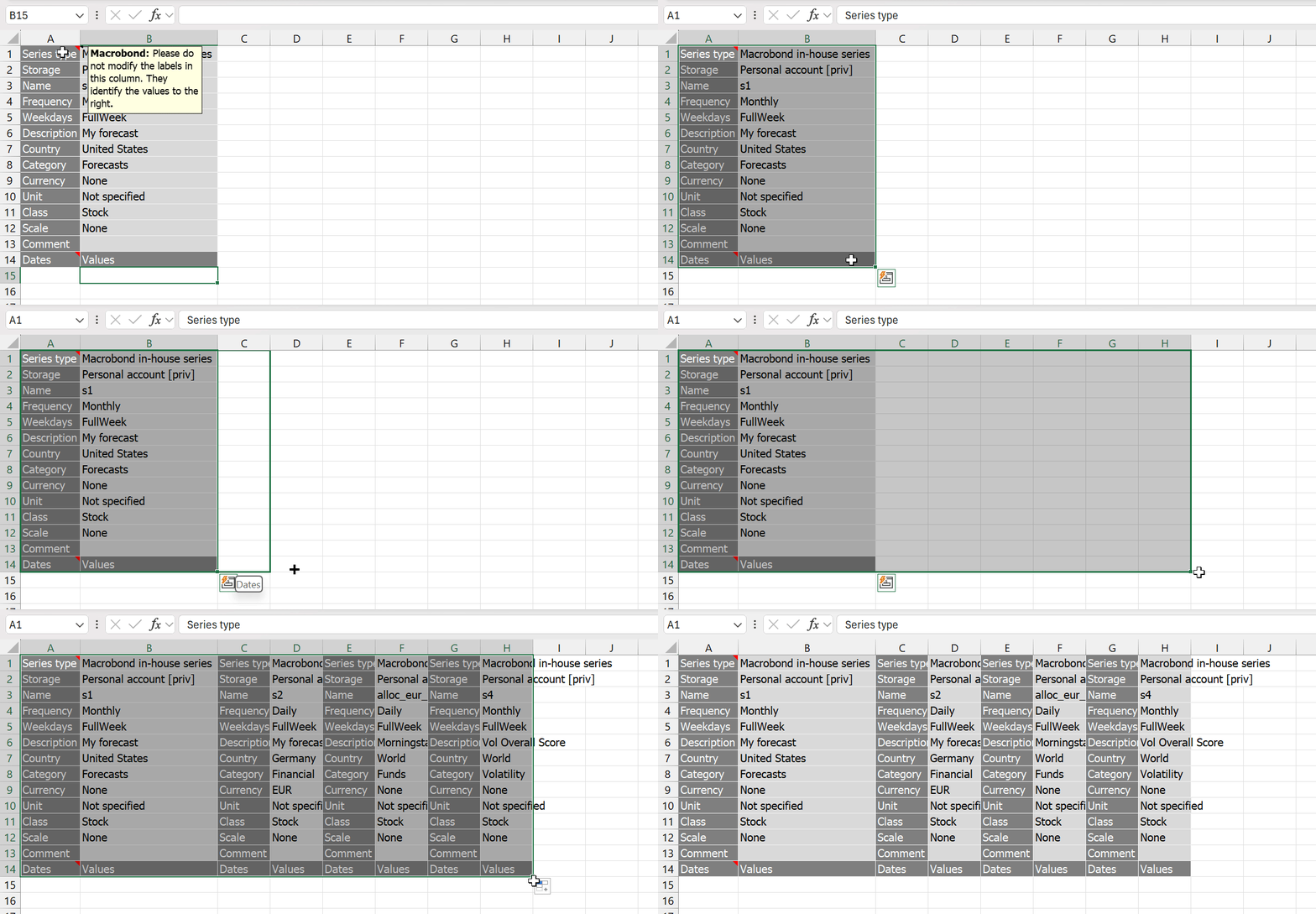
Now that your template is ready, check cells from A14 to B14 and drag them as far, as your initial series go to, so that they can auto-fill data for other series.
For example, if last series in Sheet 1 ends on column AZ, you need to drag the template in Sheet 2 to column AZ as well, and it’s going to auto-fill all data you have previously prepared.
Dates and values
It’s time to move values. Please copy all of the dates and values from Sheet 1, starting from cell A11, and simply paste it under the templates in Sheet 2, starting from cell A15:
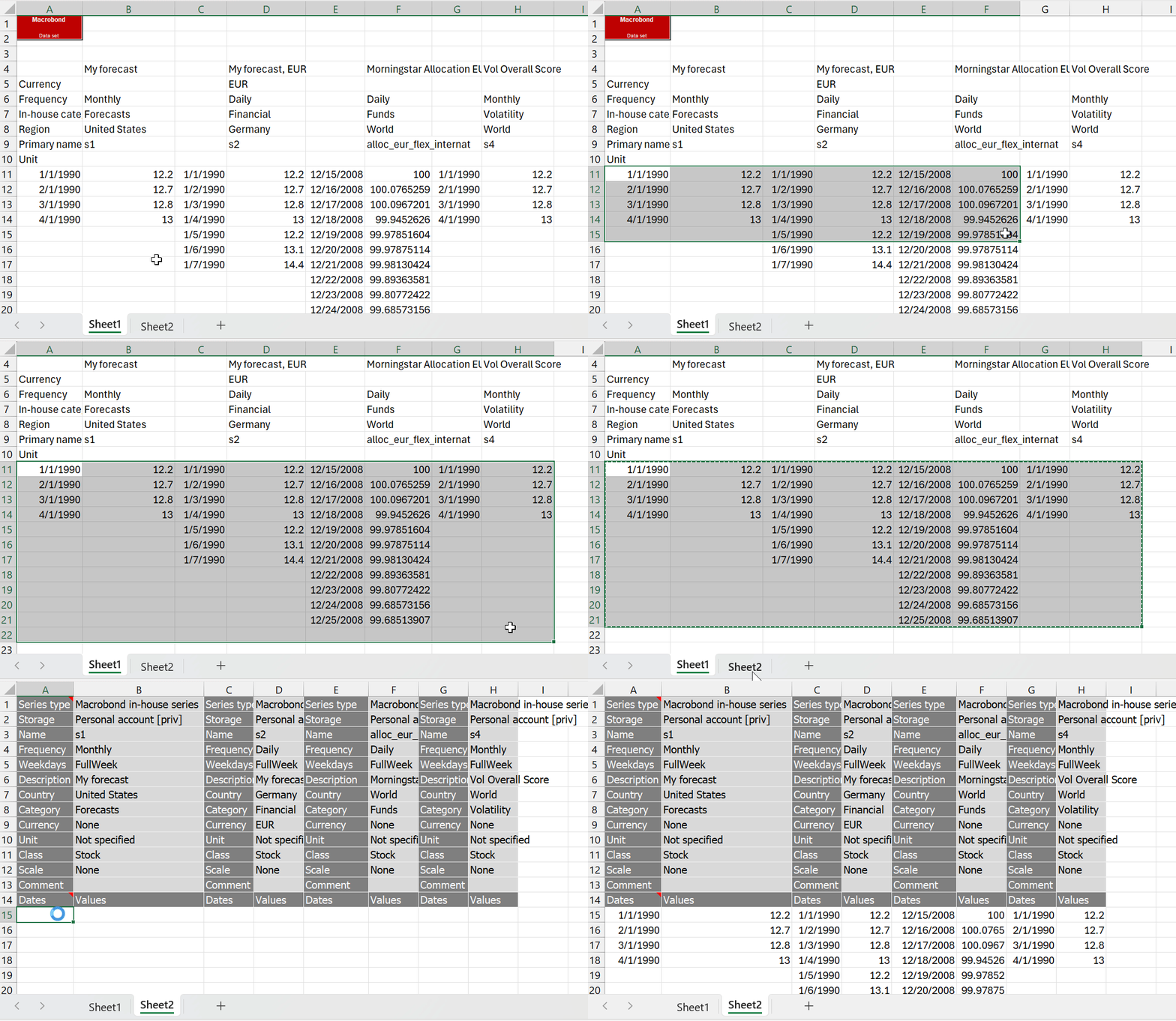
Your in-house series are now ready to be uploaded to Macrobond. Go to Macrobond tab, and press 'Upload all templates'.
! Before uploading, please go to Macrobond tab, click on About button, and make sure that you’re logged into account that you’re supposed to upload this data into. If it’s still previous account – the one you’re copying from – please save the file, close Excel, in Macrobond Analysis log into the account you want to upload series to, and when you open Excel you should be logged into the correct account. !
Migrating while changing storage place - old codes in documents
If you’re migrating data with a change in the storage place (e.g. from Personal to Company account) all documents containing those series will return an error since their link was broken. To fix this, in each document change part of the description of the series pertaining to directory.
For example:
ih:mb:priv:gdpforall123
Change to:
ih:mb:com:gdpforall123