- Admin Portal Access
- Strengthen Connected Workflows
- Improved Search Capabilities in Amplify
- Improved User Experience
- Improved Experience for Charts with Bloomberg Data
Admin Portal Access
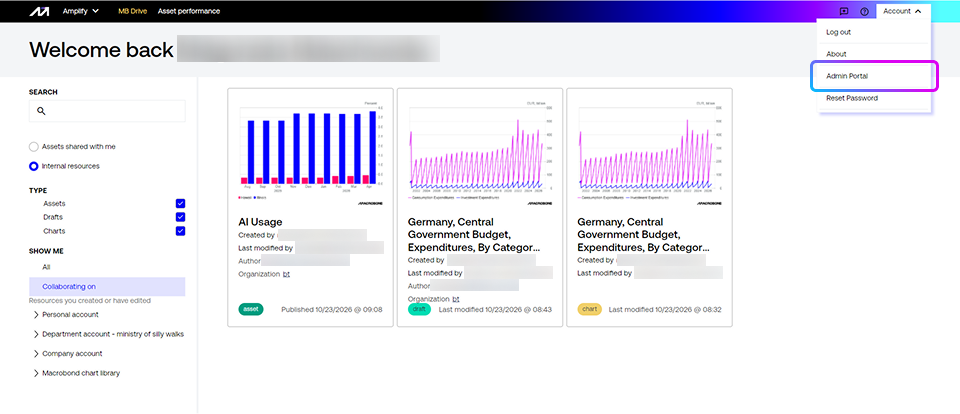
The Admin Portal can now easily be accessed directly from Amplify through the Account menu.
Strengthen Connected Workflows
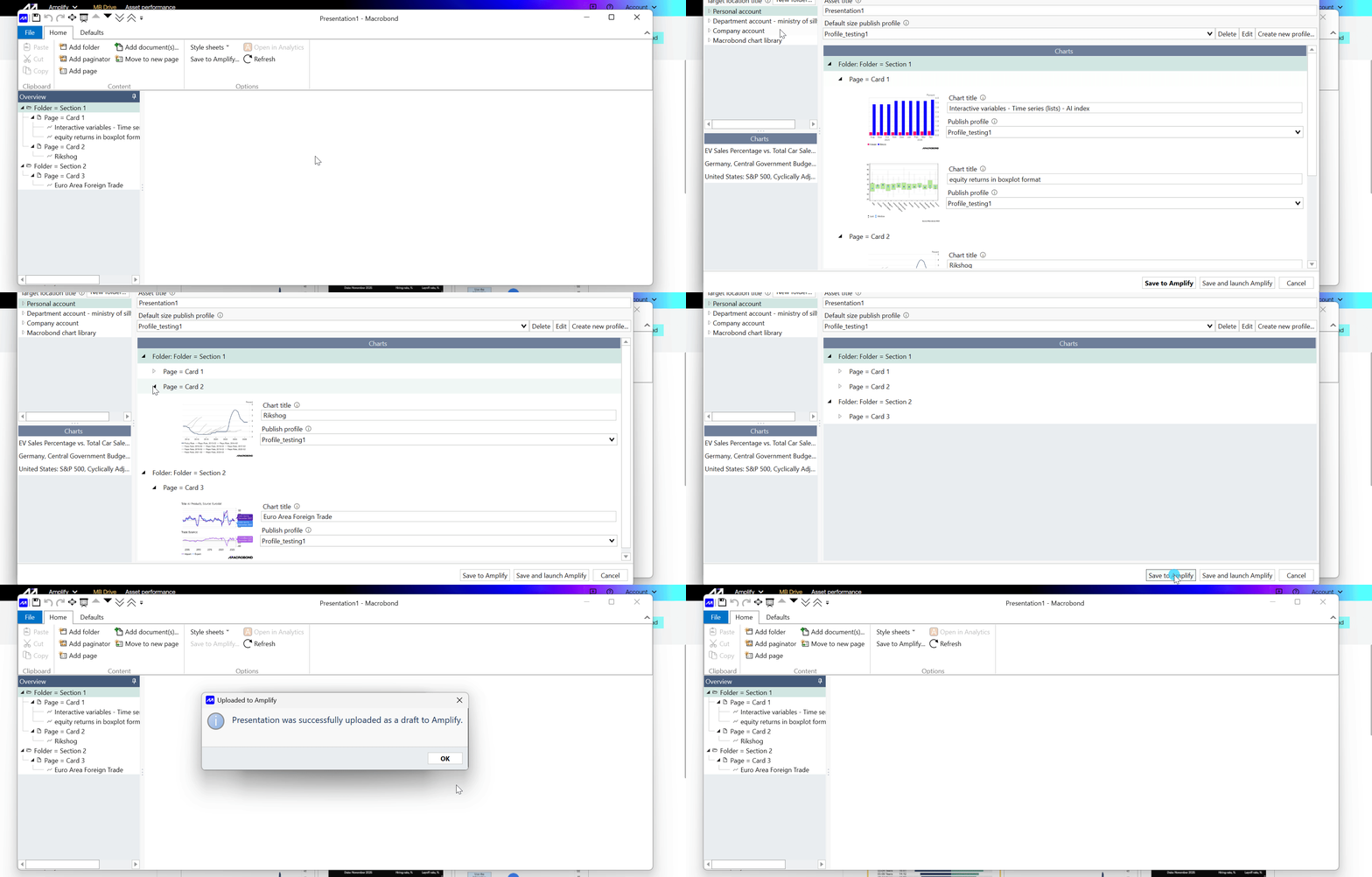
Presentation documents saved as draft assets in Amplify
Presentation documents can be imported as draft assets to Amplify. Folders are mapped to Sections and pages to Cards, helping preserve the presentation structure when moving content to Amplify. Chart layout on each card will be mapped as close as possible. In Amplify you can edit the draft as normal. This makes it easier to publish existing Presentation documents on Amplify for further reach.
Bulk upload charts to Amplify
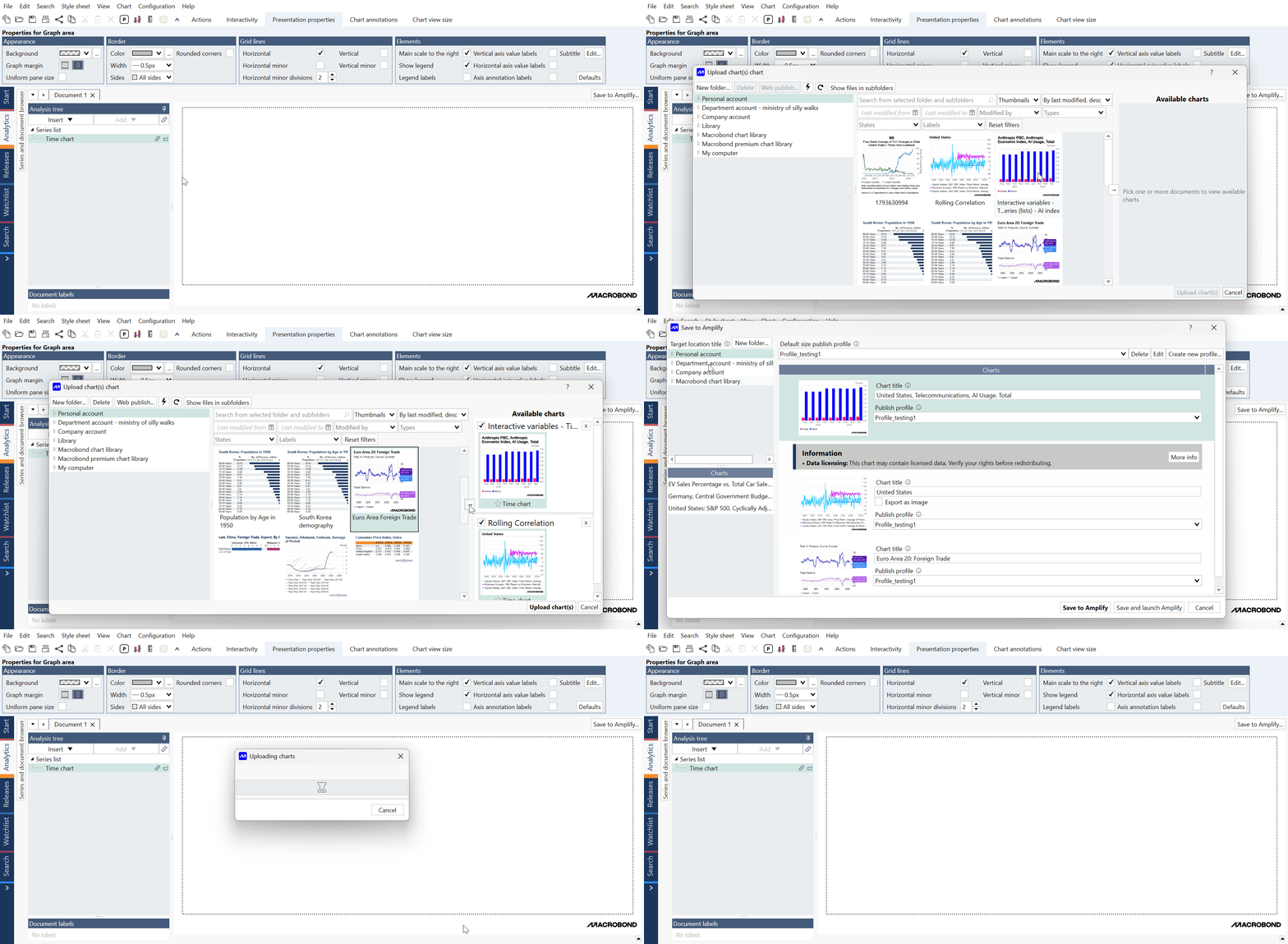
Users can upload multiple charts to Amplify at the same time, simplifying the user experience. Charts can be picked from various Macrobond Documents for a seamless import of your highest quality charts into Amplify as Chart Resources. From there, Publishers can build new Assets and reuse Chart Resources across draft assets as needed.
Amplify Asset Performance
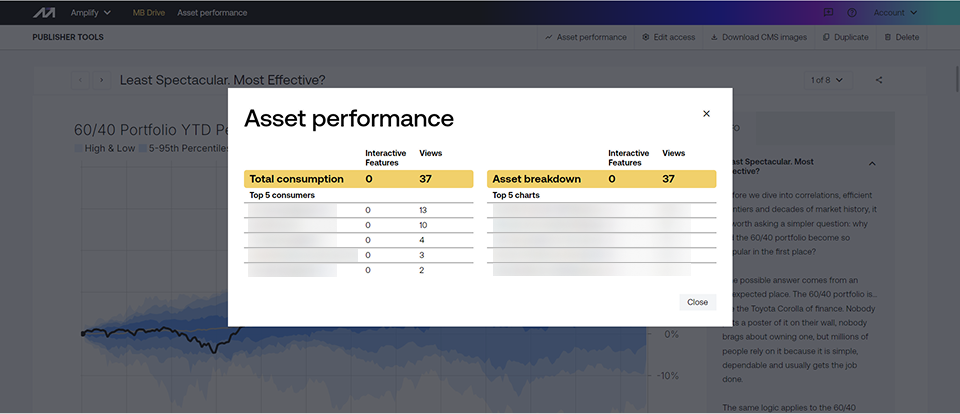
Amplify Asset performance now includes a search bar, making it easier to find content in the performance view.
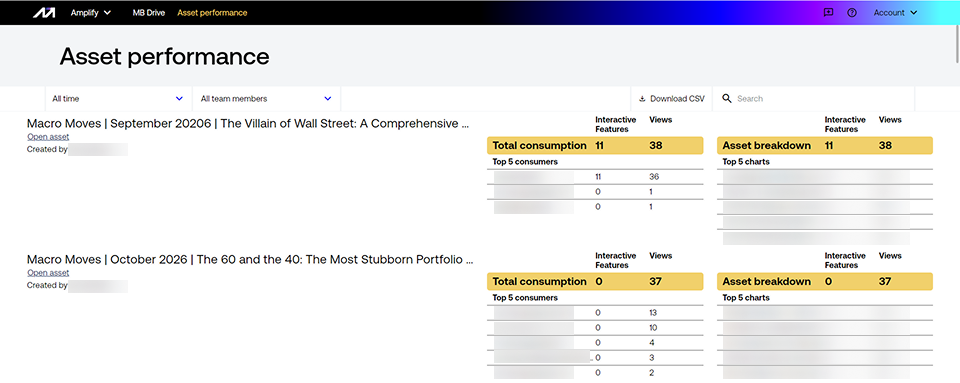
Amplify Asset Performance can also be accessed directly from a specific asset of interest, providing quick access to consumption and asset breakdown information.
Improved Search Capabilities in Amplify
Author and Organisation labels
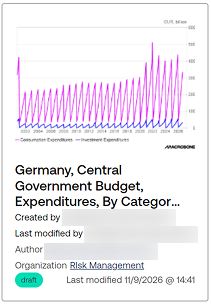
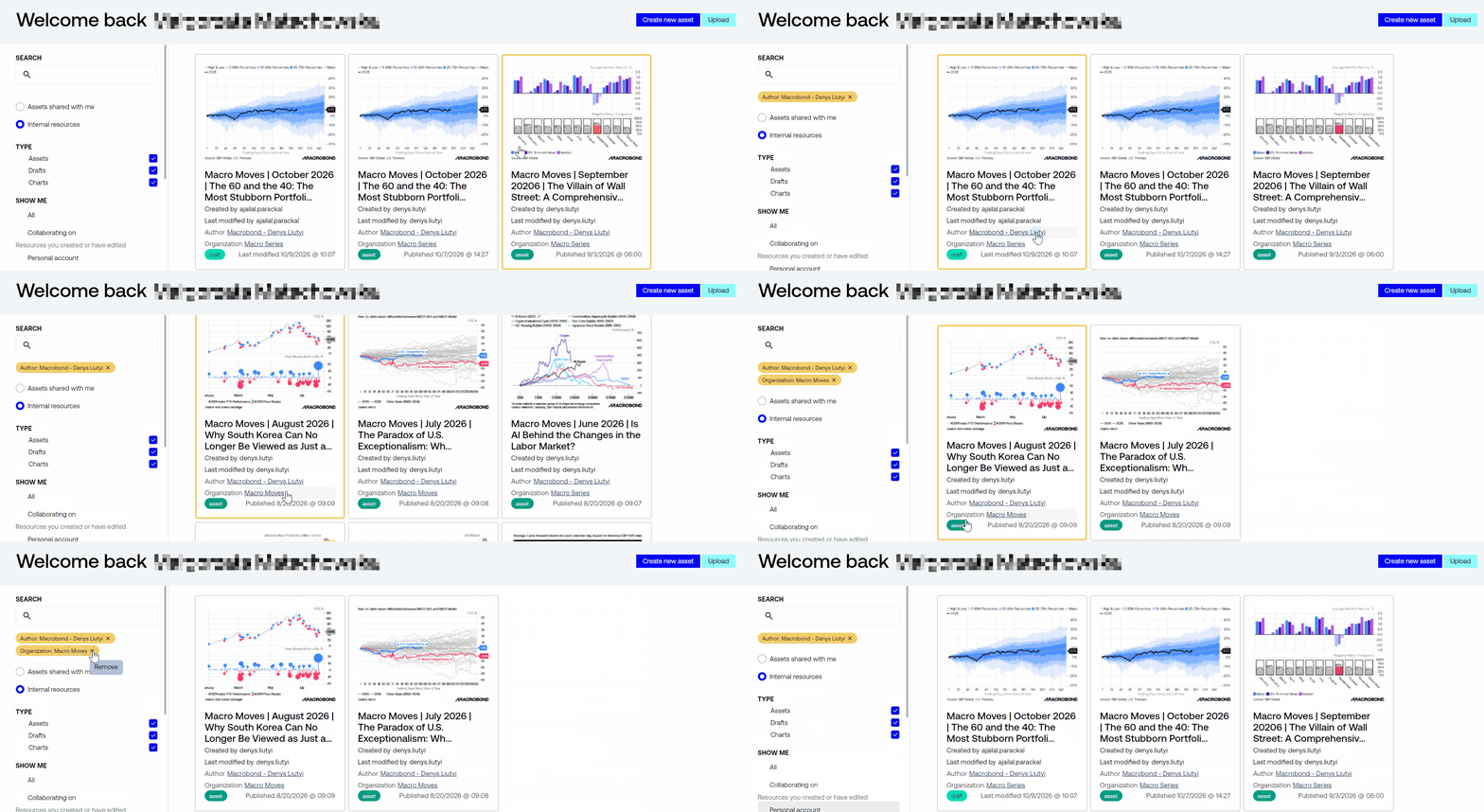
MB Drive cards display additional information, including Author and Organisation labels which can be filtered on so you can more easily find published Assets from a particular publisher of interest. The search bar will also find Author and Organisation matches.
On internal resources, the MB Drive card also displays Created by and Last saved by, making it easier for publishers to see who is collaborating on draft assets.
Users can now select labels to quickly filter content.
Improved User Experience
Collaborated on by default
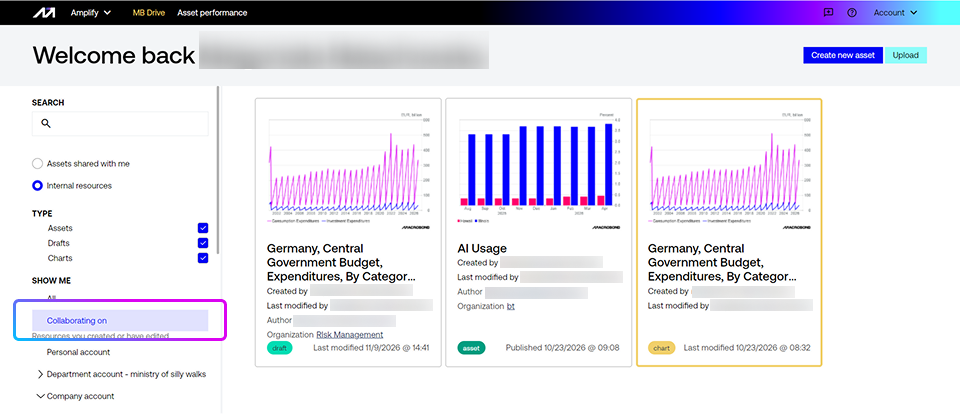
When opening Internal resources, “Collaborated on” is now selected by default, showing all internal resources that the user has created or edited, making it easier to navigate your active workload.
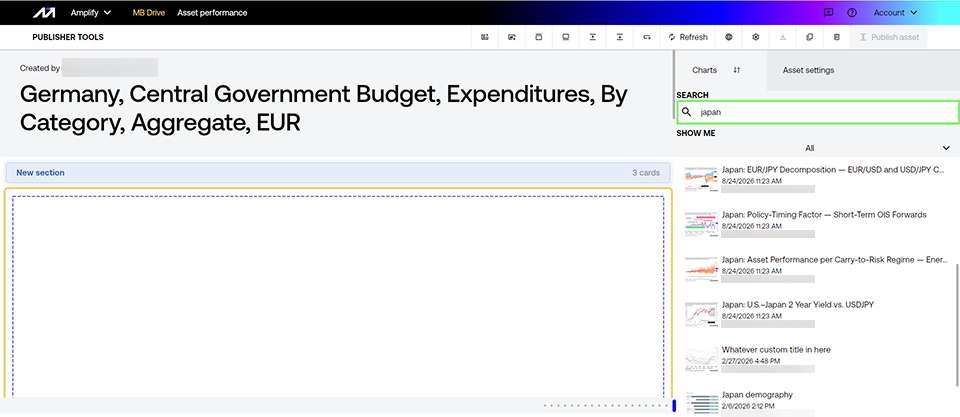
Search bar added to Chart picker in Draft view
The Draft View includes a search bar on the Charts tab, allowing users to quickly find the chart they need.
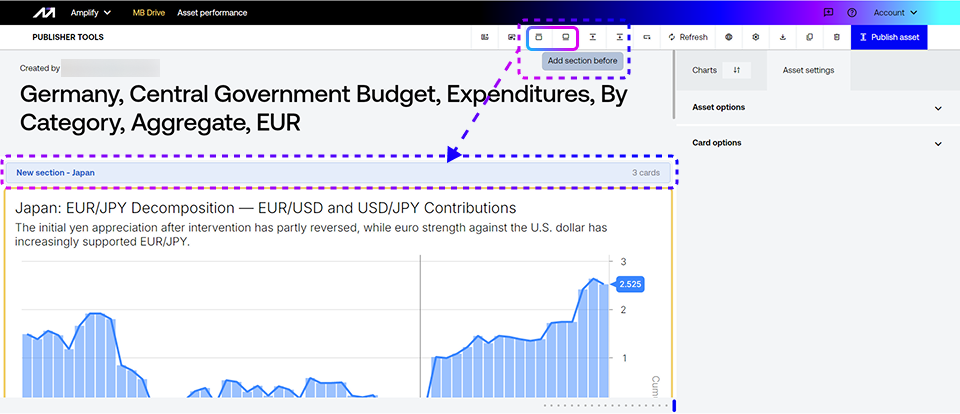
Add sections to improve navigation of larger Assets
Users can add sections to draft assets to organise cards into different parts of the asset. This helps group content together to better tell the desired narrative and improves navigation for consumers on larger assets.
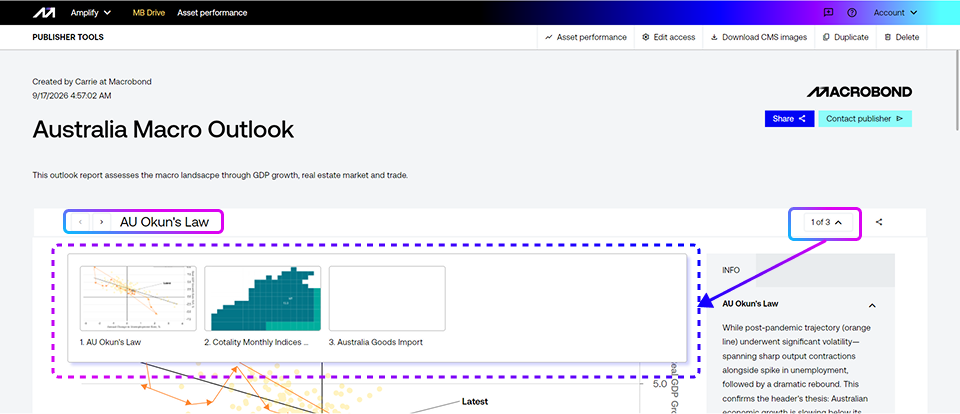
For assets containing sections, users can choose which section to display from a dropdown.
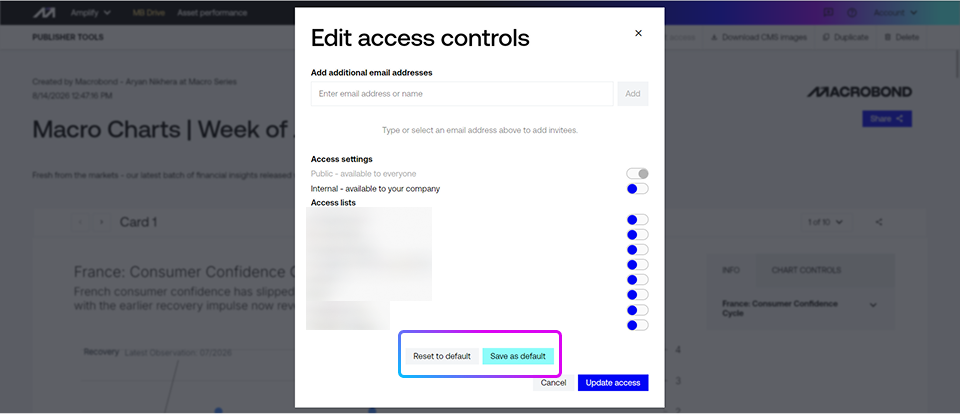
Access Control
Available directly from the asset toolbar, access controls allow users to grant access to people and teams, and reset or save access settings as default.
To set a new default, choose your desired toggle(s) and/or enter specific email addresses, click Save as Default and then click Update access for your new default settings to apply. Once done, on all new drafts your access settings default will be set, streamlining the publishing process where users have common patterns for distribution audiences.
Improved Experience for Charts with Bloomberg Data
For charts containing Bloomberg data, publishers can enable “Open in Analysis”, allowing users with the required permissions to open the chart directly in Analysis.