- What happens when series is being discontinued?
- How to find discontinued series?
- Yellow bar - information and replacing old series
- How to connect old series with new one?
When the source discontinues its time series, we also change their status in our database. Most series are discontinued because:
- the source introduced new methodology,
- the source decided to stop publishing particular indicator.
What happens when series is being discontinued?
In our database
Series will appear in red color and its status is changed to ‘Discontinued’ (visible in Time Series Information).

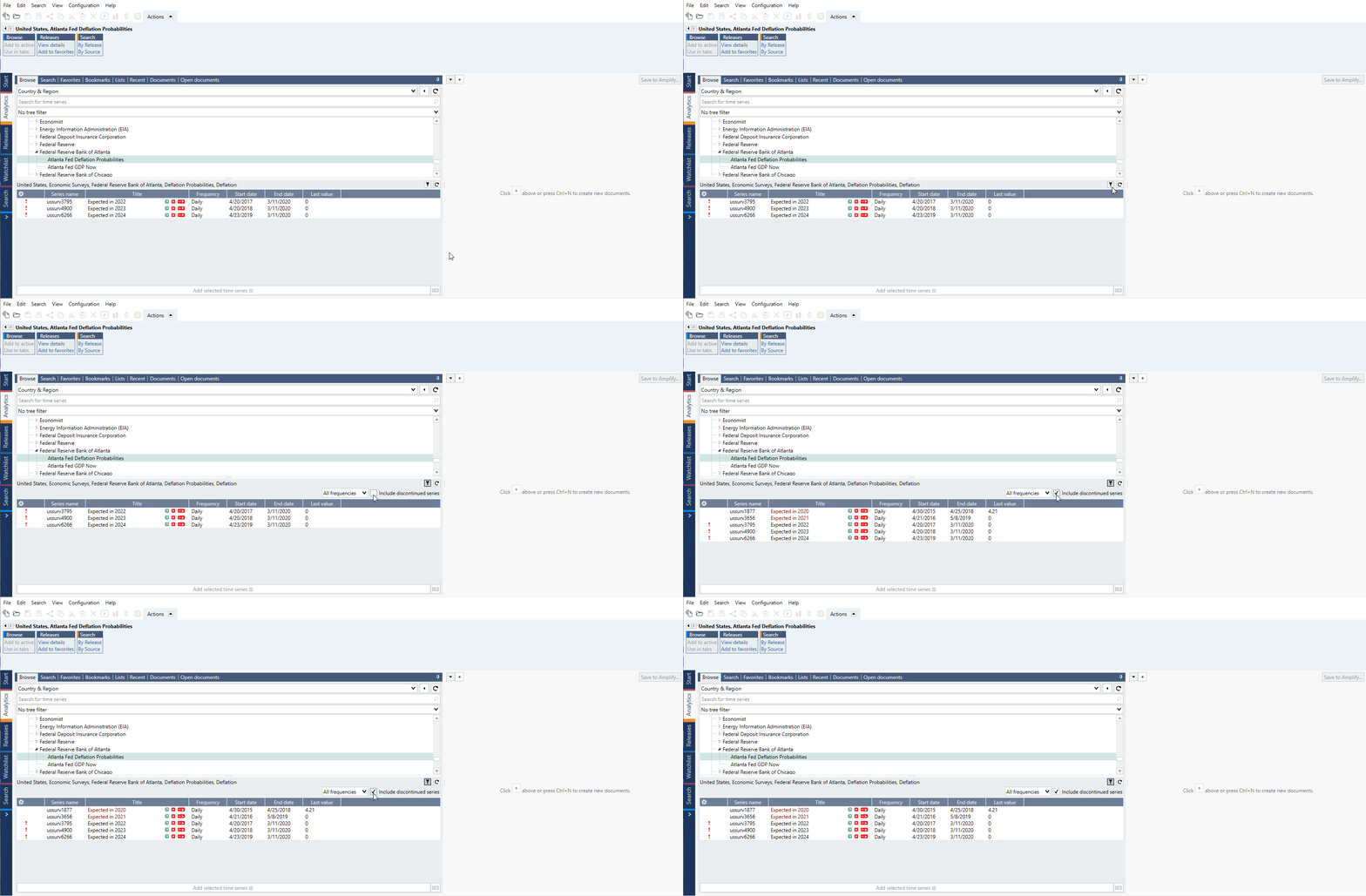
After discontinuation series might still be located in data-tree node next to new series. But it might happen that the whole release was discontinued as well. In such case, entire node might be removed from data-tree, but those series are still in our database. You can find them with 'Include discontinued' filter' through Search tab.
Files saved on Personal/Department/Company Account
Symbol will appear on chart tile. You can ignore it or open the document to delete or change the series.

How to find discontinued series?
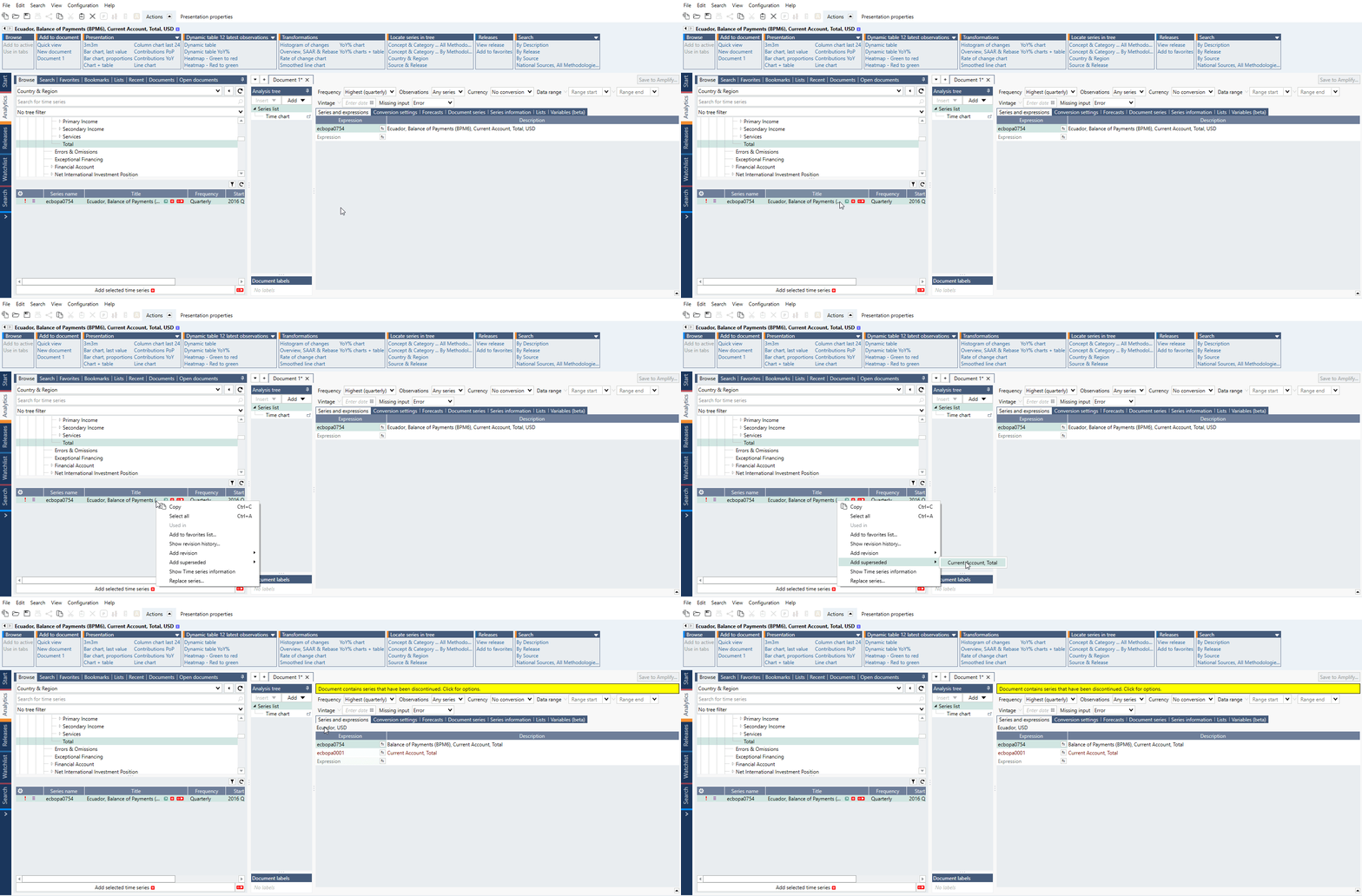
Add superseded in Browse tab
This feature is available in Macrobond Analysis 1.30 and later.
Macrobond may be required to create a new time series with a recent historical start point if there is a change made to the methodology of the time series or any other change. You can now easily locate related discontinued time series by right-clicking on series and selecting 'Add superseded'.
You can combine series with formula, for more information see Join().
Data-tree node
In data-tree, enable the filtering option and tick 'Include discontinued series':
Search tab results
In Search tab, choose 'Include discontinued' from the Filter drop-down list:

Then type in query and press 'Enter'.
Yellow bar - information and replacing old series
If on the Series list you have a discontinued series, the yellow bar will appear above such document. When you click on it, a new window will appear with information (if provided by the source) why series was discontinued and possible replacement.
From here, you can select replacements. Sometimes the discontinued series has more than one (i.e., new methodology splits the series). Since version 1.35 you can select multiple in the replace dialog - all the selected series will then be appended at the end of the series list while the original series will not be replaced.
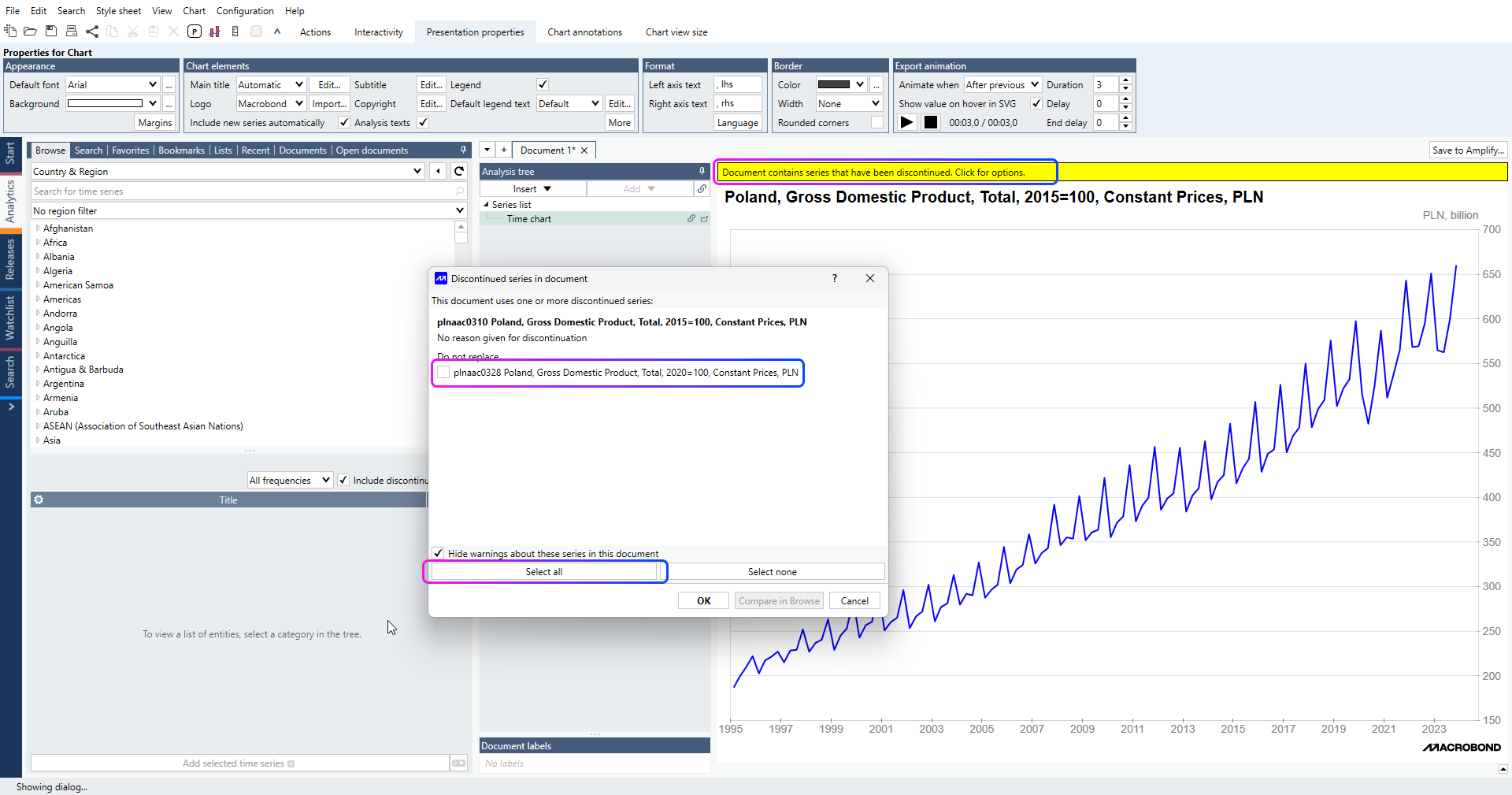
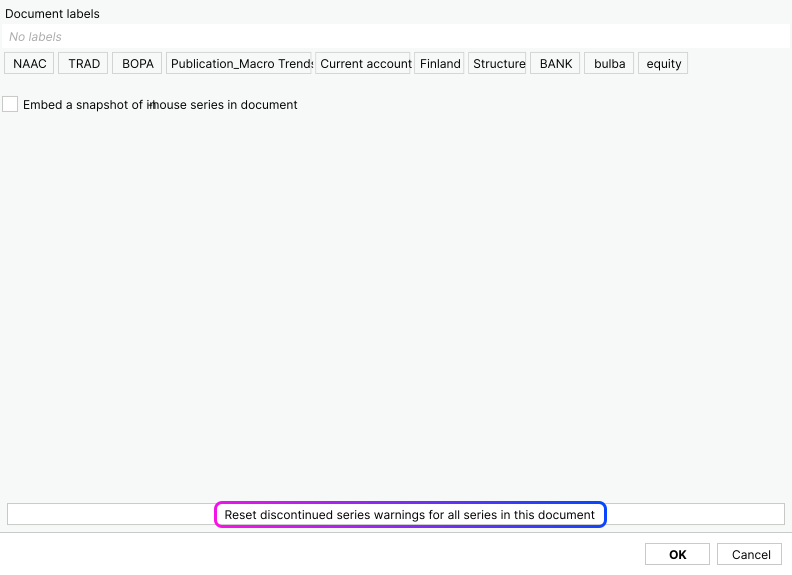
By design, the 'Hide warnings about these series in this document' option is ticked. If you close the yellow bar, it won't appear again in this document. You can always access it through File > Manage discontinued series. Since version 1.35 under File > Document properties (press F4) you can also reset the banners for discontinued and alternative series, if they have been hidden previously.
Comparing and replacing old series
When you select replacement series you can use 'Compare in Browse' button to see how much new series differ from old one. Then you can decide if you want to select alternative series.
To replace all available series press 'Automatically select alternative series' and then 'OK'.
How to connect old series with new one?
To connect series use formula:
Join(series1, series2)
It can be translated as Join(older series, newer series). After last value of series1 Macrobond will add values from series2 from the respective points in time.
This can also be modified by third parameter which will point exactly where to connect series':
Join(series1, series2, Start(series2))

Join(series1, series2, Date(yyyy, mm, dd))
For other types of joining series with formulas see All about extending series - Join().