View for Macrobond user/Consumer
If you arrive at Amplify via a link from a research report, website, or email, and are logged into your Macrobond account, you will be able to view the Asset.
If you are looking for an Asset that has previously been shared with you, you will be able to find it through your MB Drive accessible from the navigation at the top of the page next to the Macrobond logo.
Navigating an Asset
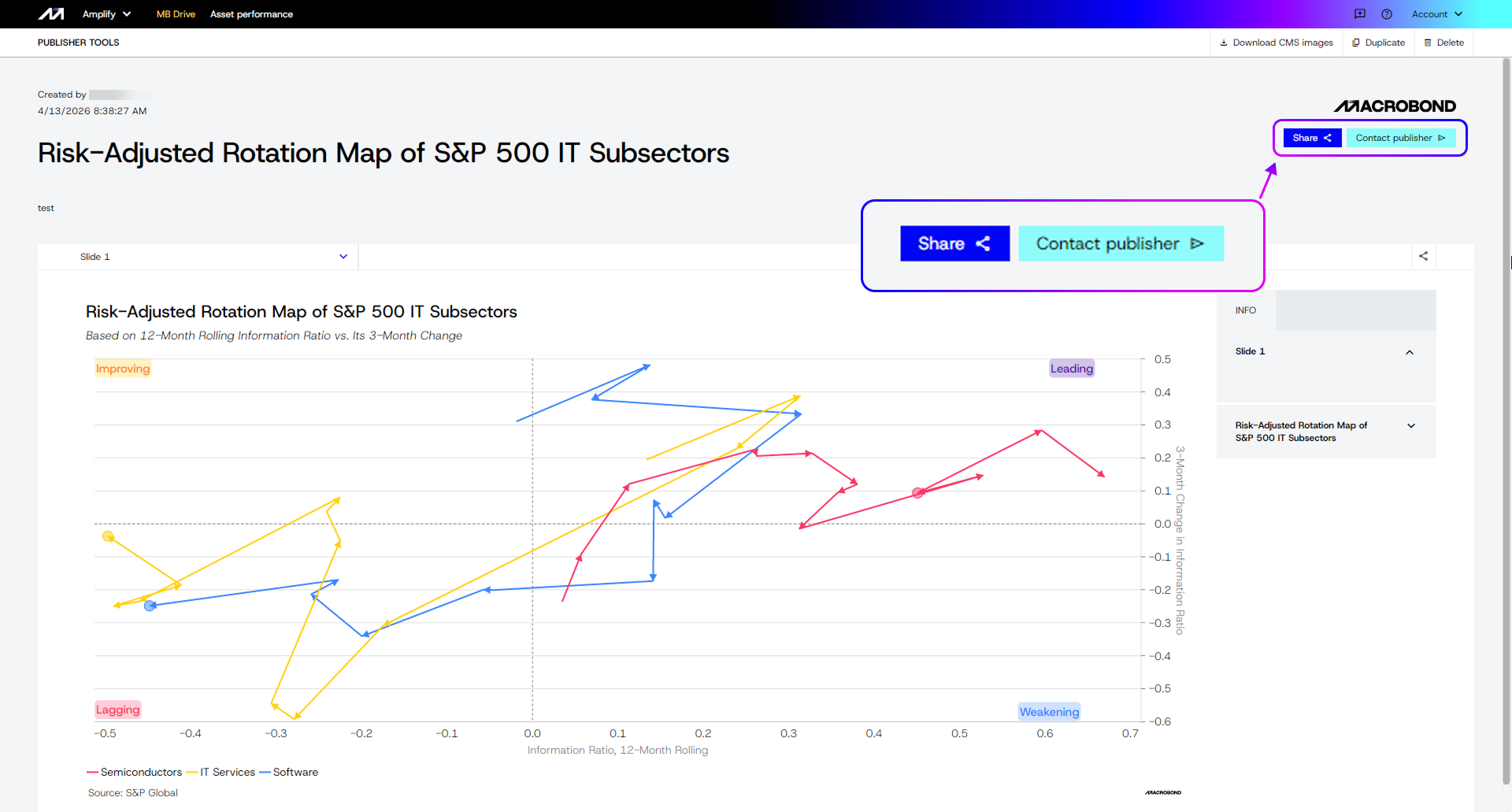
At the top of the screen, you will see the Asset title, description, created by, organization logo, and Share button.

Slides
At the top of each Slide is a control bar with a drop-down that allows you to quickly and easily navigate through all slides in the Asset. On the right, you can find a Share icon which generates a link leading directly to that slide.
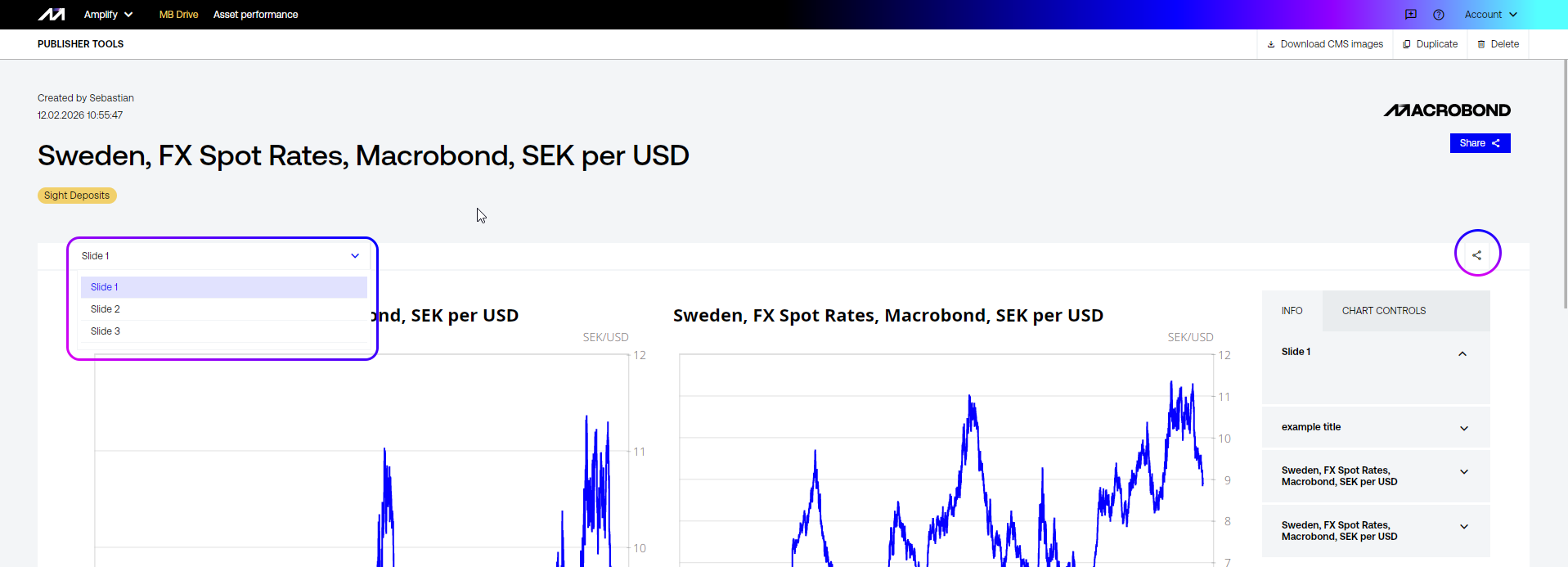
Each Slide has a panel on the right with information about the slide and the chart(s) contained within it, and (in some cases) Chart Controls.
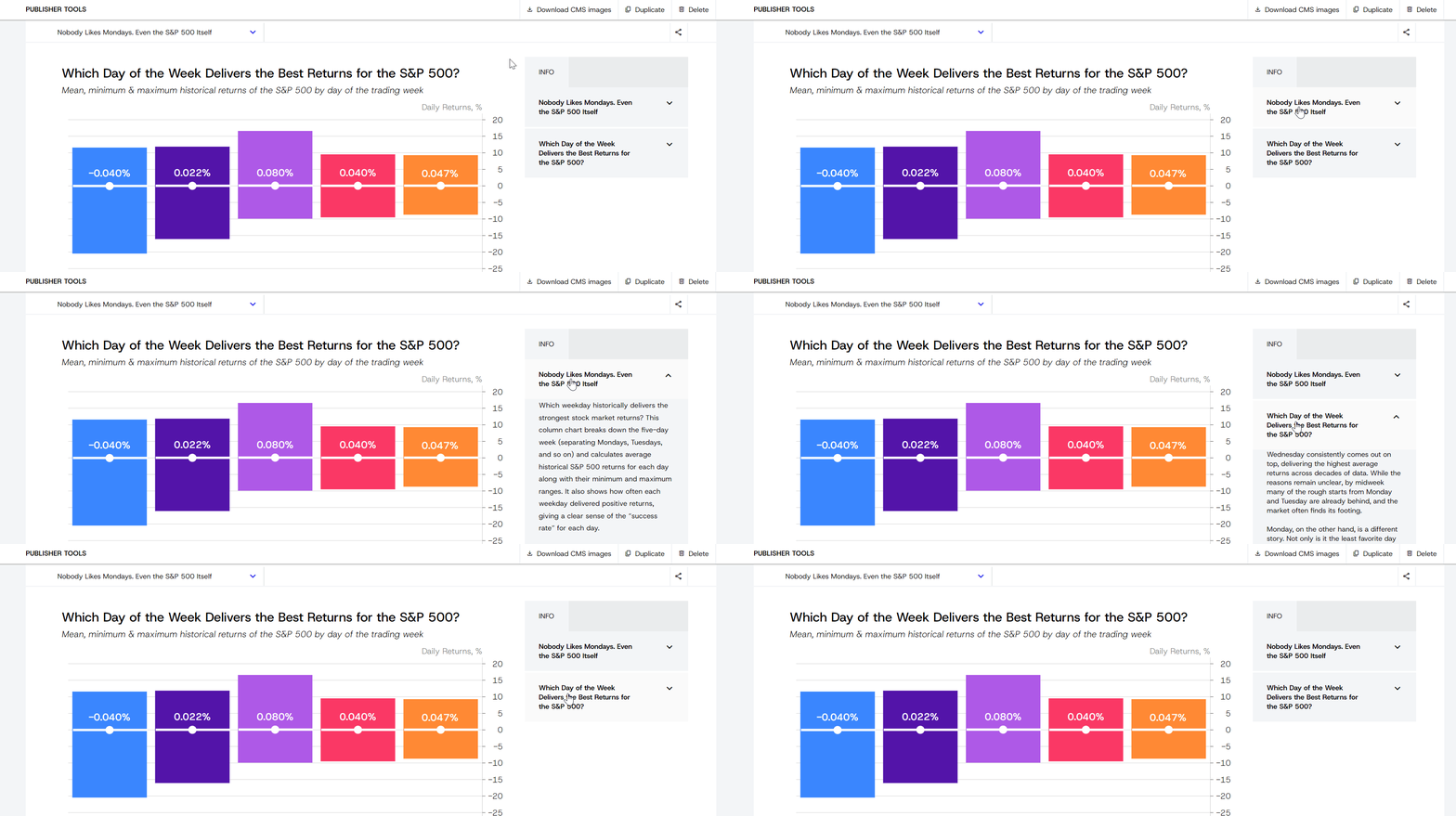
Info tab
The Info tab contains the information the Producer added during the Asset creation process, including slide title, description, and tags as well as information on each chart within the slide.
Live data
Your published charts can now carry live Macrobond data. The publisher decides whether an asset opens with the latest data or with the figures as they stood at publication. It is indicated by Live data available. You can refresh to the latest at any time.
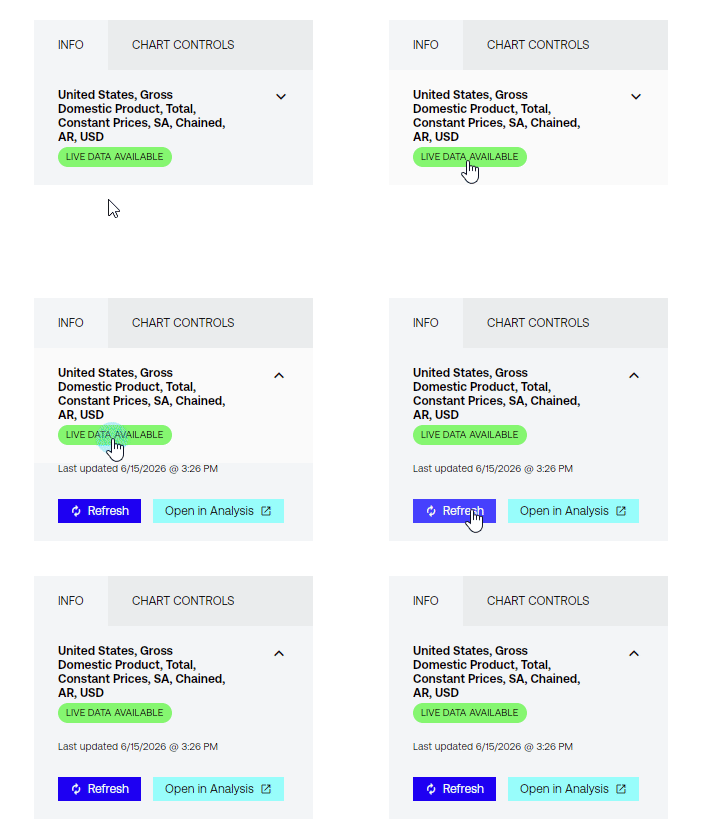
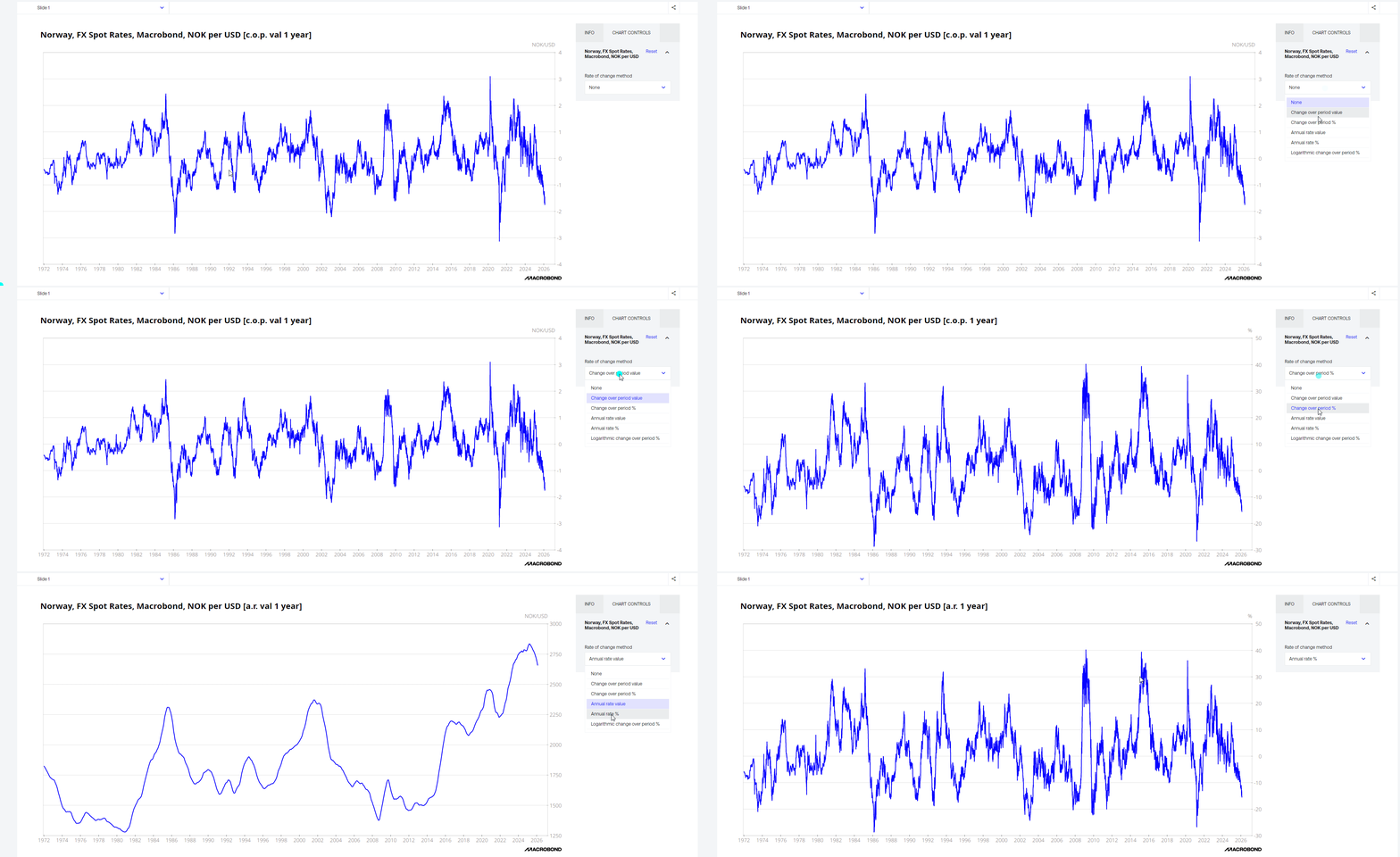
Chart Controls tab – interactive options
The ‘Chart Controls' tab houses the interactive controls for each chart. You will be able to see and use any controls that have been set up for you by the Producer.
To get back to the default setting, press ‘Reset’.
Contacting publisher
Publisher can leave an option to contact them through an email. If the option is enabled for an asset then it will be available next to Share button:
View for Asset Producer
Pressing on any Asset from MB Drive will open it.
As an Asset publisher you will see Publisher tools with options:
- Download CMS images
- Duplicate (as a Draft to edit it)
- Delete
Asset performance
Next to MB Drive in the upper menu, you’ll find Asset performance where you can see statistics for each of your Assets:
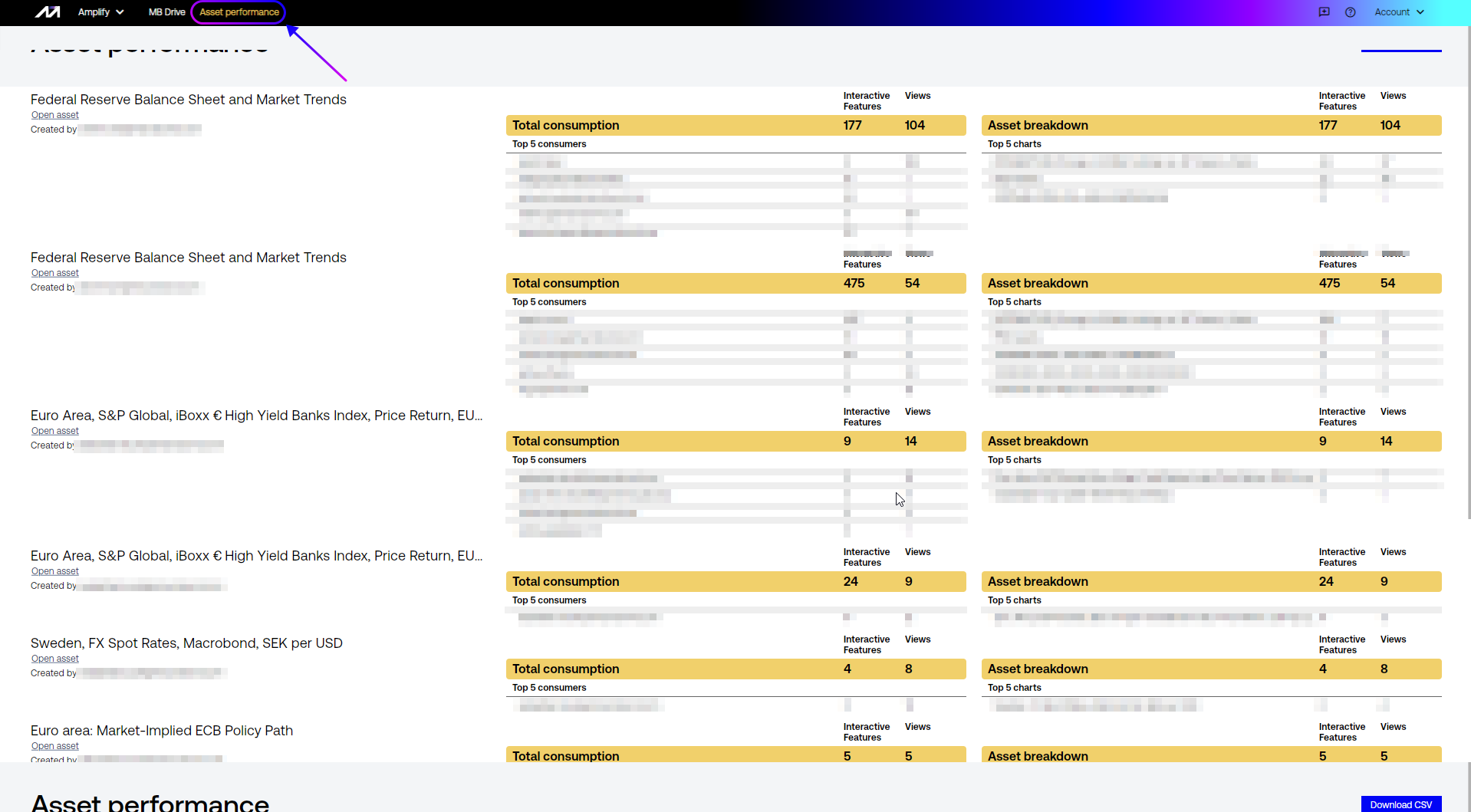
'Interactive features' measures user zooming, using the point to see values and changing a variable.
You can download all Statistics to CSV file.
Sharing
An asset will be shared by the producer to their own internal colleagues and external clients. When creating an asset the groups are:
- Public – available to everyone (who has access to Amplify)
- Internal – available to your company
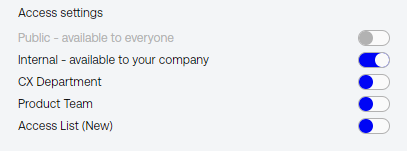
If you are an account administrator, you can also create your own custom-made Access List through the Admin Portal. See Managing users and Access Lists.