Overview
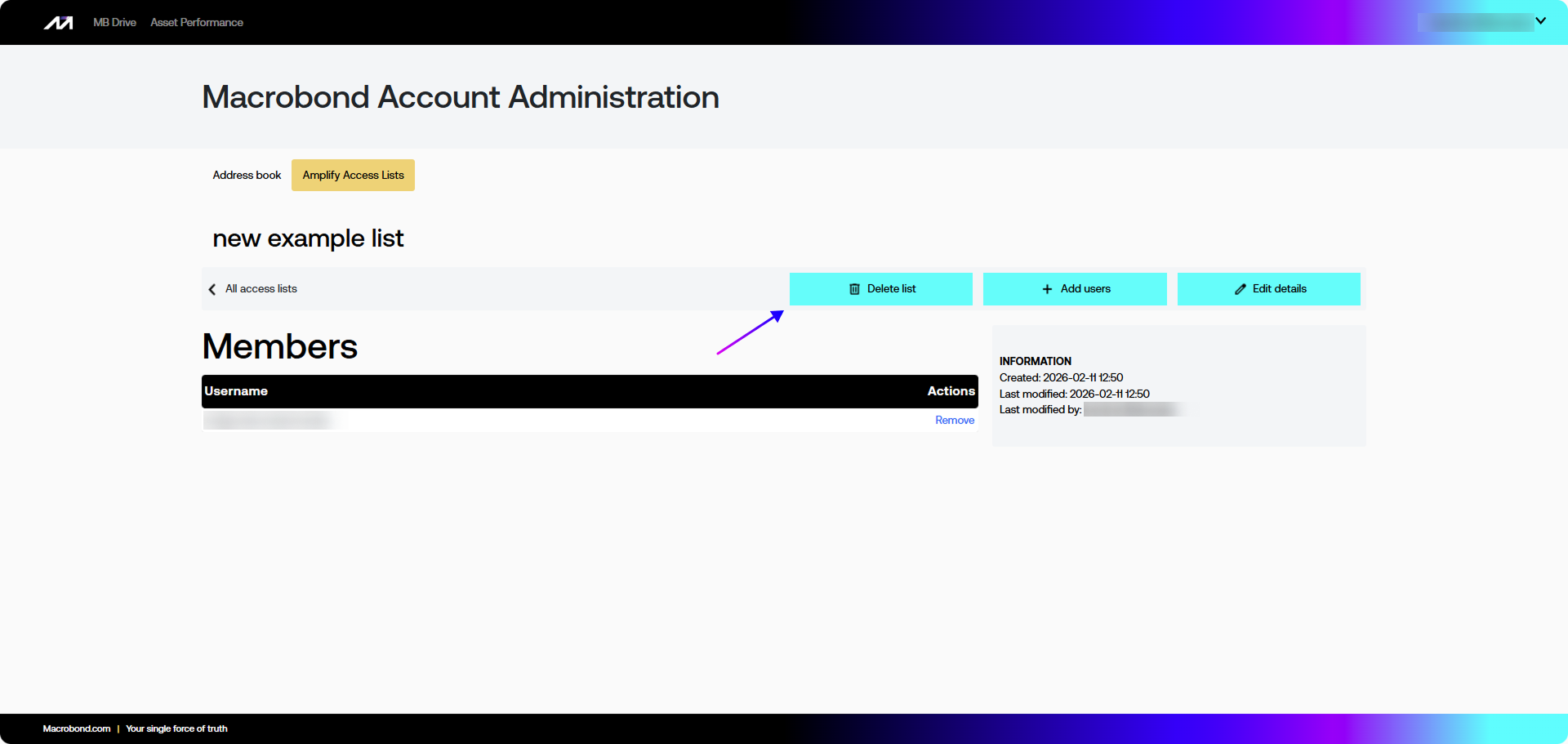
If you are an administrator on your department or organizational Macrobond account, you can manage access to your company’s research on Amplify
You can:
- create new Consumer accounts, which can then be added to Access Lists
- create and manage Access Lists, which allow producers to set who can access an asset.
Logging into Admin Panel
Log in to Admin Panel https://admin.macrobond.com/
For security purposes, you will be logged out after 30 minutes from the initial logging in if there has been no activity.
Address book
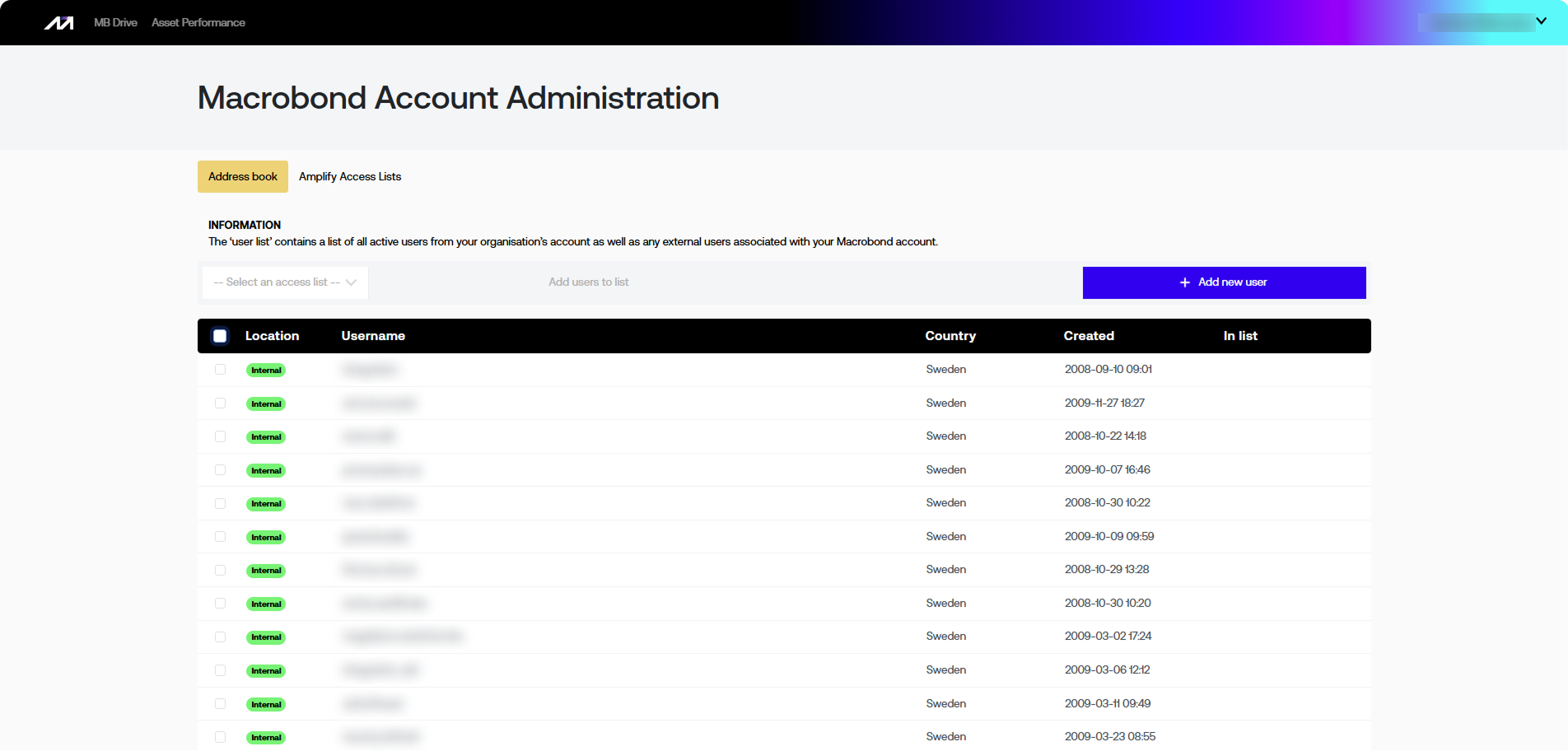
A list of all users, both internal and external that are ready to be, or are already on, an Access List.
Internal vs external user
This status helps you to distinguish your internal users (from your domains) from external users – your own clients.
Adding new user
Go to Address book and:
- Press ‘+ Add new user’ to start the process.
- Type in new user in a CSV format (commas or tabs) as per the instructional information on the right.
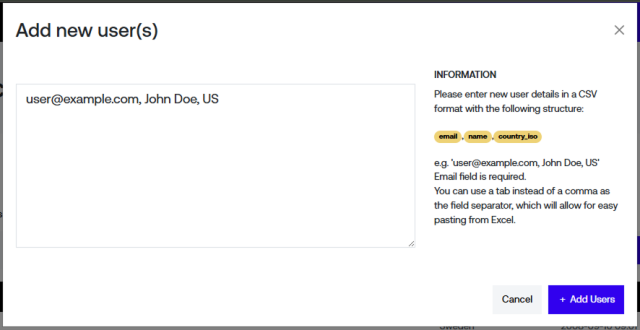
- Press ‘+Add Users’.
If there is a problem with the list of users, a message will be displayed with information about what you can do to fix the problem. From this screen, you will be able to fix those problems and try to add the users again.
Delete user
If you want to completely remove some user(s), please contact our Support at support @ macrobond.com.
Amplify Access Lists
Create Access List
To create a new Access List:
- Press ‘+ Create new list’ to start the process.
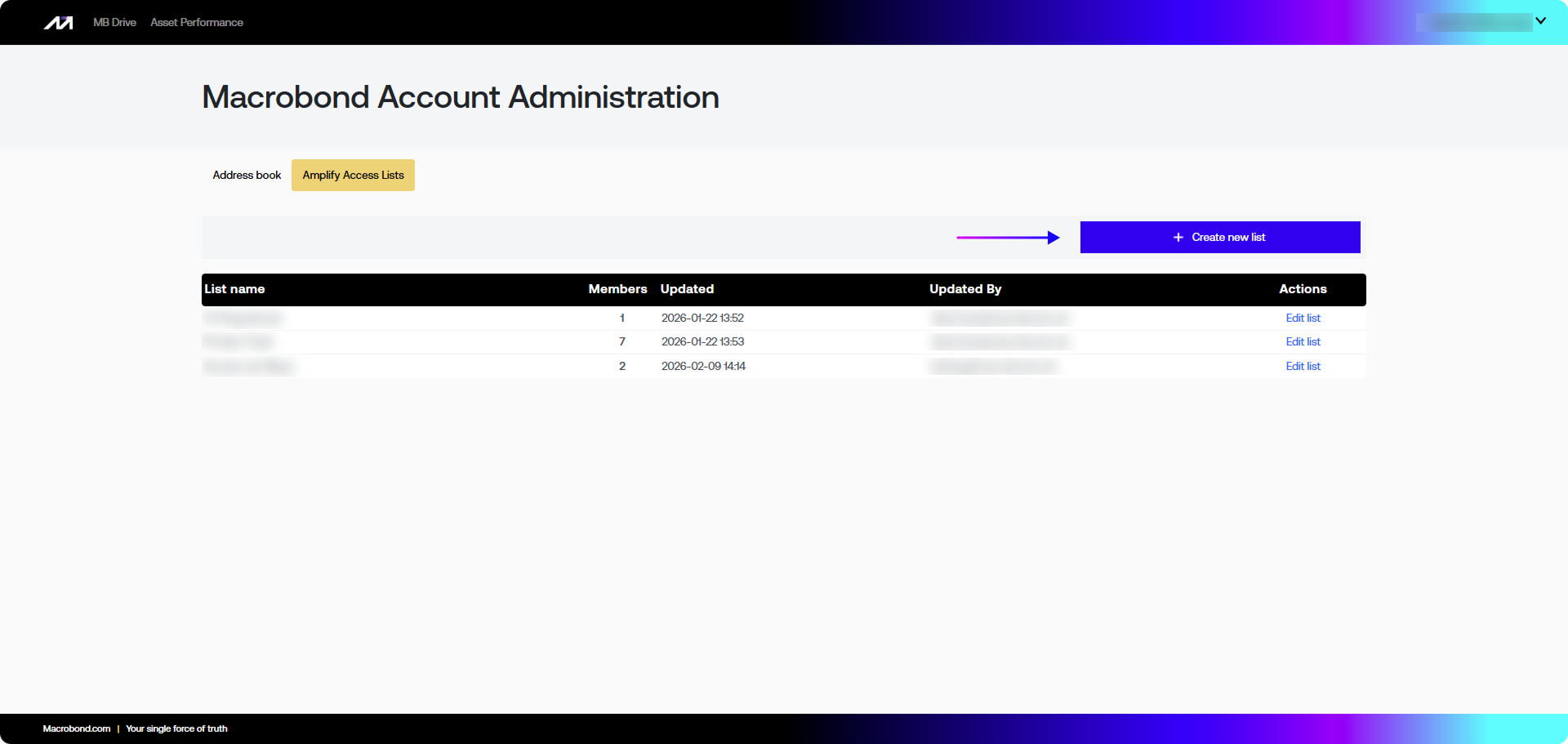
- In new window type in Access List name.
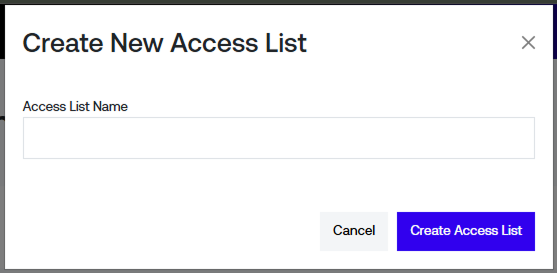
- Press ‘Create Access List’.
This will then show a page for the new Access List.
Adding users to Access List
From Amplify Access List
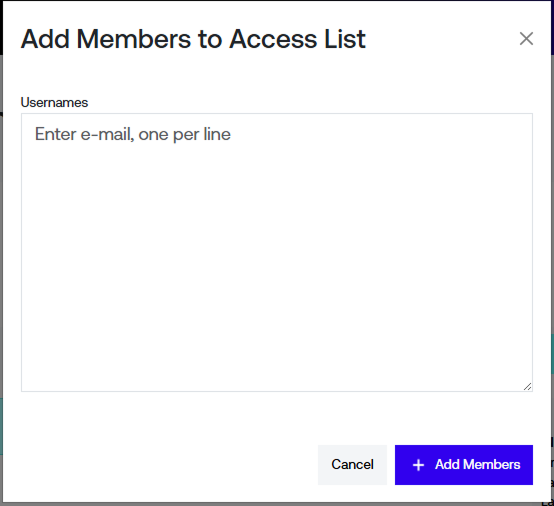
Go to the Amplify Access Lists tab. Press ‘Edit list’. Here you can press ‘+Add users’.
From Address Book
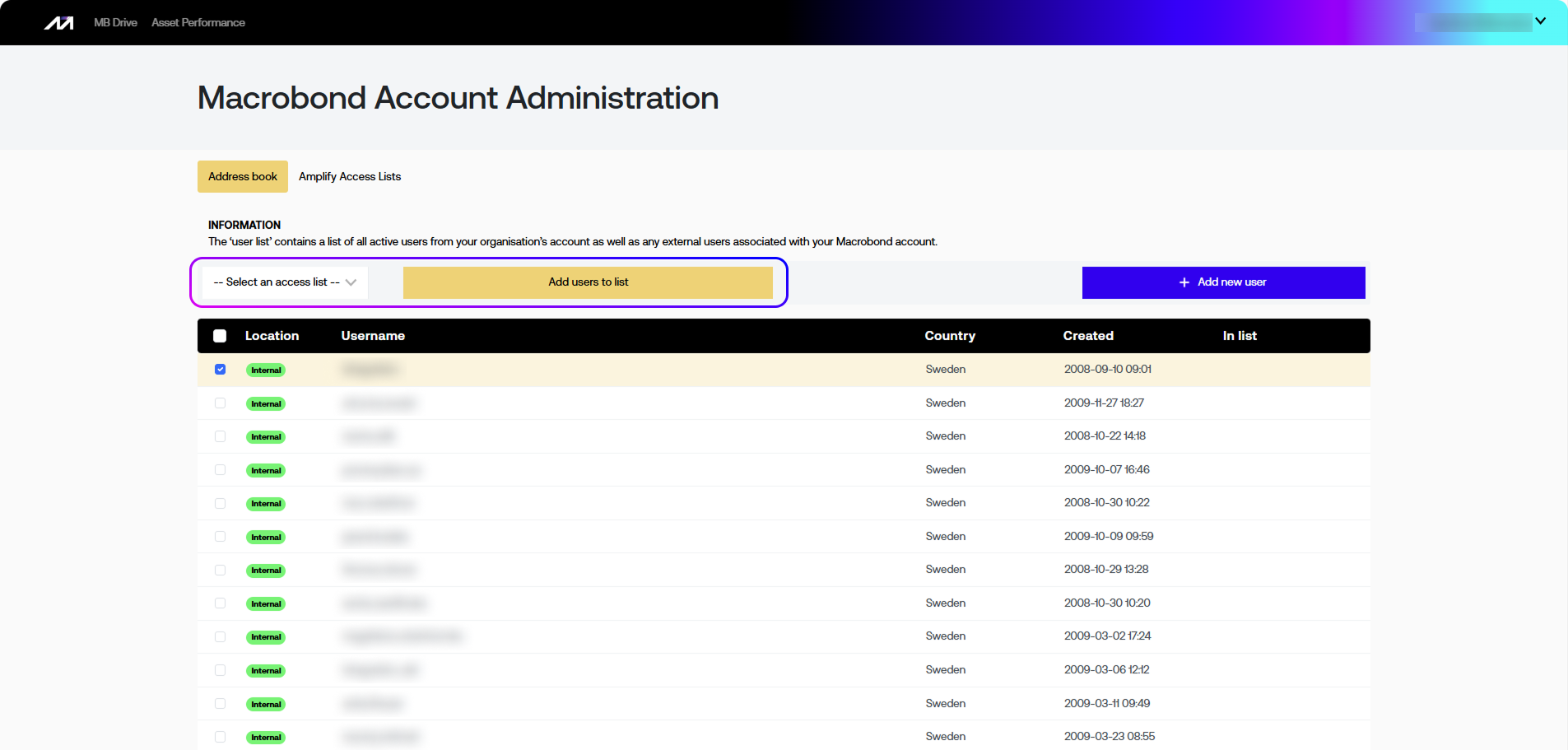
Select users which you want to add. Once you select any user you will be able to select one of the existing List and press ‘Add users to list’.
Delete user from Access List
Go to the Amplify Access Lists tab. Press ‘Edit list’. Press ‘Remove’ next to a user.
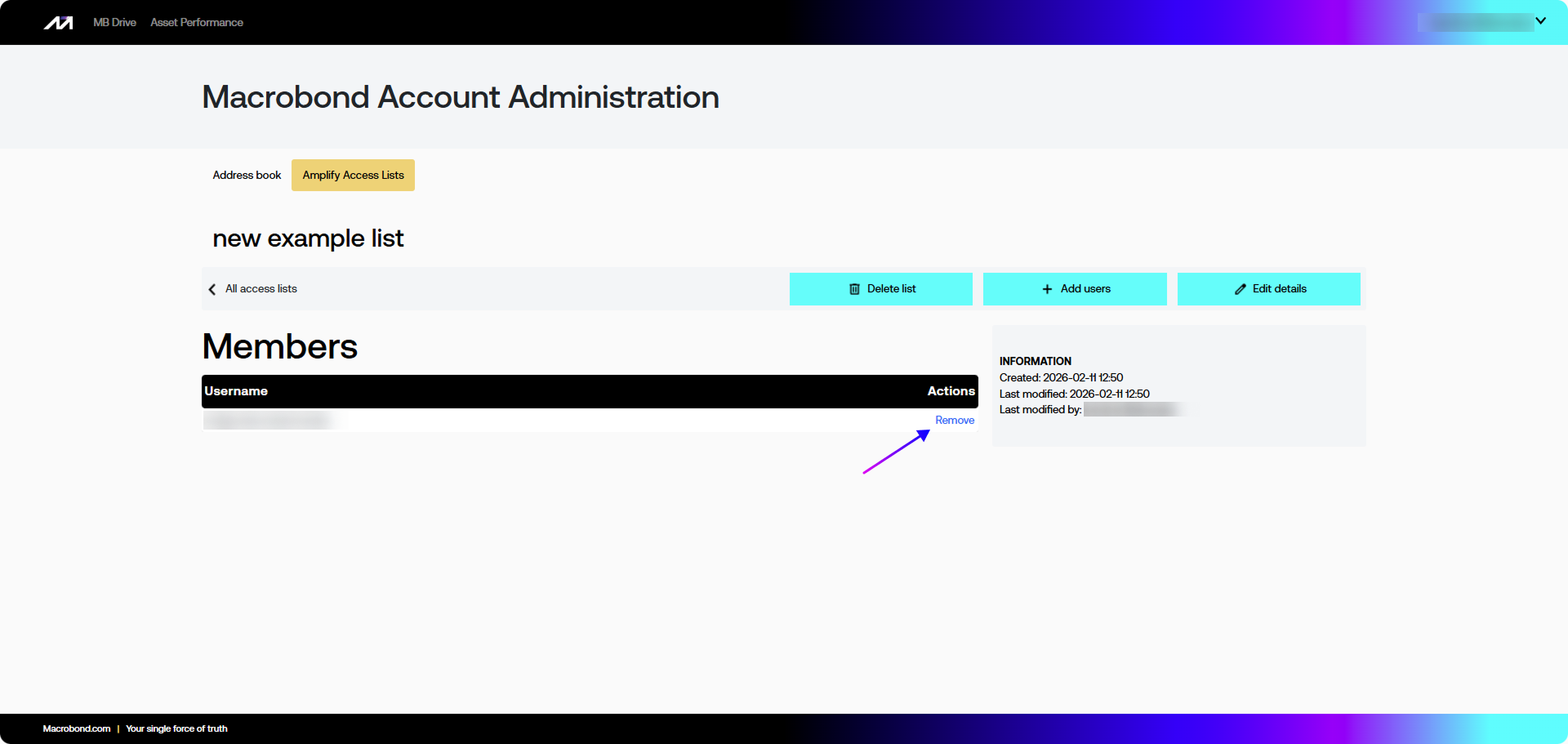
Delete Access List
Go to the Amplify Access List. Enter one of the lists through ‘Edit list’. Press the ‘Delete list’ button.