Overview
To log into Amplify, go to https://app.macrobond.com/amplify. Once logged in, you will see the main Amplify workspace:
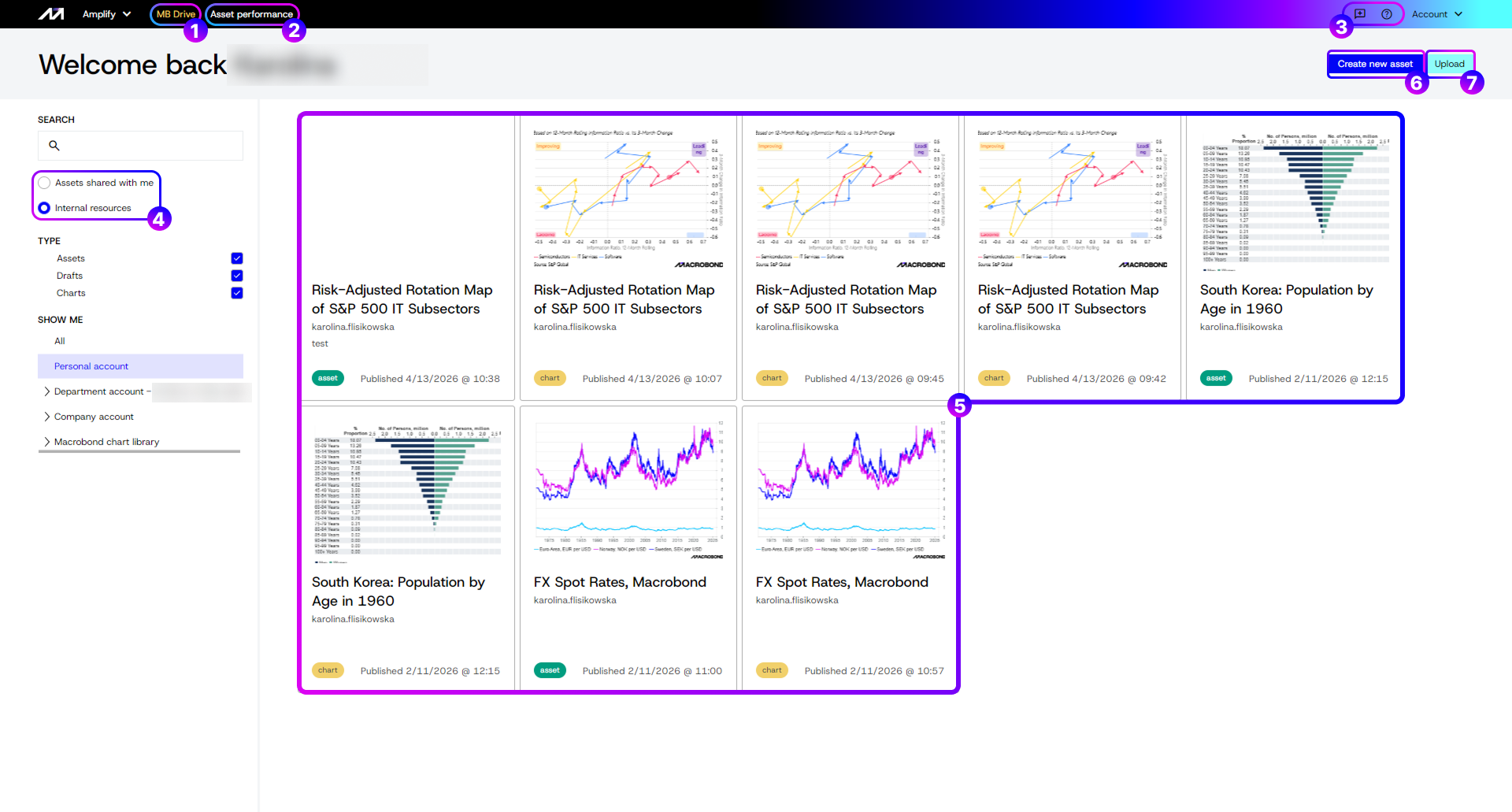
- MB Drive – your central storage for all of your files.
- Asset performance – view statistics and engagement metrics for your publication (see View for Asset Producer).
- ‘Send Feedback’ and ‘Contact Support’- quick access to support and feedback channels
- Assets shared with me and Internal resources – folders containing shared files, with filtering and search options to help you find what you need.
- Assets, Charts, and Drafts – dedicated views for each stage of your content.
- ‘Create new Asset’- start the process of publishing your charts.
- ‘Upload’ – upload flat images, which will appear as Charts in Amplify.
Types of files
Charts – these can be Macrobond charts that were created in Macrobond Analysis or flat images (PNG or SVG).
Drafts – when you hit the ‘Create new Asset’ button, you create a Draft to which charts can be added into slides. In this stage, you can edit all the available settings, options, and interactivity.
Assets – these are published Drafts available to your clients and colleagues. Once an Asset is published, it becomes unchangeable – you cannot edit it.
Creating Asset
The process of creating a published file is Chart(s) => Draft => Asset.
When you start the creation process, the ‘Chart’ is incorporated into a ‘Draft’. There you can add slides with ‘Charts’, choose settings, manage access, and other things. Then the ‘Draft’ is published as an ‘Asset’.
Chart – preparing elements
Files labeled as ‘Chart’ can be:
- a chart created in Macrobond Analysis (see Producing charts);
- or an uploaded image (through the Upload button on MB Drive page).
Note that the uploading image allows you to set a Title, Description and Tags (the more descriptive you can be the easier it will be to find and use that chart in the asset creation process):
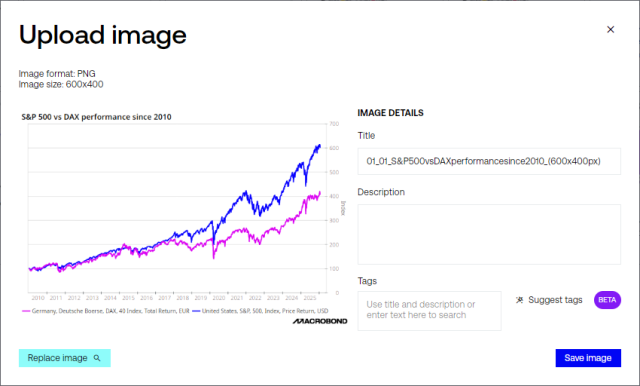
Chart elements such as title, description or tags can be edited in Amplify. Changes are saved automatically.
Chart to Draft – start the process
From Macrobond Amplify
Press ‘Create new Asset’ in the upper-right corner.
From Macrobond Analysis
If you have used 'Save and launch Amplify’ in Macrobond Analysis (see Producing charts), then you will land in Amplify and see this – information panel for ‘Chart’:
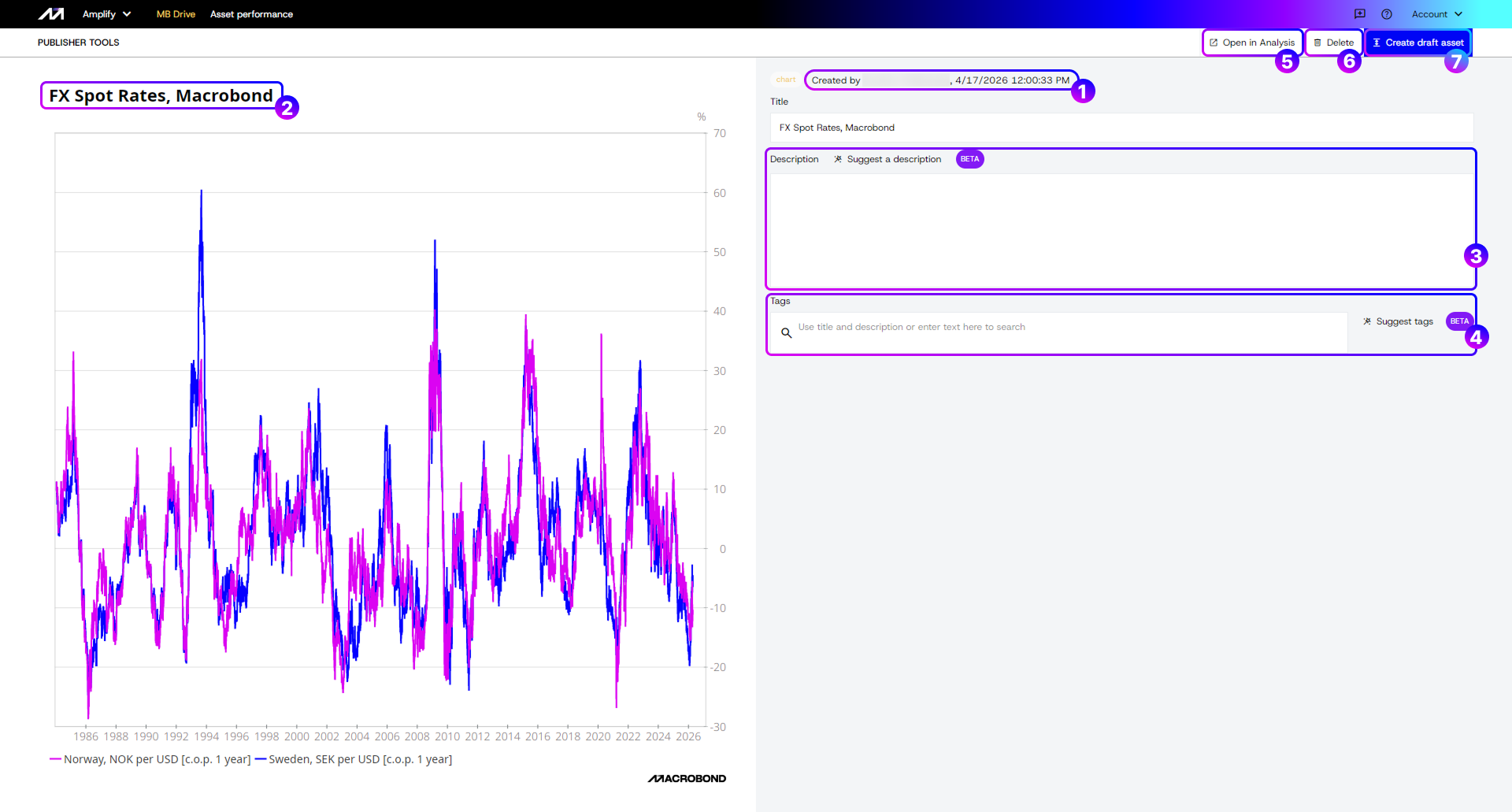
- Status, Author, Date and Time – shows the current stage of the file (Chart => Draft => Asset) along with your name and the current date. The author can be edited at the next stage.
- Title – automatically taken from the chart’s title. Can be edited here.
- Description – automatically taken from the chart’s comment section. Can be edited here. If you press 'Suggest a description’, an AI will generate one for you. If you do not see this option, it means your organization opted out of this feature.
- Tags – start typing in a word and press ‘Enter’ to see suggested tags
- Open in Analysis – opens the chart in Macrobond Analysis as a ‘Chart snapshot’. Any changes that you make to it will apply to this copy only; The chart in Amplify will not be changed.
- Delete – permanently removes the file. Deleted files cannot be recovered but can be added again later.
- Create draft Asset – moves the chart to the next stage of the Asset publishing process.
Review the information (all of it can be edited later), then click ‘Create draft Asset’ to continue.
Draft – settings
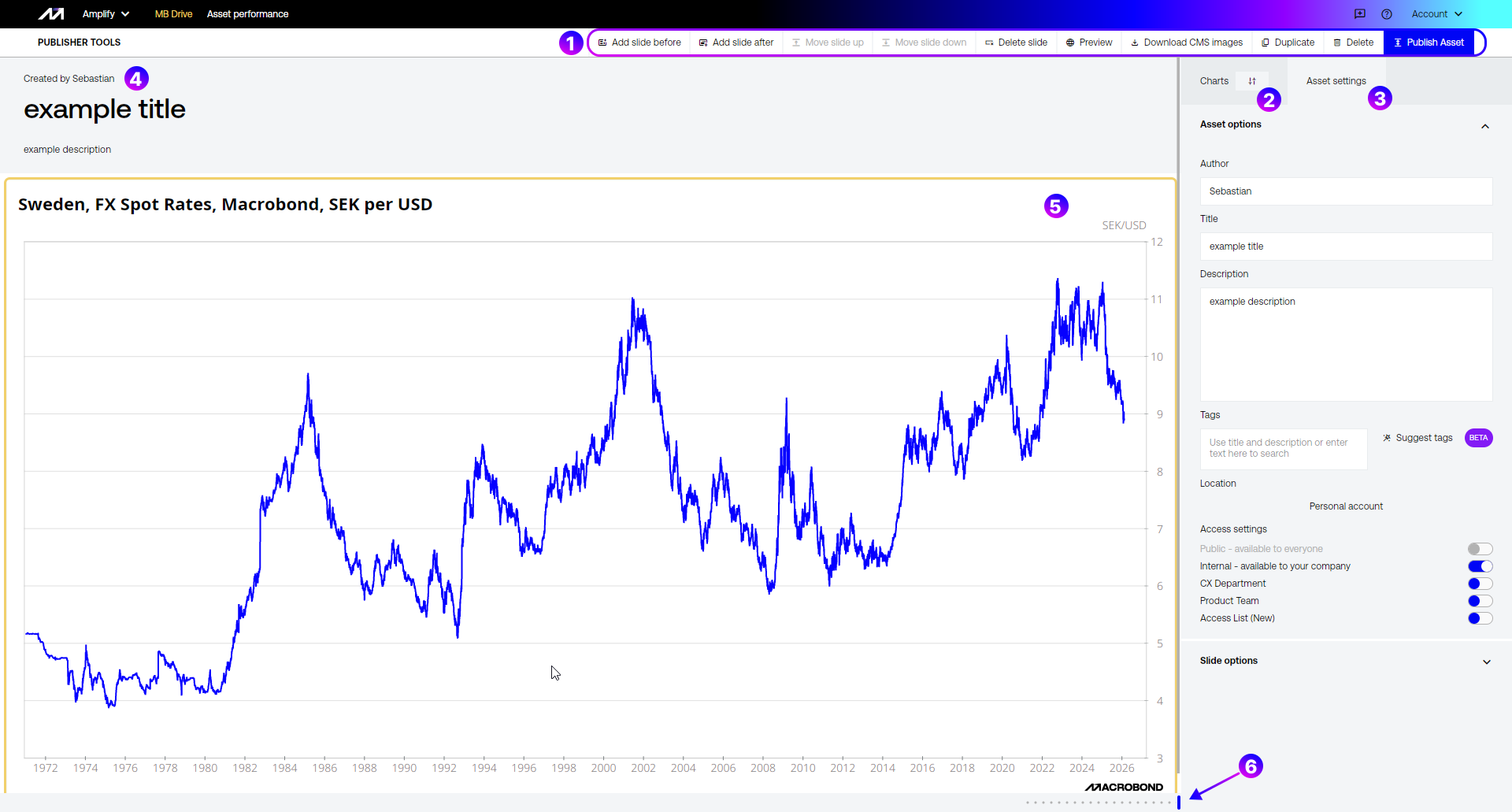
- Publisher tools – controls for managing and publishing your assets.
- Charts tab – contains all charts available to you.
- Asset settings tab – lets you edit text, manage access and configure slide options.
- Publication title area – automatically takes the title from the first inserted Chart. This can be edited in Asset settings > Asset options.
- Slides area – where you can add and arrange multiple Charts
- Zoom slider – to get a better view of all the Charts side by side use zoom slider.
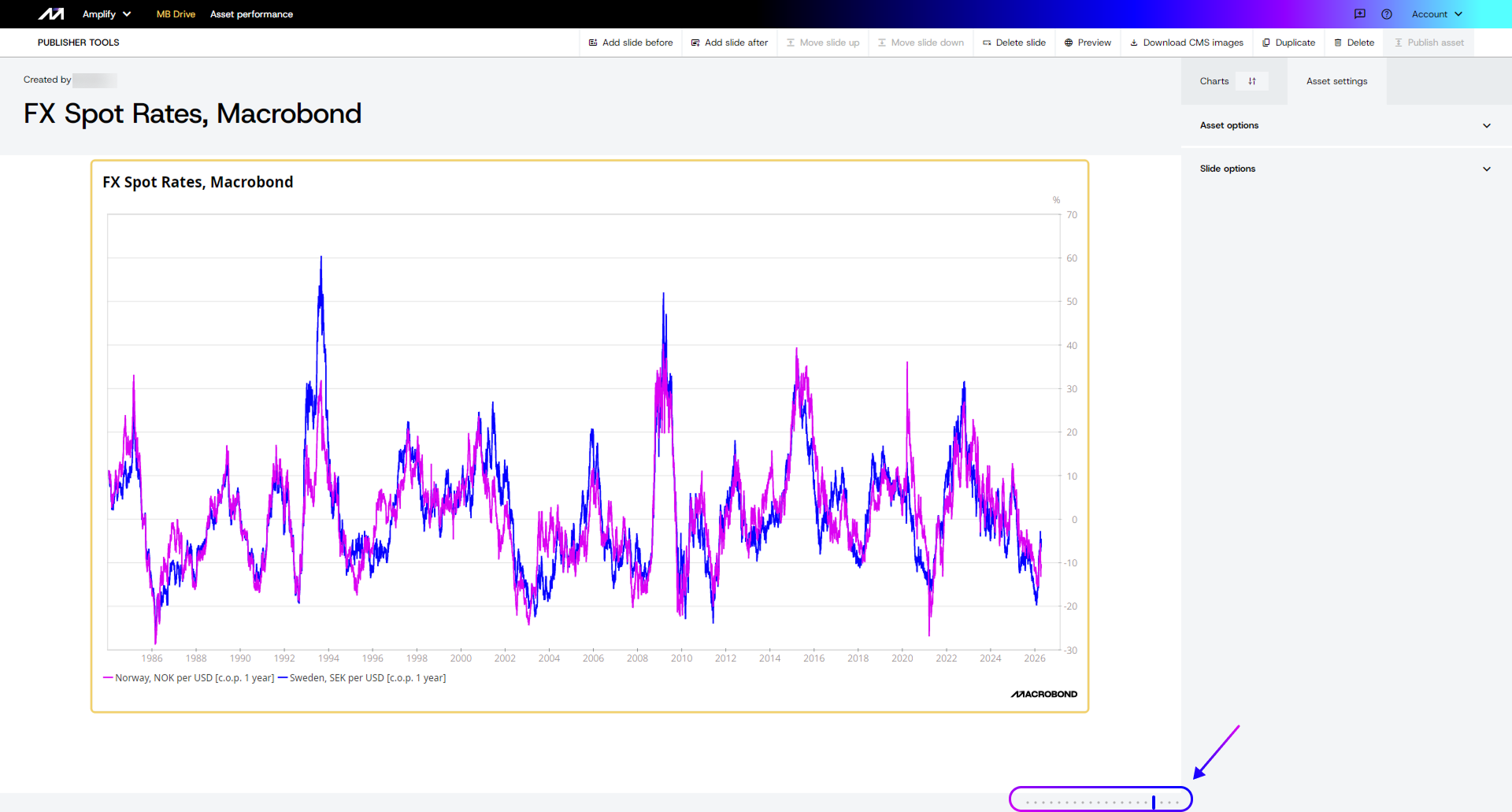
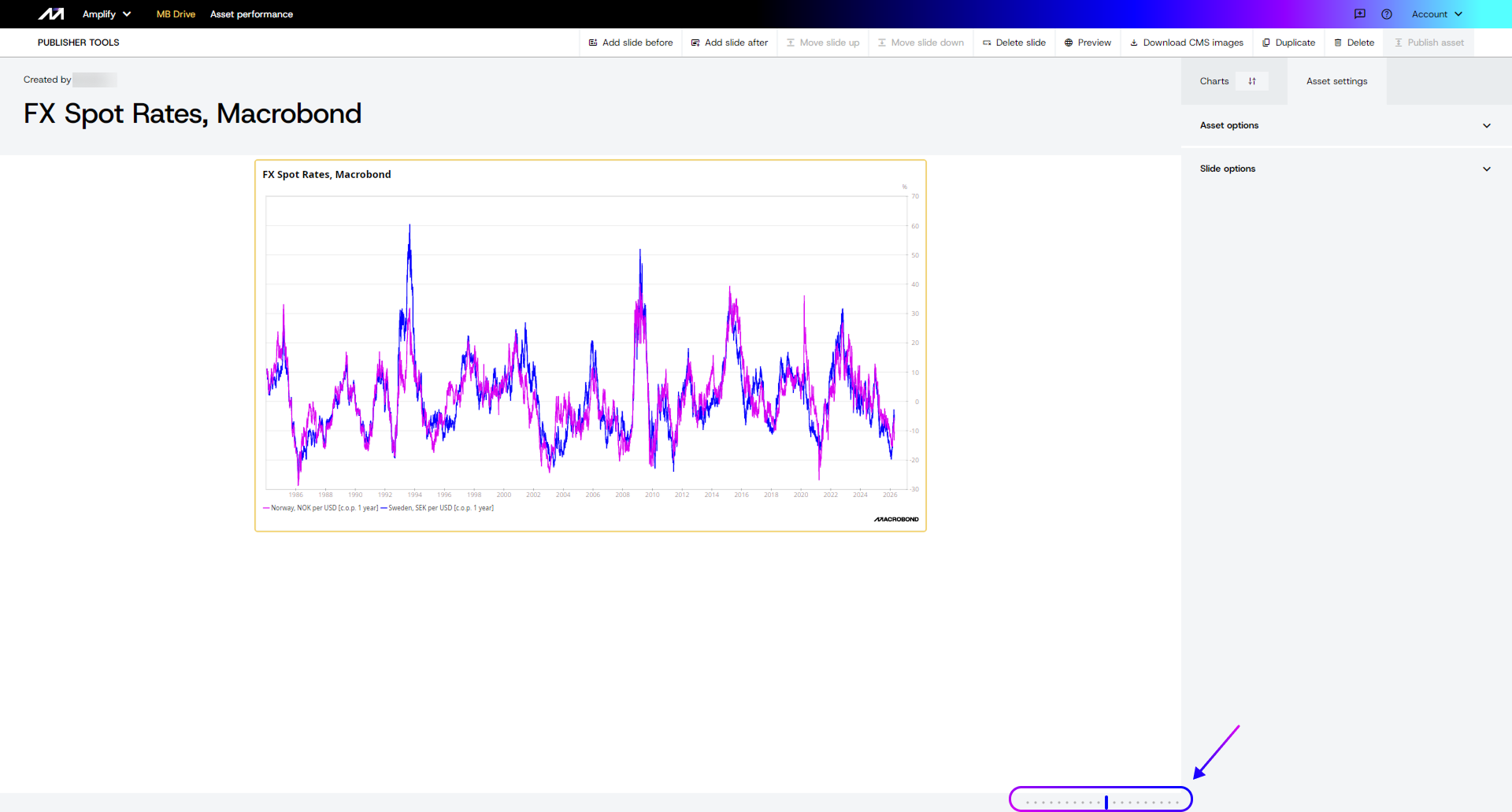
Publisher tools

Slides tools – add, move and delete slides.
Preview – see how your asset will appear to Consumers before publishing.
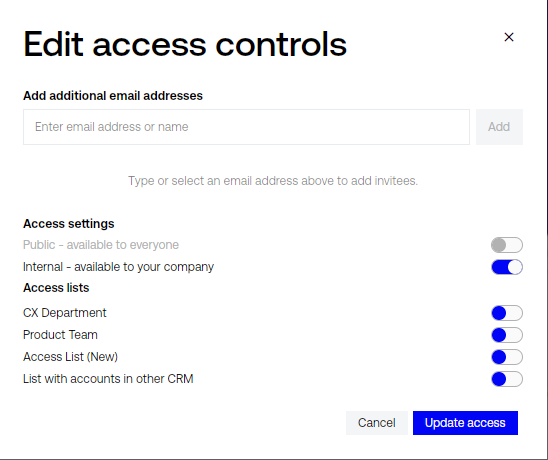
Edit access – change Access setting based on Access list or send invitations to external users. Control who can view the asset by granting access to previously created teams or users.
Download CMS images – download all charts as images (PNG or SVG formats) in selected sizes for use in your CMS (Content Management System). Select elements which you want to download.
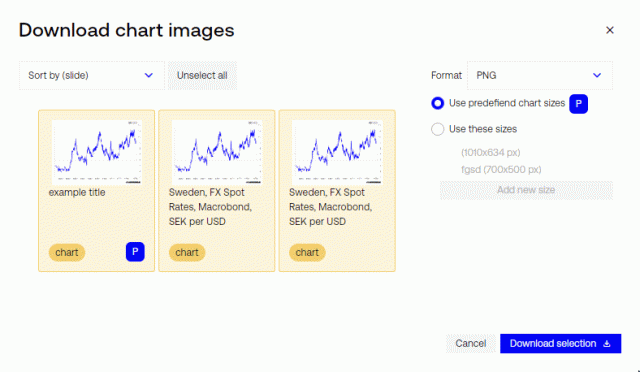
Elements with [P] icon have predefined size attached to them. If you select ‘Use predefined chart sizes’ option, it will download only those charts with [P].
The downloaded file will be a ZIP archive.
Duplicate – creates a copy of the whole Draft.
Delete – permanently removes the draft. Deleted drafts cannot be recovered.
Charts tab
Contains all charts available to you. Click the double-arrow to reveal the Search option, making it easier to find and navigate through your charts.
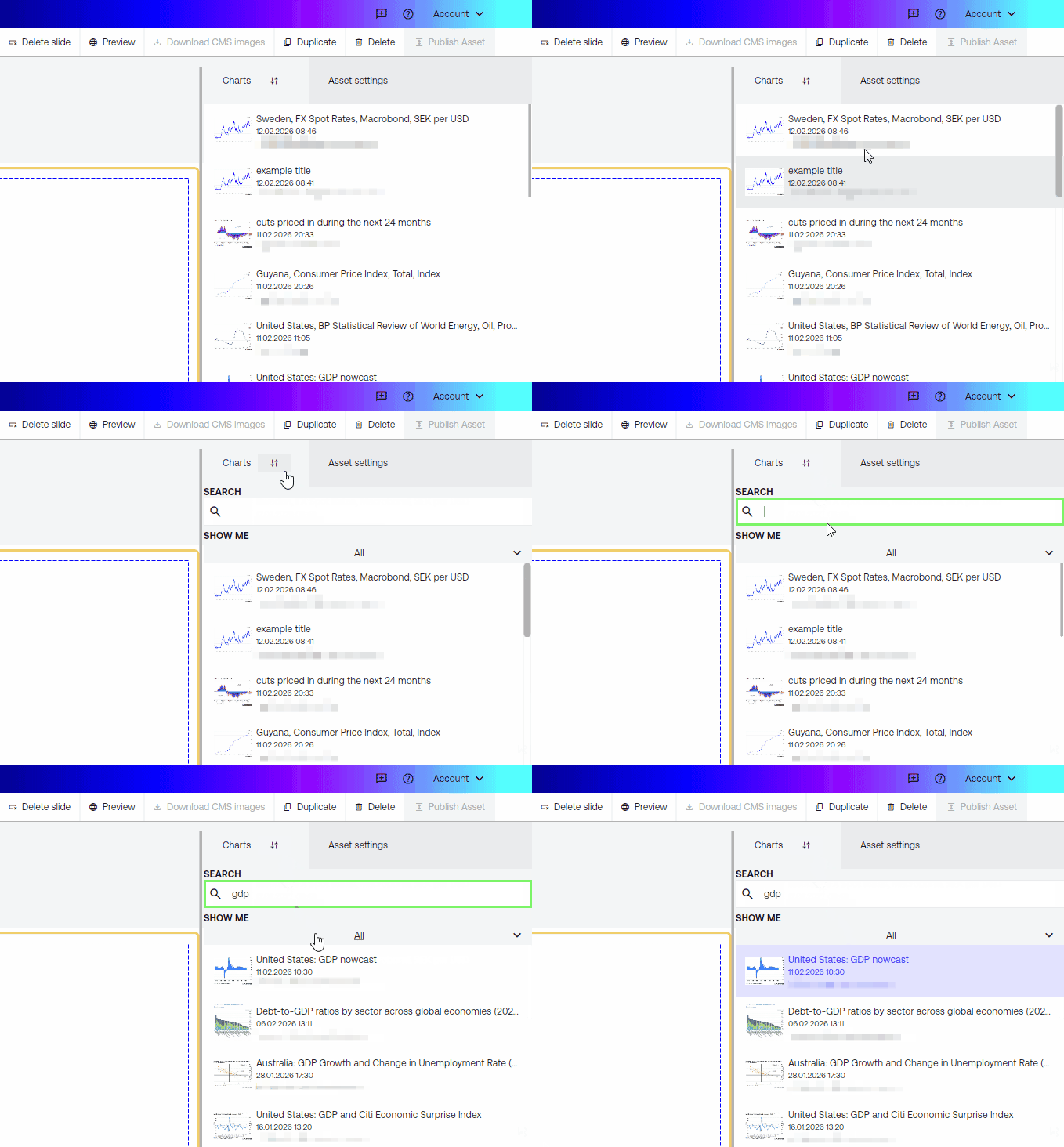
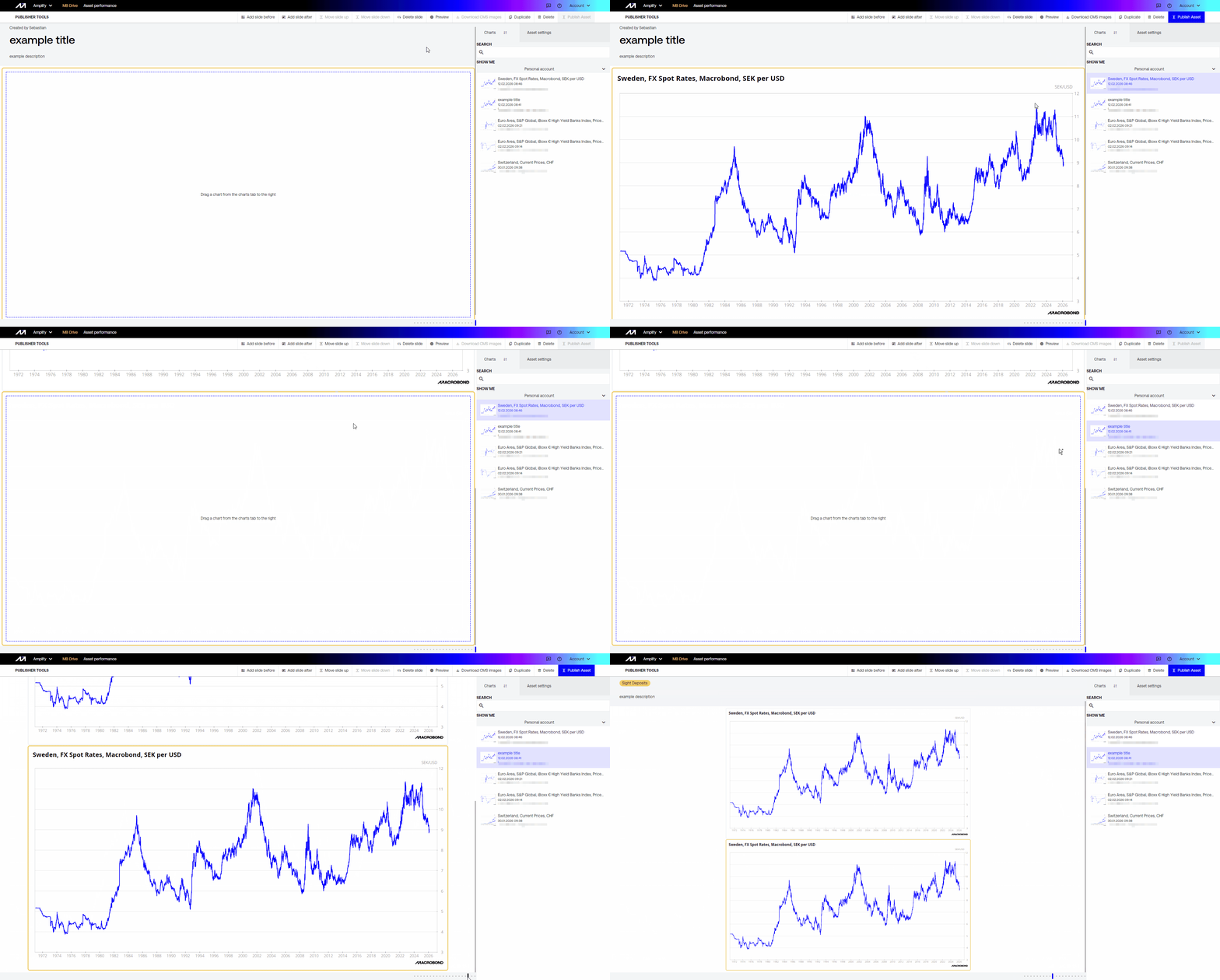
To expand your Asset, use the Publisher to select ‘Add slide before’ or 'Add slide after’, then drag the Chart into a slide.
Asset settings tab
Settings for the Asset, slides and charts.
Asset options
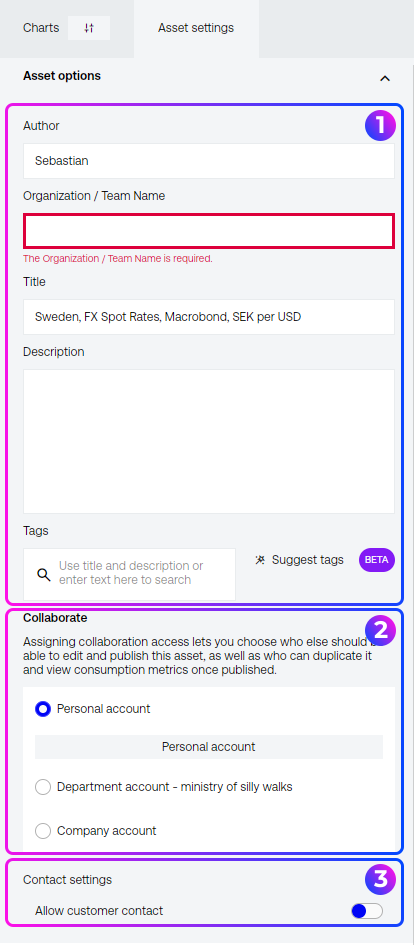
- Author, Organization/Team Name, Title, Description and Tags – all text elements from the Publication title area can be edited here.
- Collaborate – select the location of the Asset.
- Contact settings – control if users can write to the publisher and which email address should be used (this appears after moving slider).
- Access settings can be found on Publisher tools ribbon under Edit access.
Slide options
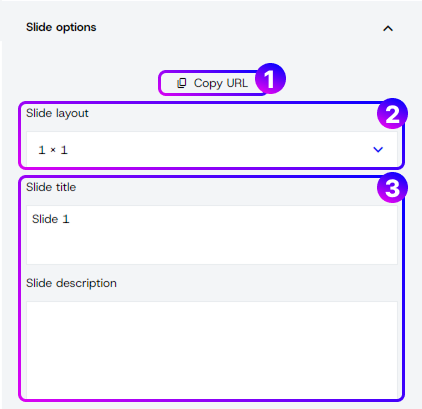
- Copy URL – copy a link to your Draft to share it with another Amplify user.
- Slide layout – choose a pre-formatted layout for each slide. To add charts, drag them from other slides or from the Charts tab.(see movie below)
- Slide title, Slide description – editable individually for each slide.
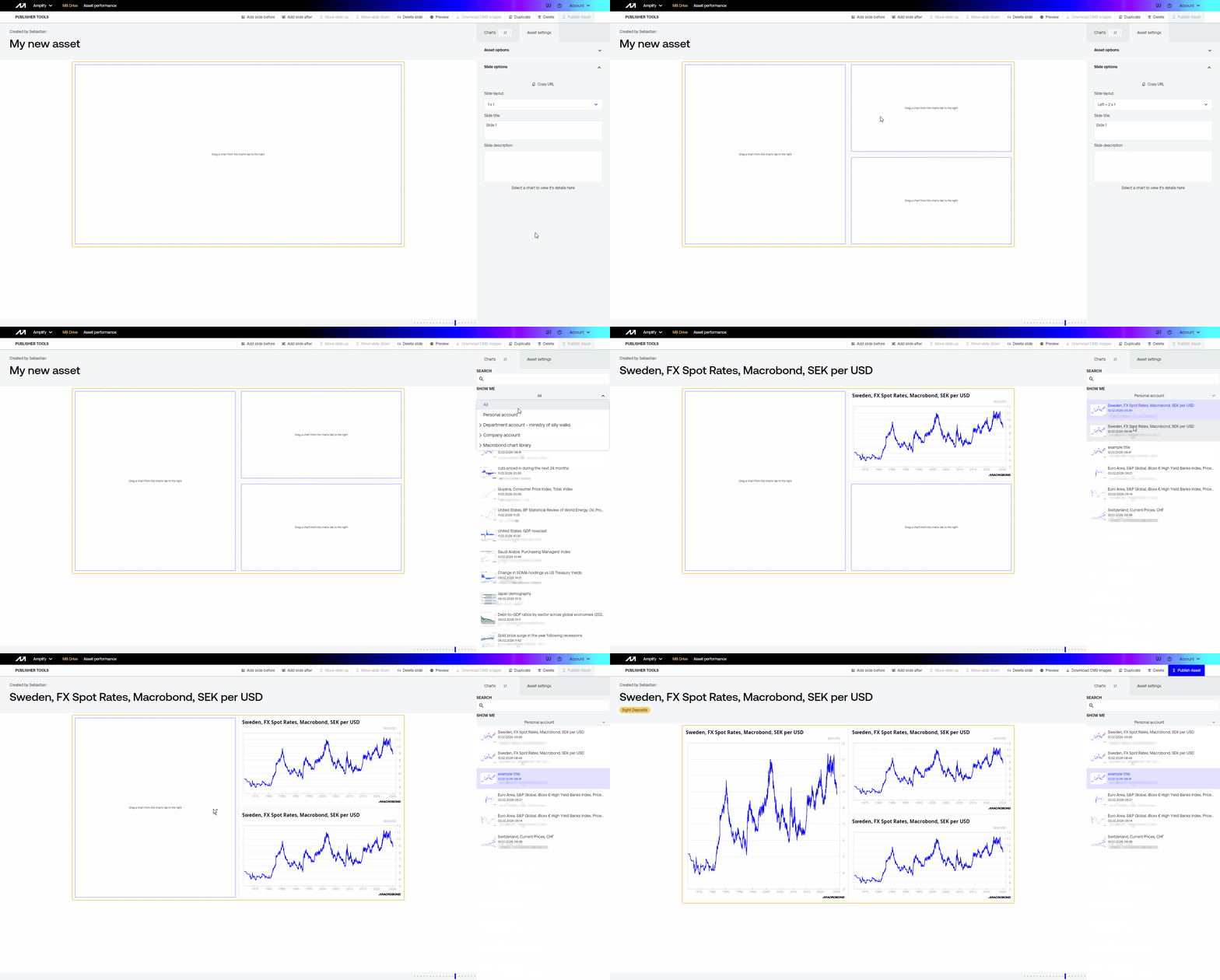
Chart options
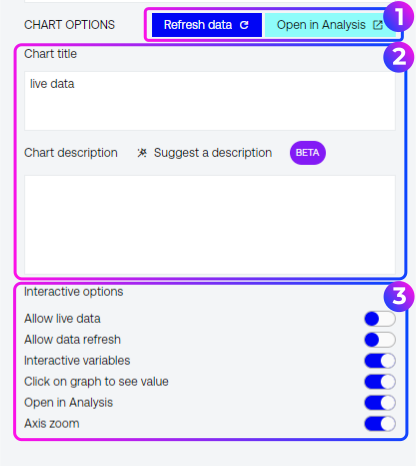 (available after clicking on a chart)
- Refresh Data – refreshes chart with the newest values.
Open in Analysis – opens the chart in Macrobond Analysis as a chart snapshot. You can make changes and save them, but they will apply to the copy only - the chart in Amplify will remain unchanged. This option is not available for flat images. - Chart title, Chart description – editable individually for each chart. Selecting Suggest a description will generate one using AI. If this option is not visible, your organization has opted out of this feature.
- Interactive options – select which interactive features should be available to Consumers. By default, they are all turned on. You can turn them off for each individual Chart.
Allow live data/Allow data refresh – you can decide whether an asset opens with the latest data or with the figures as they stood at publication. Consumers can refresh to the latest at any time.
Publish Asset
When your Draft is ready, press the blue ’Publish Asset’ button in the Publisher tools. Your asset will appear exactly as shown in the preview (see Publisher tools → Preview).
Note that once an asset is published, it cannot be changed or edited. If you need to make updates, you can quickly Duplicate it as a draft and delete the incorrect asset.
Sharing
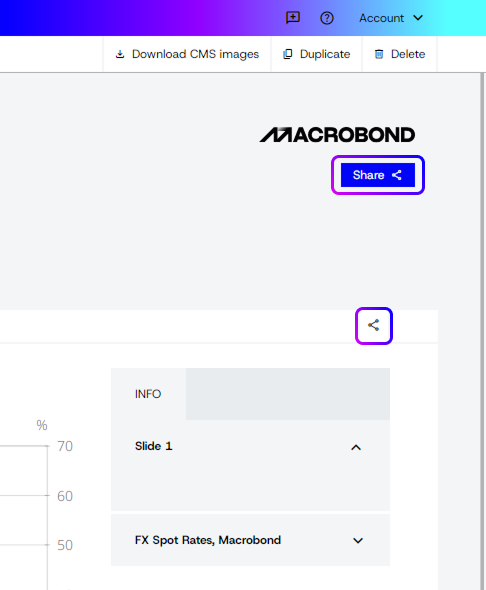 To share your asset, click the blue Share icon in the upper‑right corner and select Copy link.
You can also share individual slides - each slide includes a Share button on the right side of the slide navigation bar, which links directly to that specific slide.
Contacting publisher
When creating an asset you can decide if the publisher can be contacted by email. By default this option is disabled.
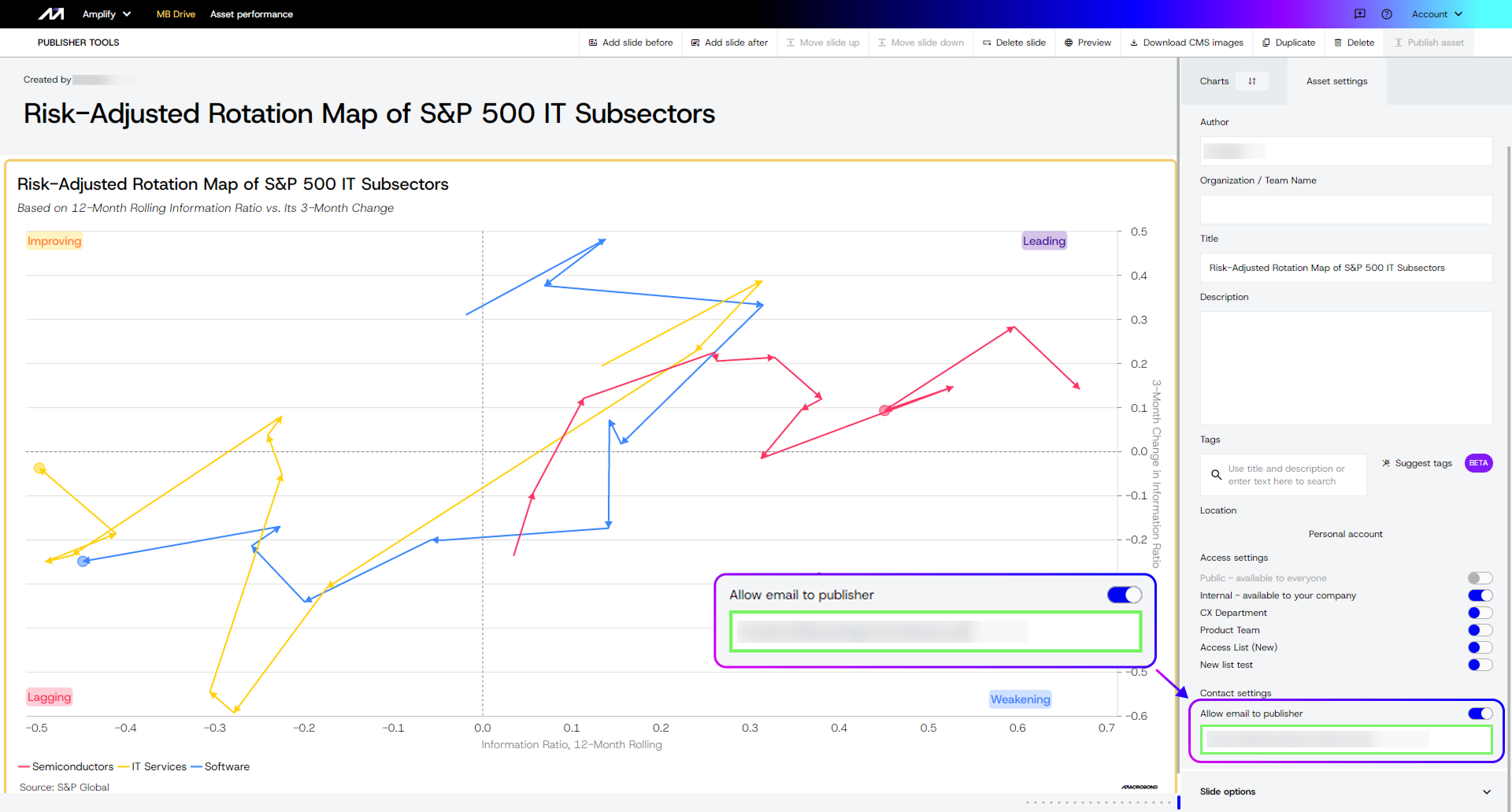
Consumer launches the email from here: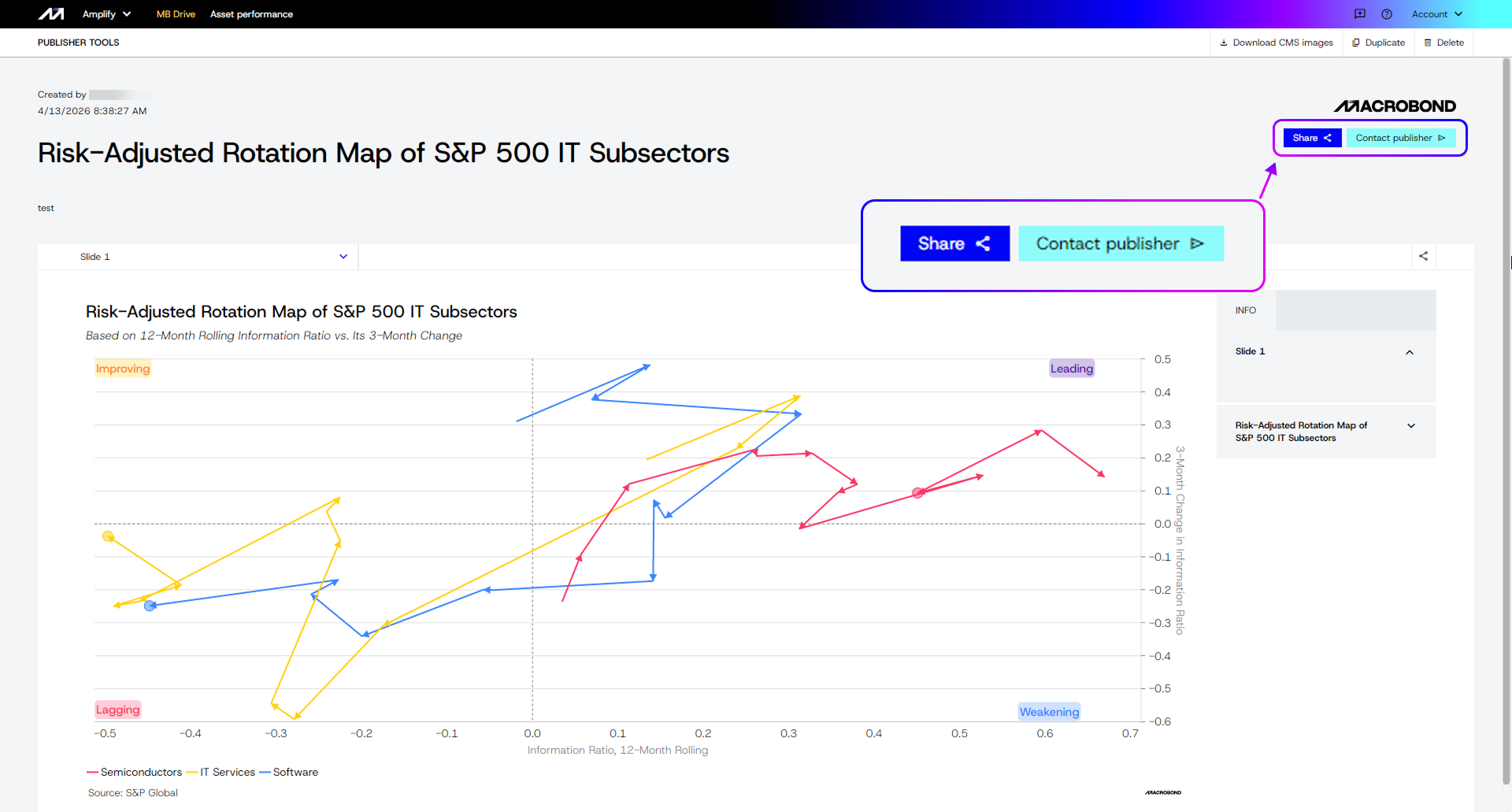
3rd party data
If your chart contains certain types of data (i.e., in-house series, or data from third party connectors), Macrobond will automatically detect this and notify you. You will see an information message, and the option 'save as Image’ may appear. This allows you to save the chart as a flat image, without interactive functionality, when required to comply with your data licensing terms.